

Introduction
Tutor Me transforms your study materials into a real-time, human-like tutoring experience. It personalizes instruction to your unique learning style, adapts to your needs as you progress, and is available 24/7—whenever you’re ready to learn.Accessing Tutor Me
Getting started with Tutor Me is simple:-
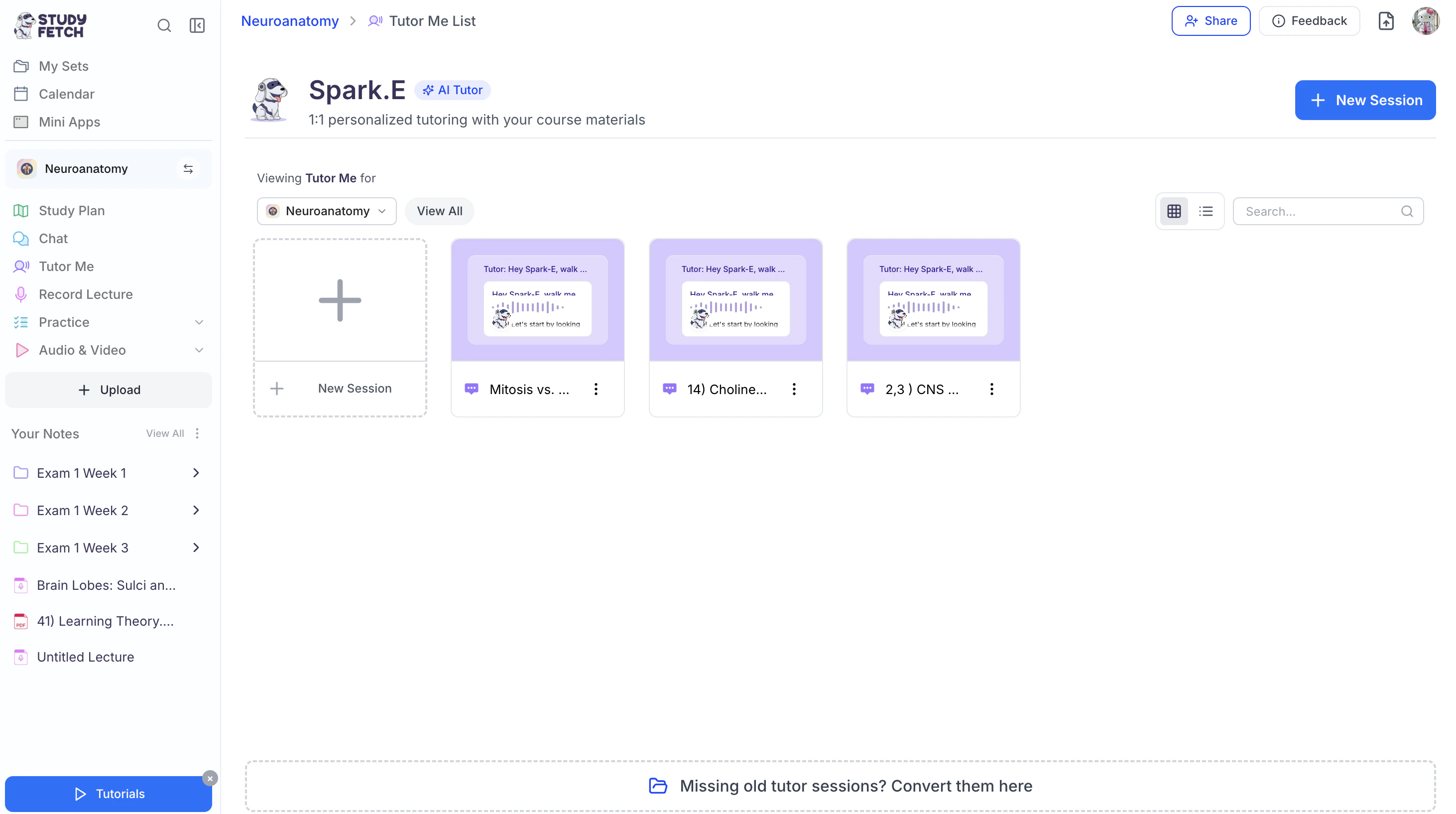
On the left-hand side of your Dashboard click Tutor Me .
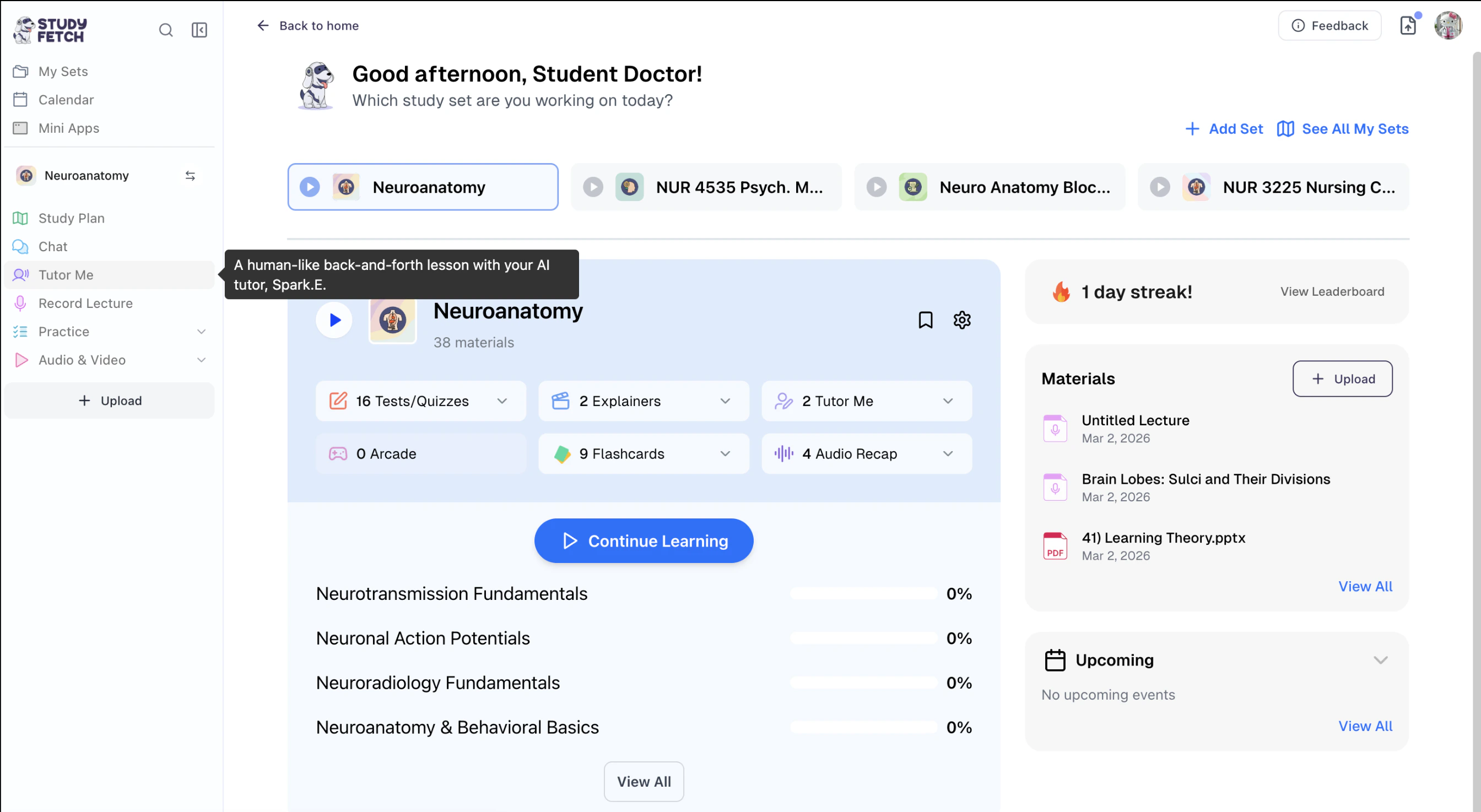
-
All existing Tutor Me sessions associated with your Study Set can be found on this page.
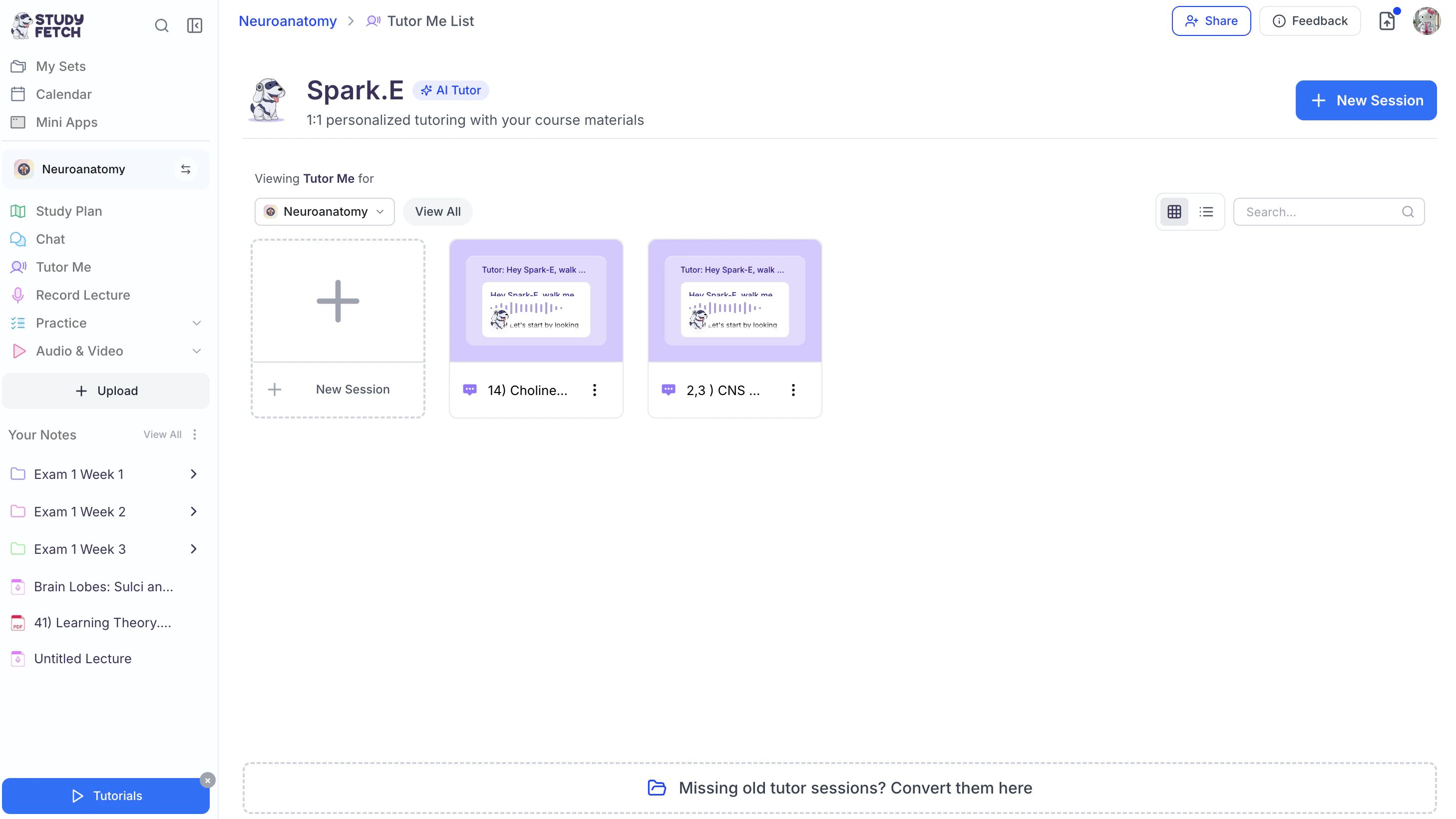
-
To open an existing Tutor Me session, simply click on the name of the material associated with that session.
Tutor Me sessions are automatically named after the selected material or topic, making them easy to find and revisit.
- To generate a new Tutor Me session, follow the steps outlined below.
Creating Your Tutor Me Session
Step 1: Create a New Tutor Me
- To generate a new Tutor Me:
-
Select + New Session from the left, or
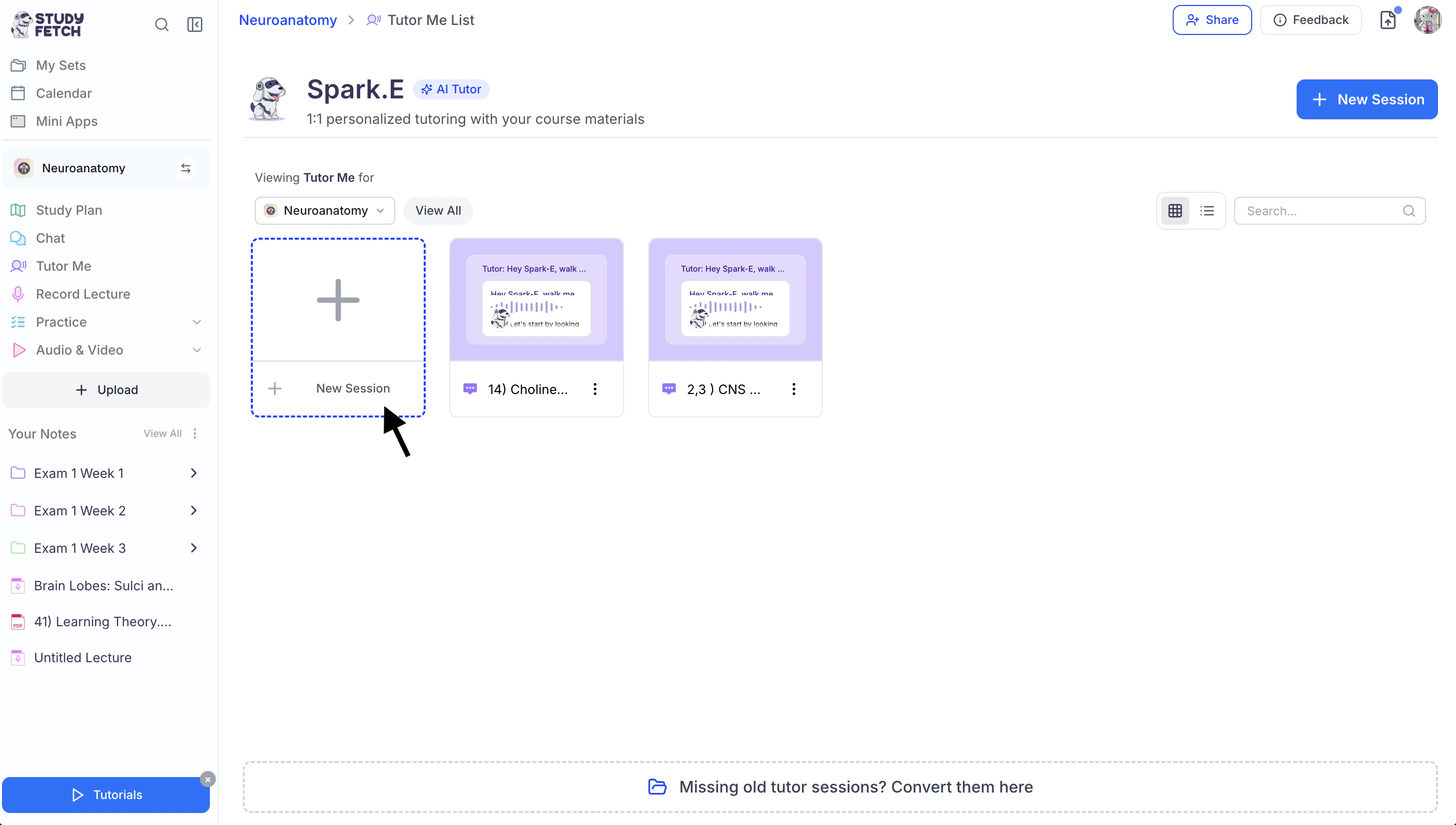
-
+ New Session from the top right.
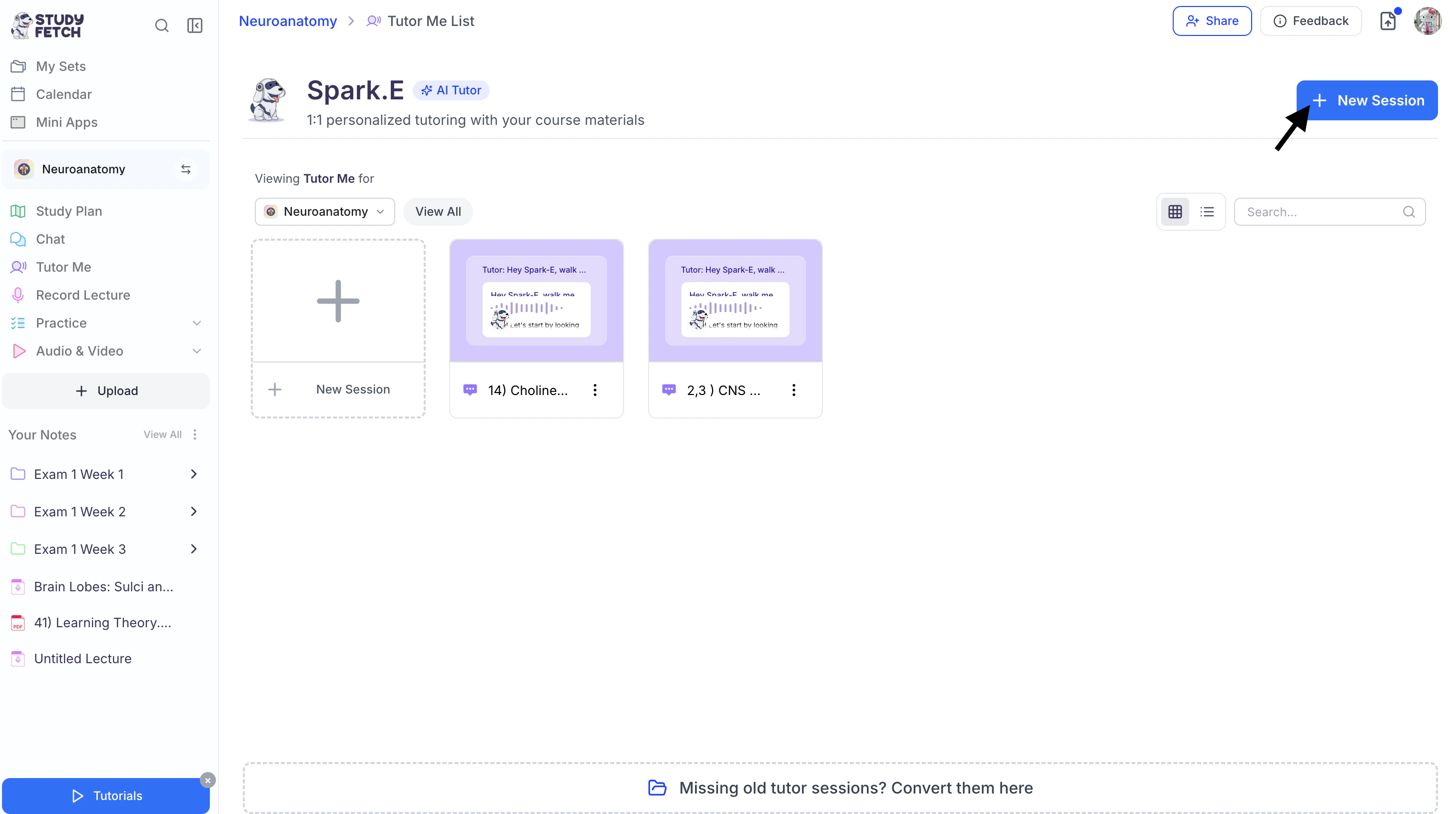
-
Select + New Session from the left, or
Step 2: Choose Your Source
-
Next, select how you would like to generate your Tutor Me Session from these options:
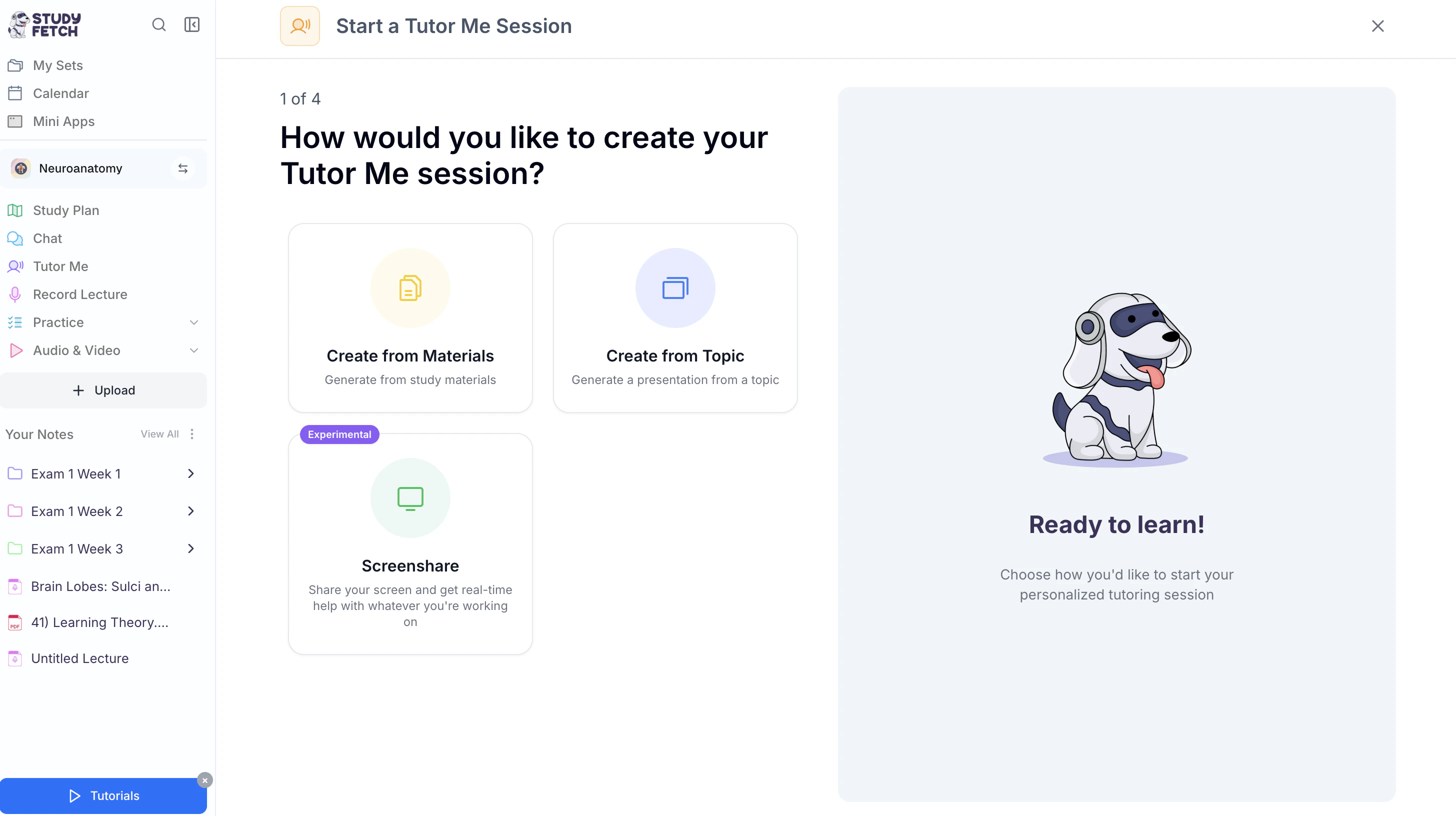
- Create from Materials to build a tutor me session from your study materials.
- Create from Topic to generate a tutor me session presentation from any topic you want to learn about.
- Screenshare to generate a Tutor Me session and receive real-time help with whatever you’re working on.
- Then follow the steps for your selected method below.
Method 1: Create from Materials
-
After selecting Create from Materials, choose which previously uploaded materials you would like to include in your tutor me session or select + Upload New Material to import material you haven’t uploaded.
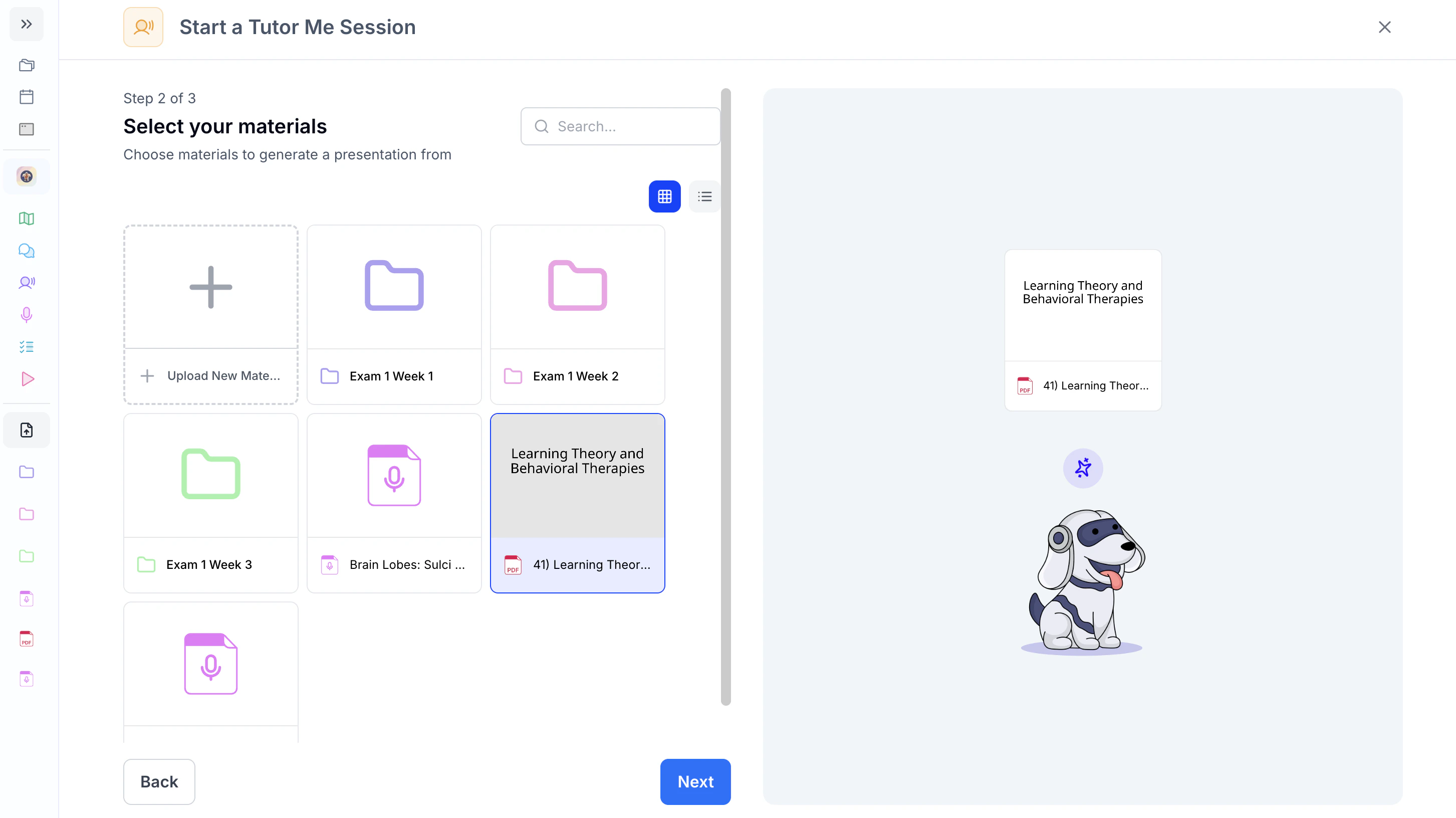
- Click Next.
-
Select the page range of the material you’d like your session to cover.
 Tutor Me currently supports up to 40 pages per session. If your material exceeds this limit, simply divide it into multiple sessions and select the specific pages you’d like to focus on for each one. This helps keep every session targeted, organized, and manageable for optimal learning.
 - Proceed to Step 3: Set Your Tutor Me Goals.
Method 2: Create from Topic
No study material? No problem. With Create from Topic, simply enter the subject you want to learn, and we’ll generate a comprehensive PowerPoint presentation to teach you the topic. Then, Tutor Me transforms those slides into an interactive lesson for a fully guided learning experience.-
After selecting Create from Topic, type the topic you want to learn about in the box under Topic Description .
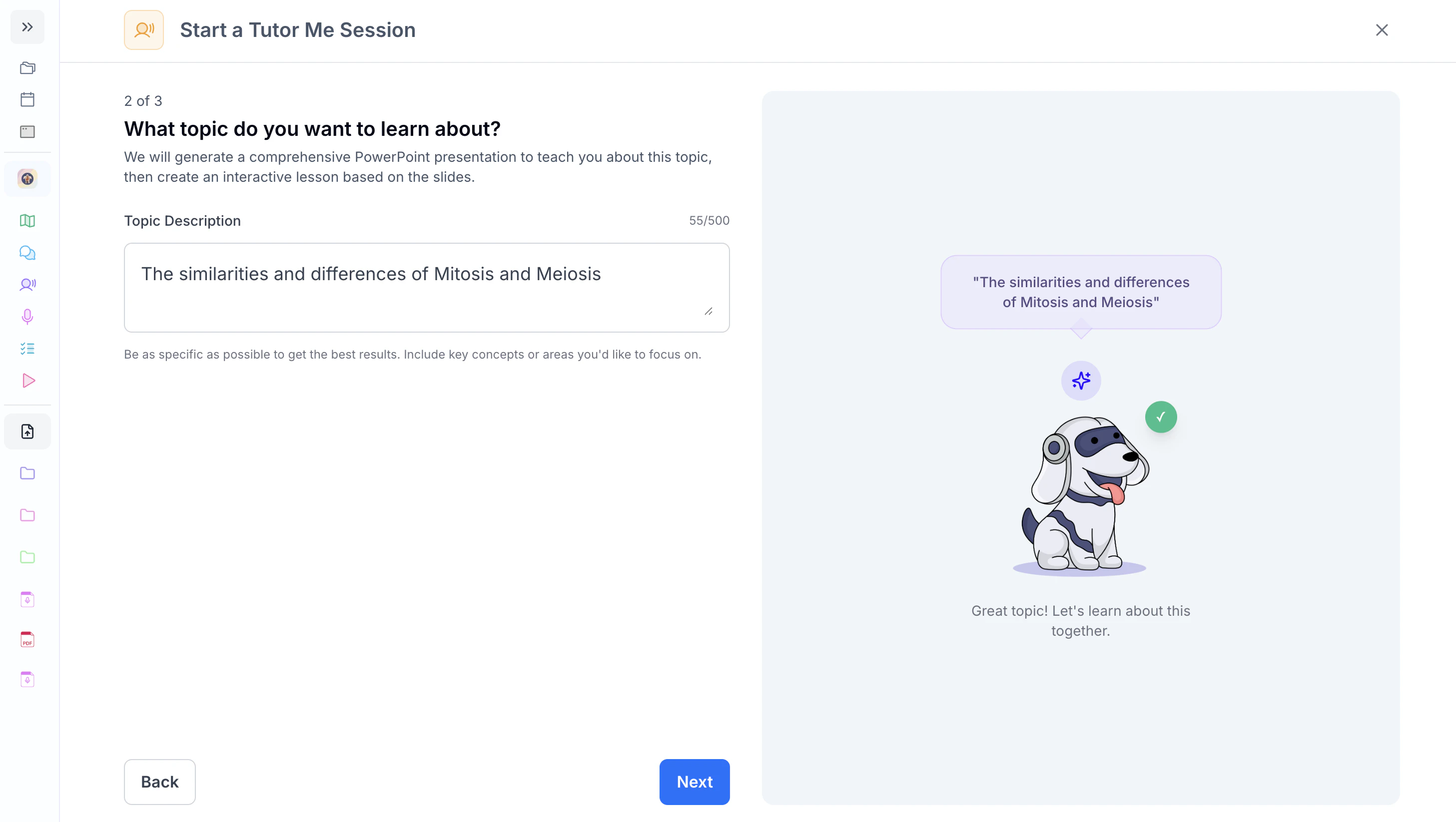
- Click Next and proceed to Step 3: Set Your Tutor Me Goals.
Method 3: Screenshare (Experimental)
- When prompted after selecting Screenshare, allow microphone access.
-
Confirm your microphone is connected:
-
The Microphone Check box should appear green.
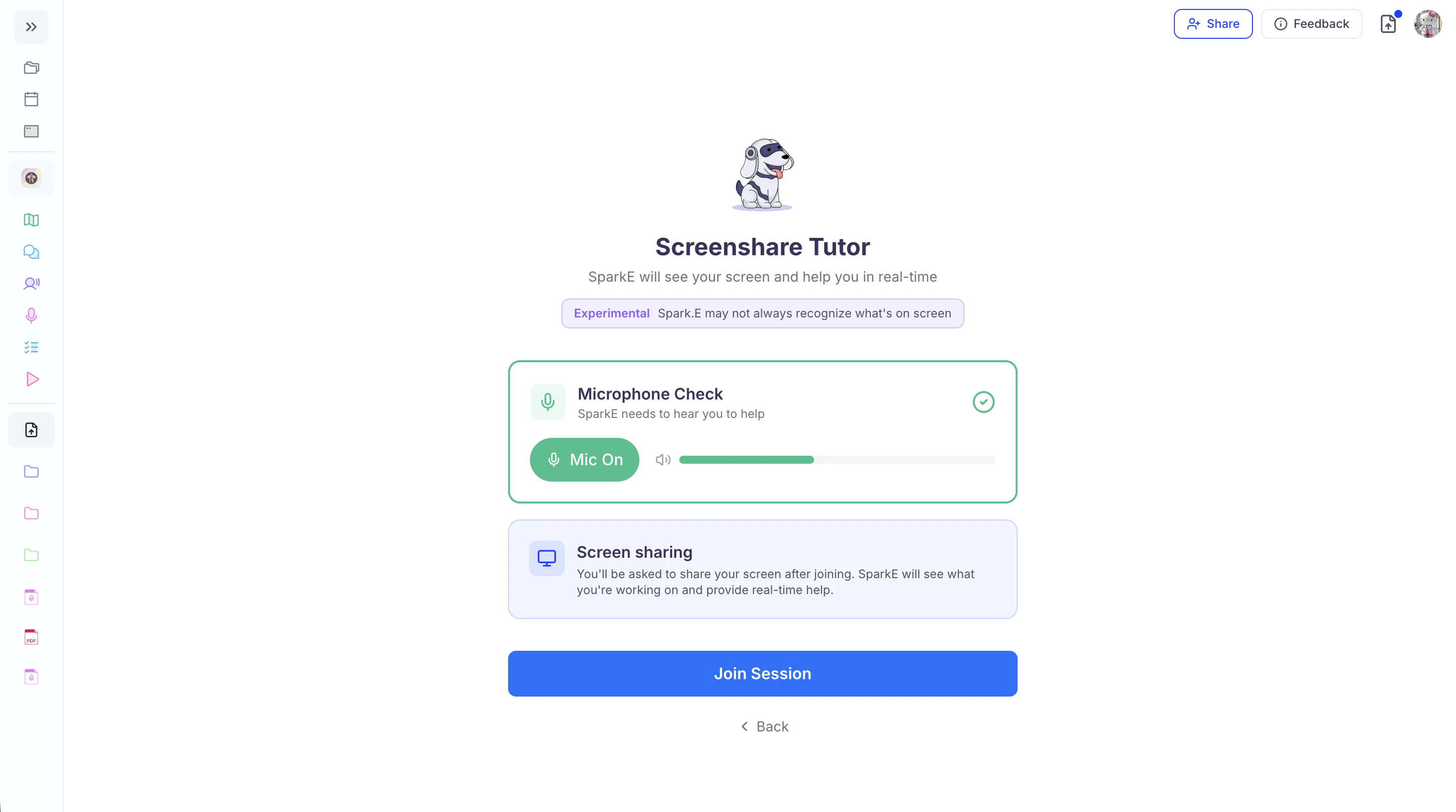
- The Mic button should be green and display “Mic On.”
- Speak briefly to ensure the sound bar detects your voice.
-
The Microphone Check box should appear green.
-
If the Microphone Check is red and the Mic button says “Mic Off”:
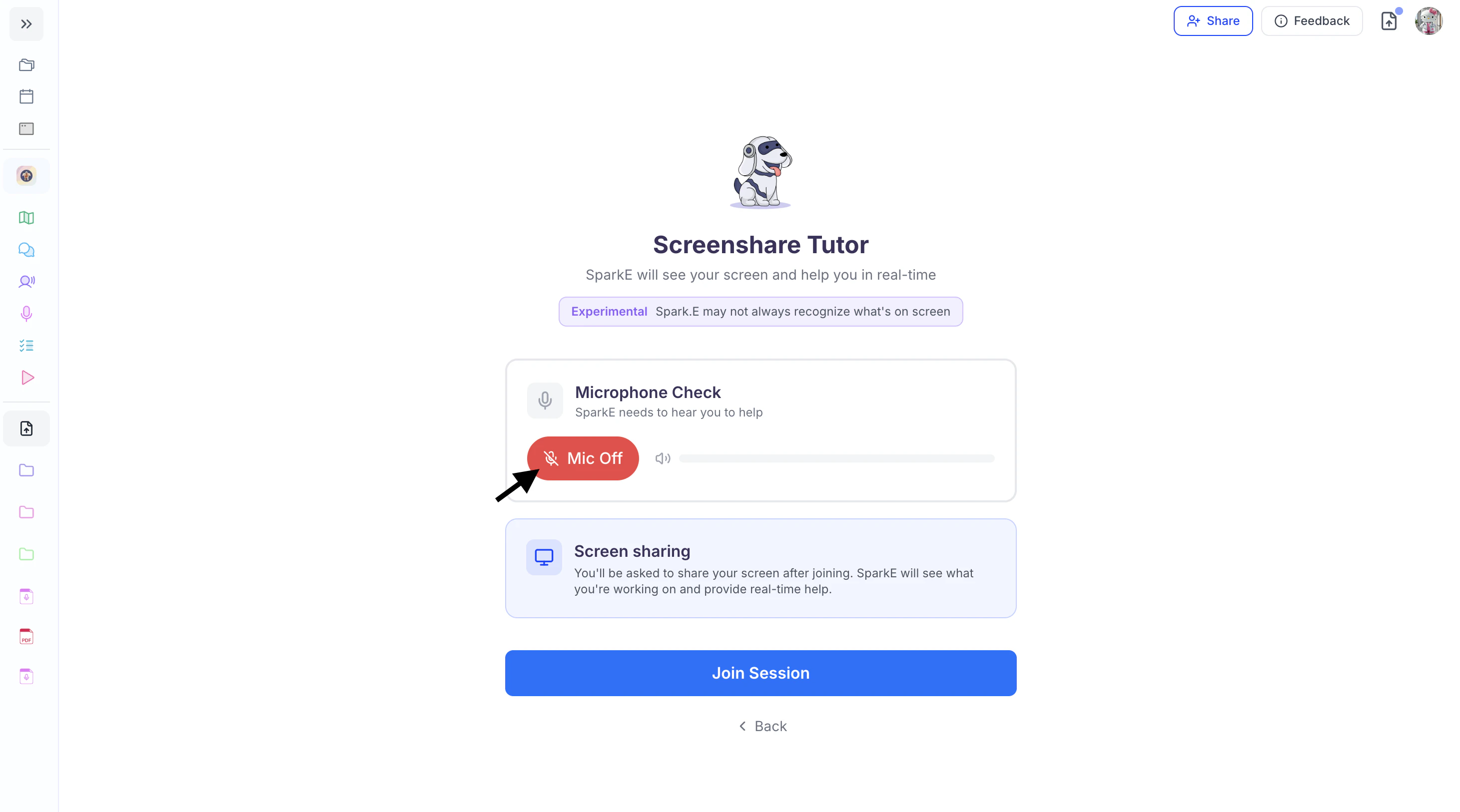
-
Click Mic Off to turn your microphone on.
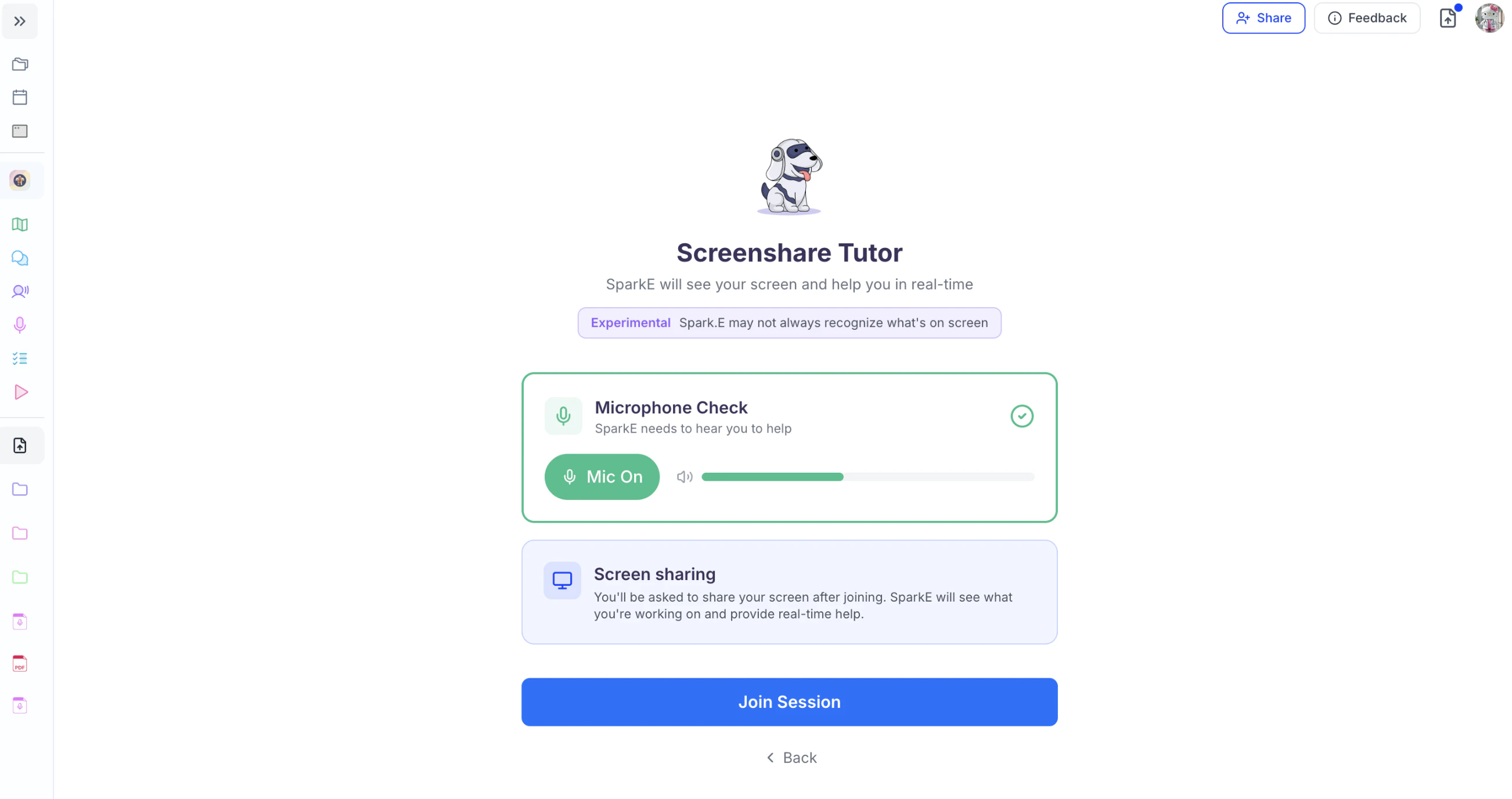
- Confirm both indicators turn green.
-
Click Mic Off to turn your microphone on.
- Once everything is connected, click Join Session to begin.
Screenshare Tutor Me is currently in its experimental phase. While it provides real-time assistance, Spark.E may not always perfectly recognize or interpret everything displayed on your screen.
Step 3: Set Your Tutor Me Goals
-
Select your Learning Mode from the following options:
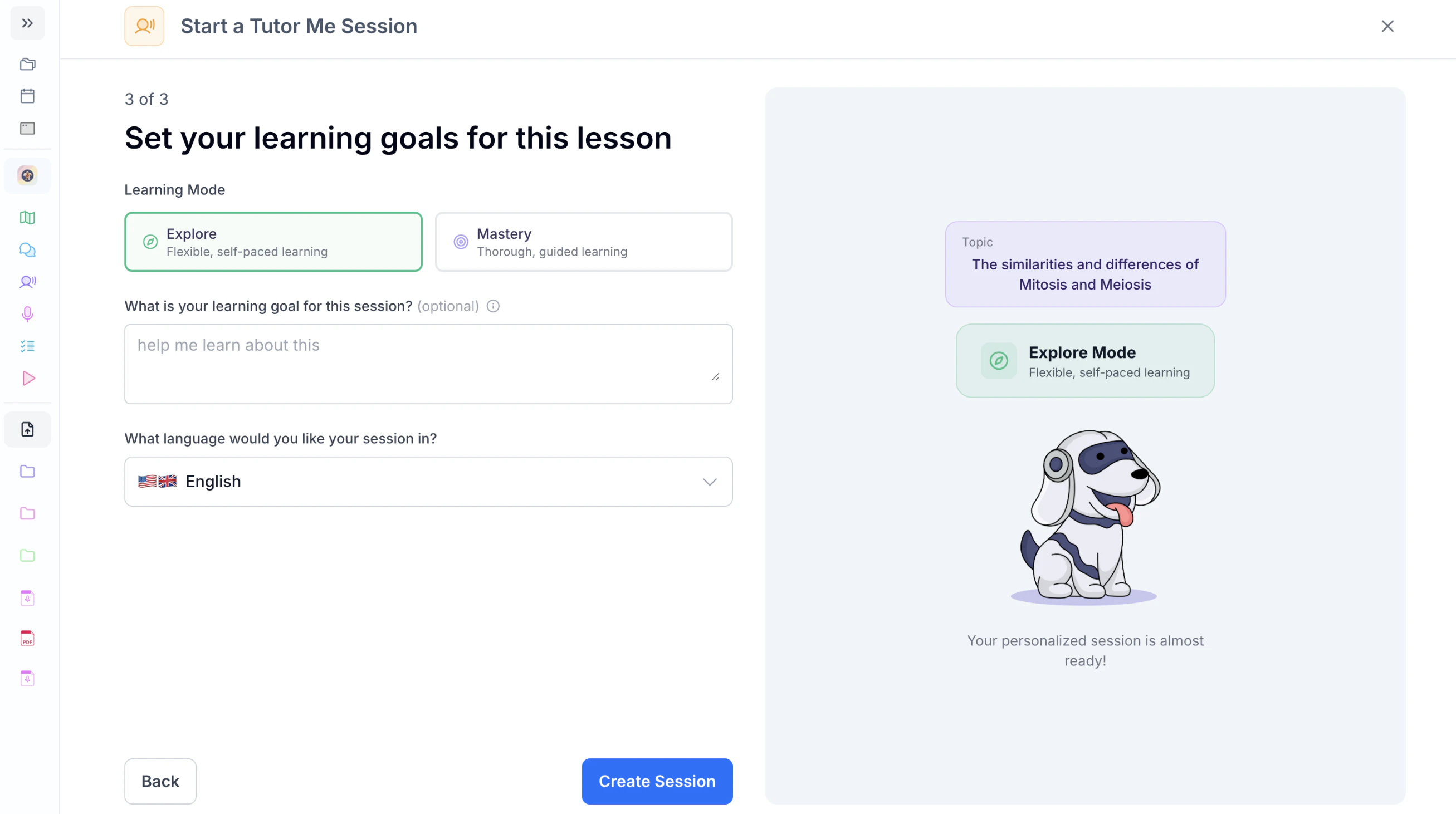
- Explore – Choose this option if you prefer a flexible, self-paced learning experience where you can move freely through the material.
- Mastery – Select this mode if you want a thorough, fully guided learning session designed to ensure deep understanding and retention.
-
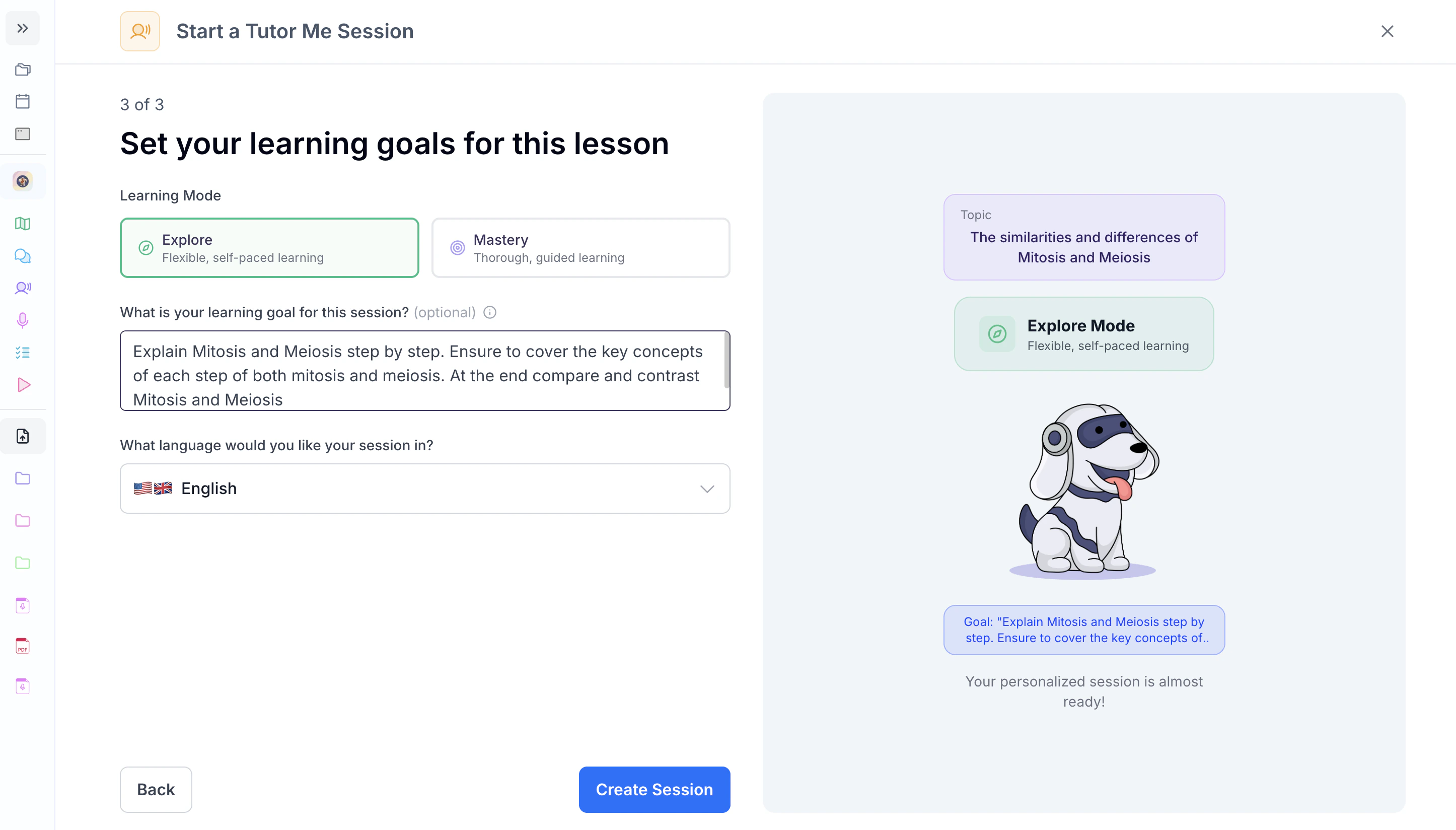
To ensure your Tutor Me session is tailored to your learning goals, describe what you’d like to learn or focus on in the box under What is your learning goal for this session? (optional).
Providing this information helps personalize the session and align it with your specific needs.
-
Choose the language you want your session to be in by clicking the box under What language would you like your session in? and selecting your preferred language from the list.
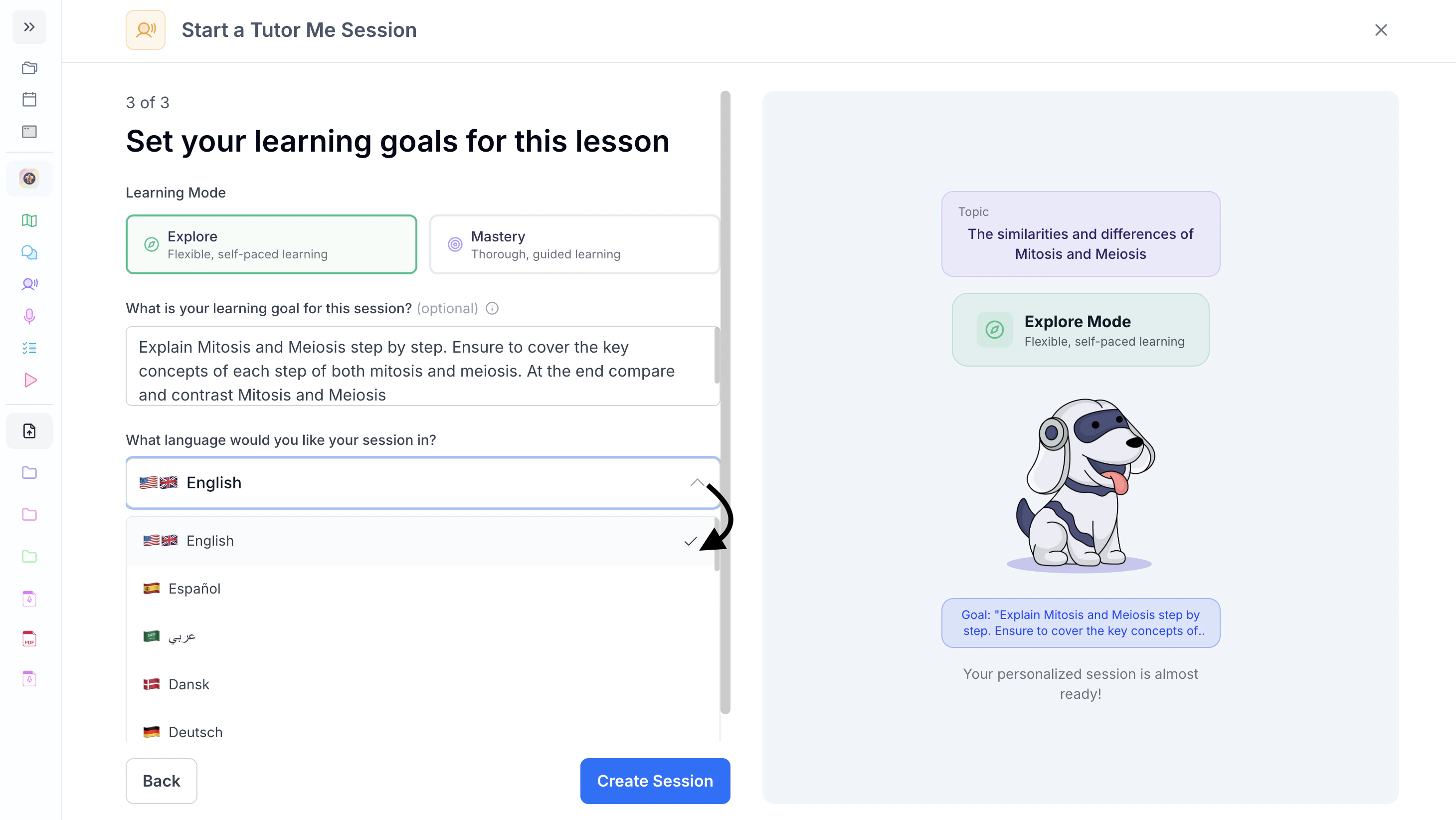
-
When done making your selections, click Create Session, and we’ll start building your personalized tutoring experience!
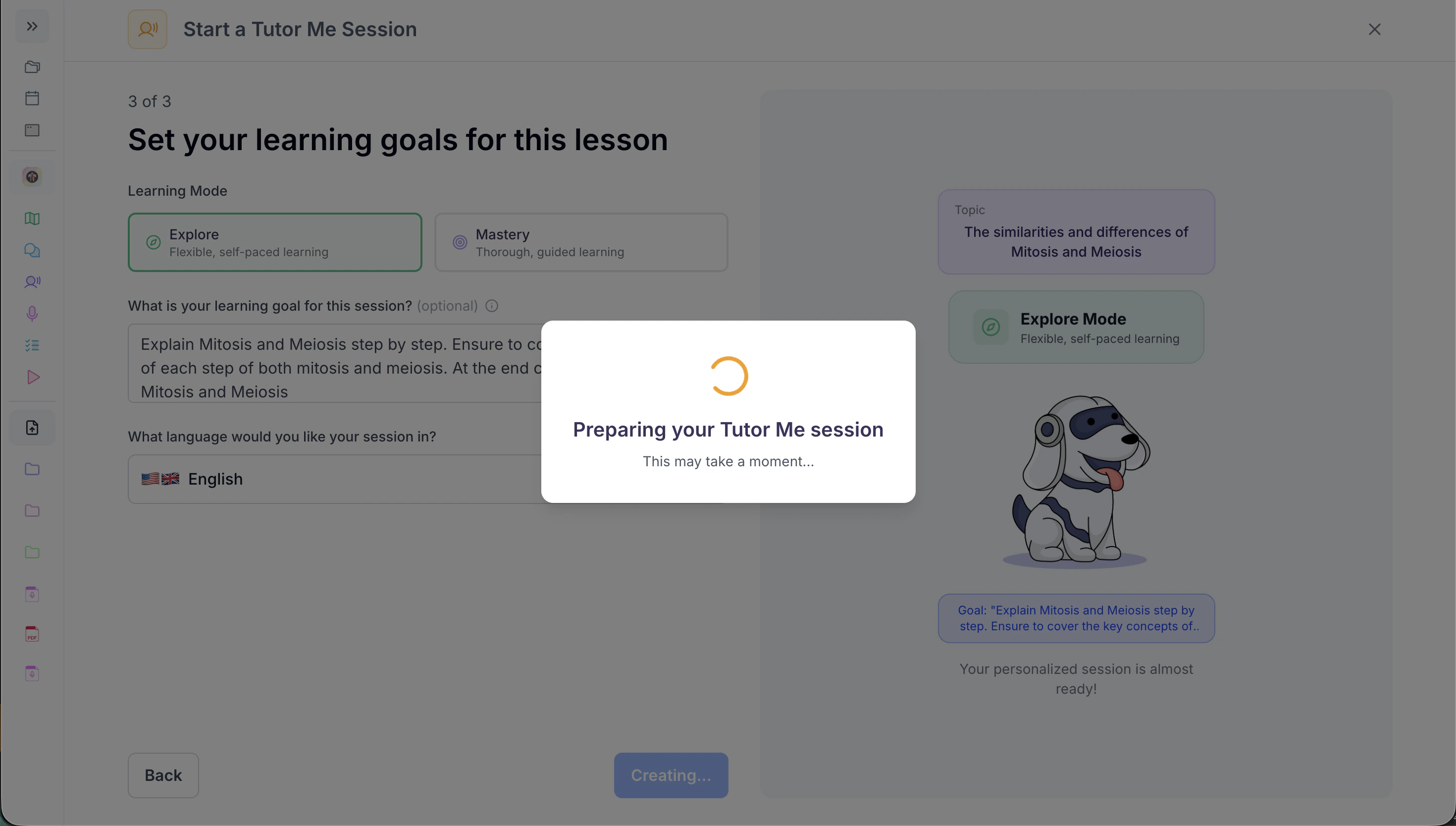
Step 4: Start Your Tutor Me Session
-
Once your Tutor Me session is generated, you’ll see the session title at the top of the screen, followed by the session goals. Beneath that, you’ll find your progress bar and a detailed list of lesson plan topics outlining what your session will cover.
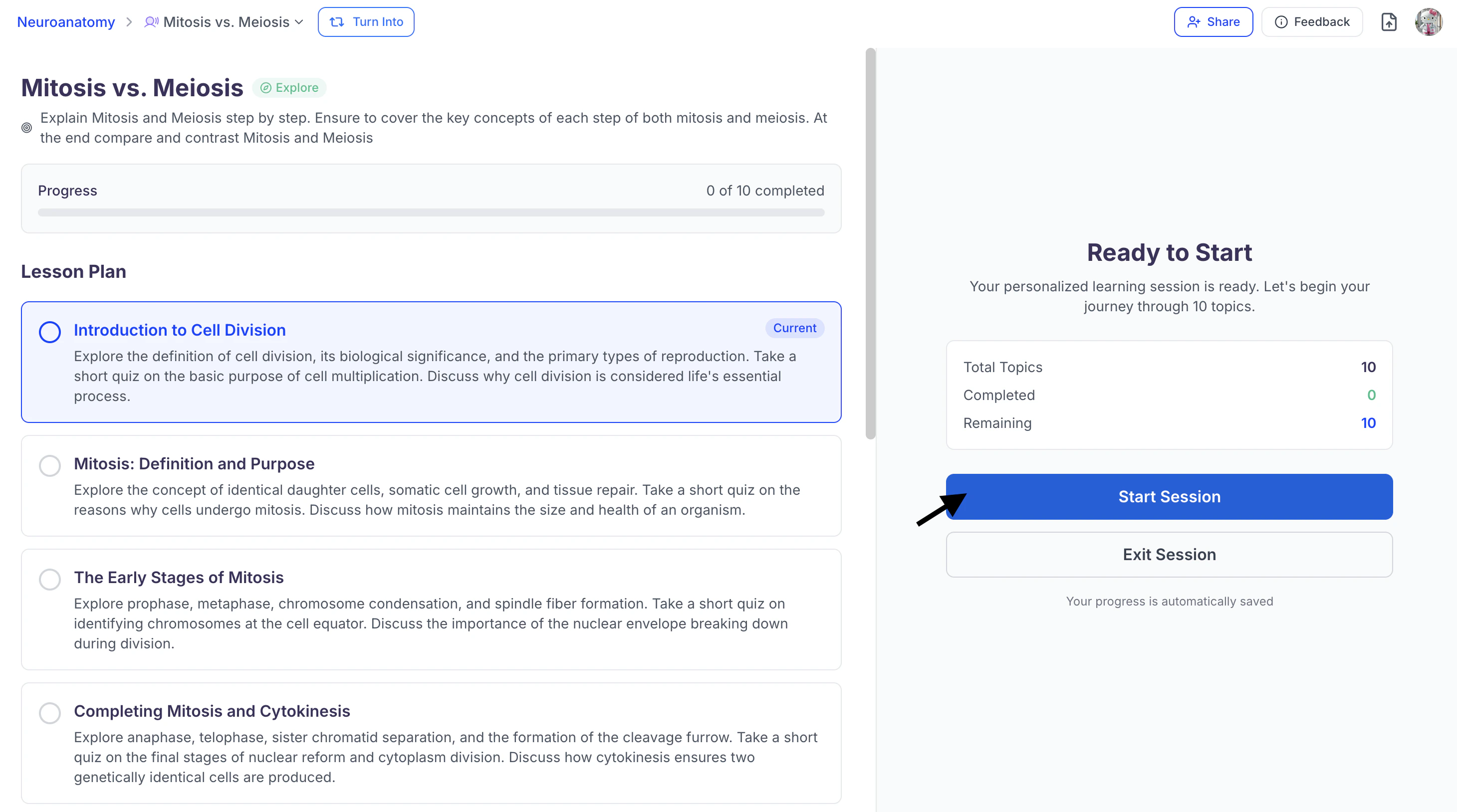
- Once you’re ready to start, click Start Session.
Navigating Your Tutor Me Session
Enable Microphone Access
-
Ensure you allow microphone access when prompted.
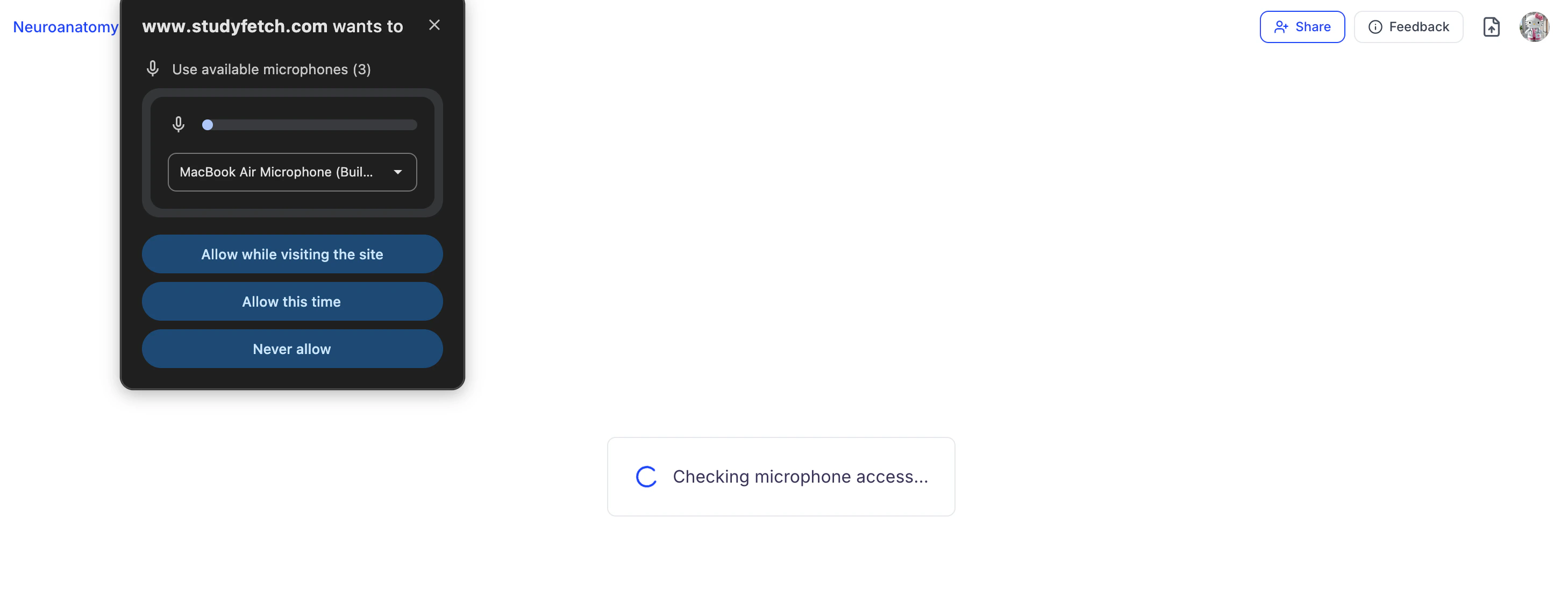
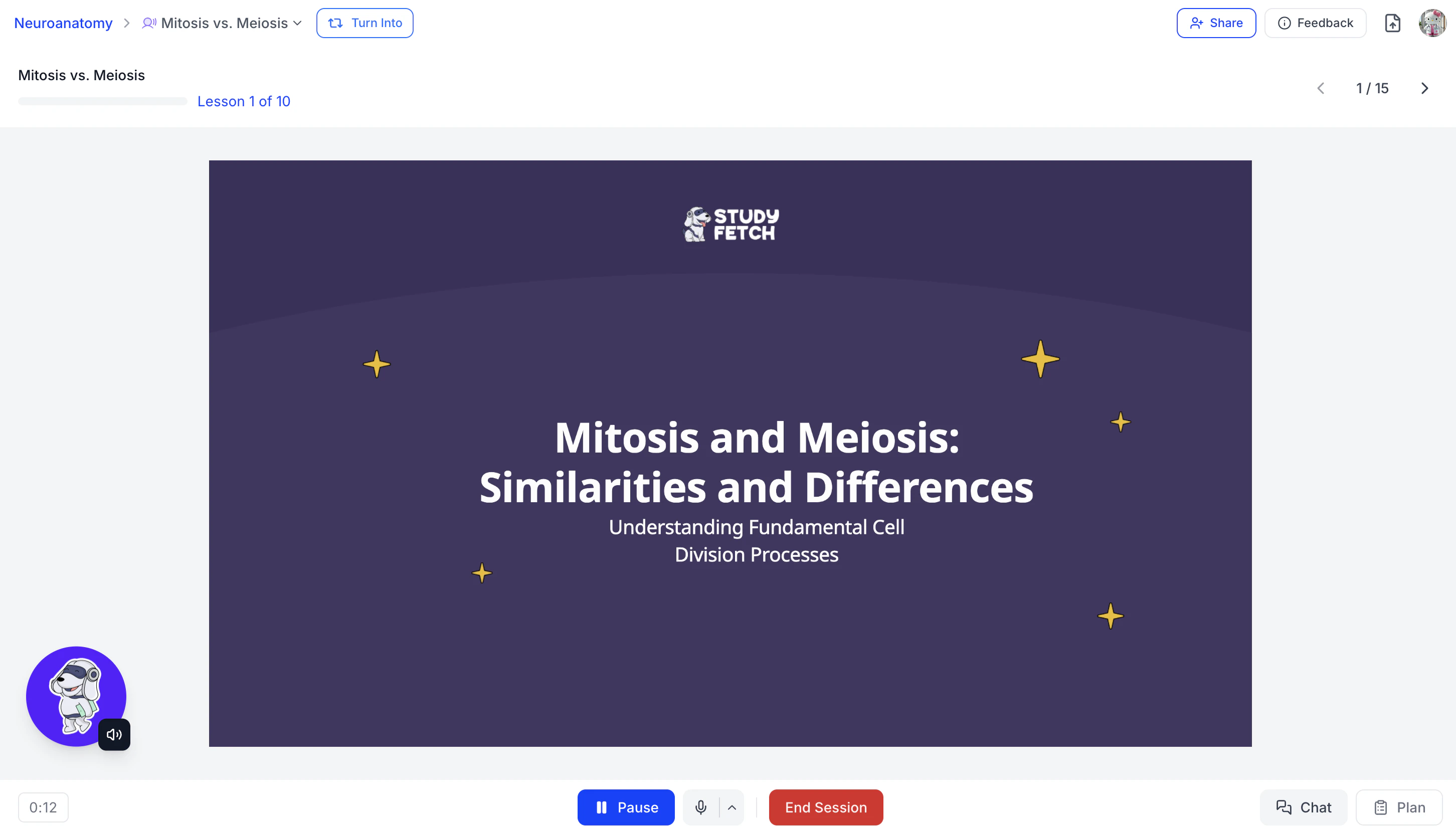
- After enabling your microphone, you can start your session with Spark.E!
-
To mute your microphone at any time, click the microphone icon next to the pause/play button.
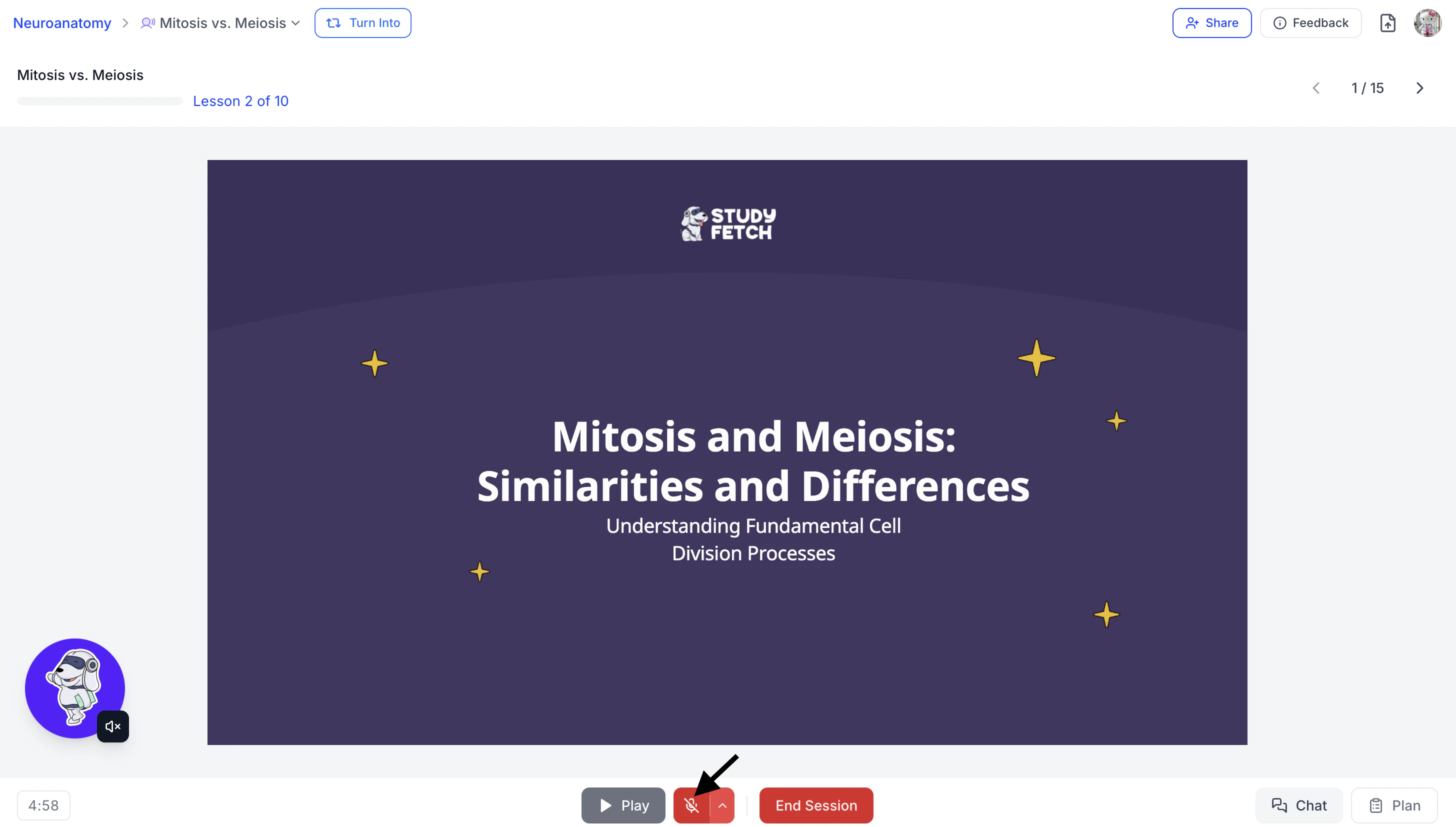
- To unmute, simply click the microphone icon again.
Interacting with Spark.E
Engage in a back-and-forth conversation with Spark.E as he guides you through your lesson plan. Ask questions, request clarification, confirm your understanding, or challenge yourself by asking for practice or challenge questions to test your knowledge.- You can start your session with Spark.E immediately by speaking directly through your microphone.
-
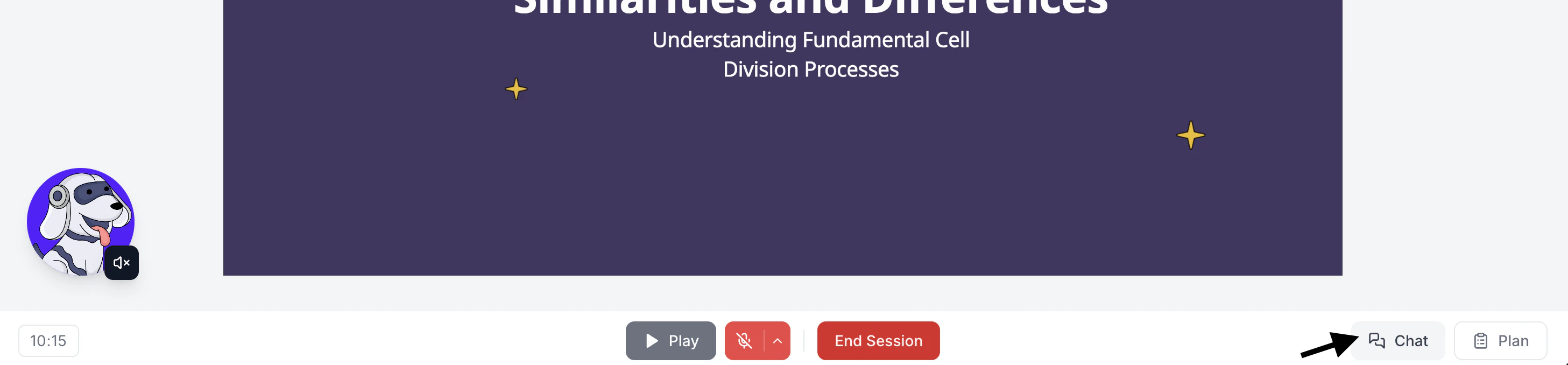
Alternatively, click Chat on the right side of the bottom toolbar,
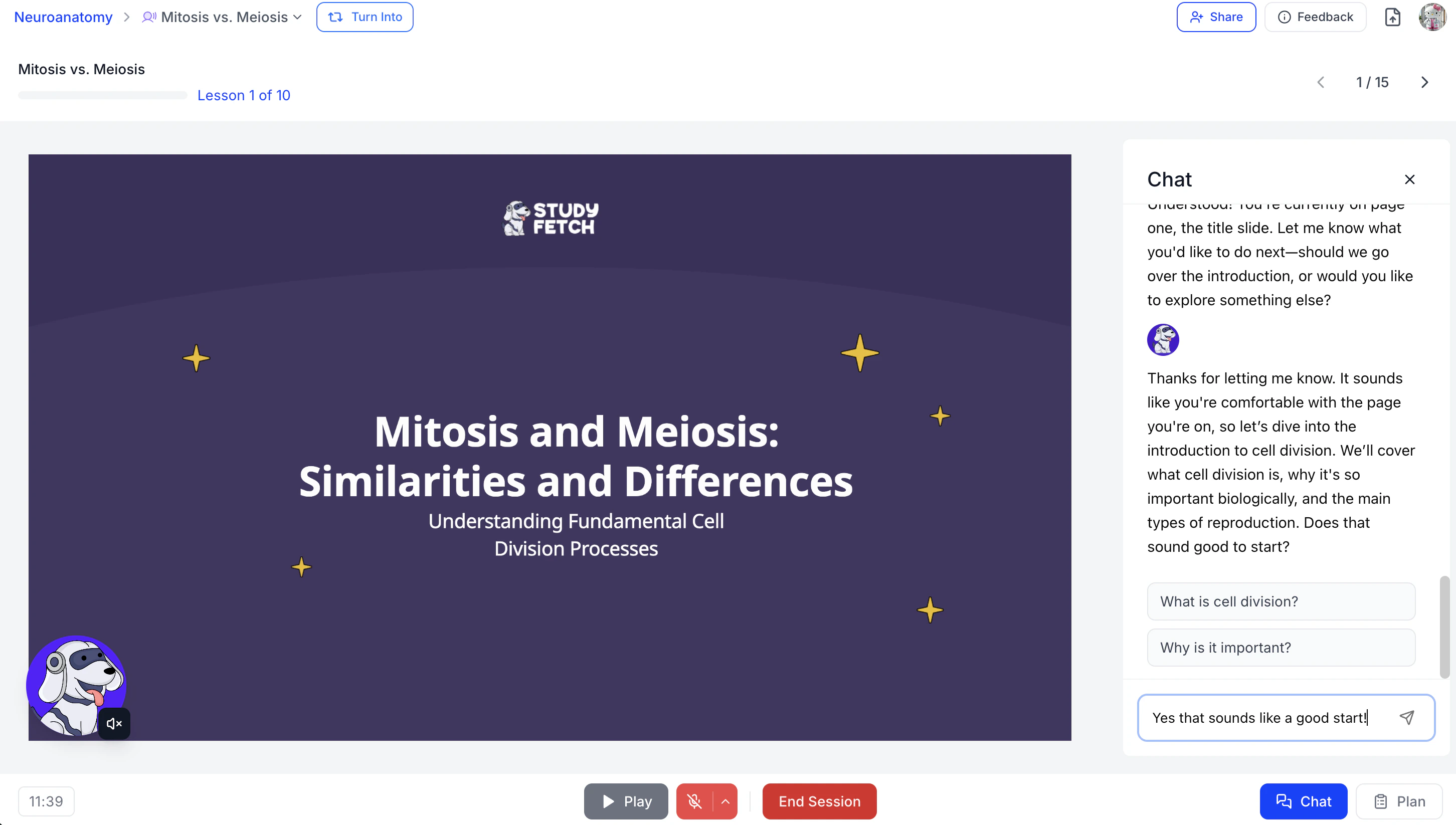
to open the Chat screen and type your dialogue message in the chat box.
-
The Chat box also displays the full session transcript, allowing you to review the entire conversation between you and Spark.E at any time.
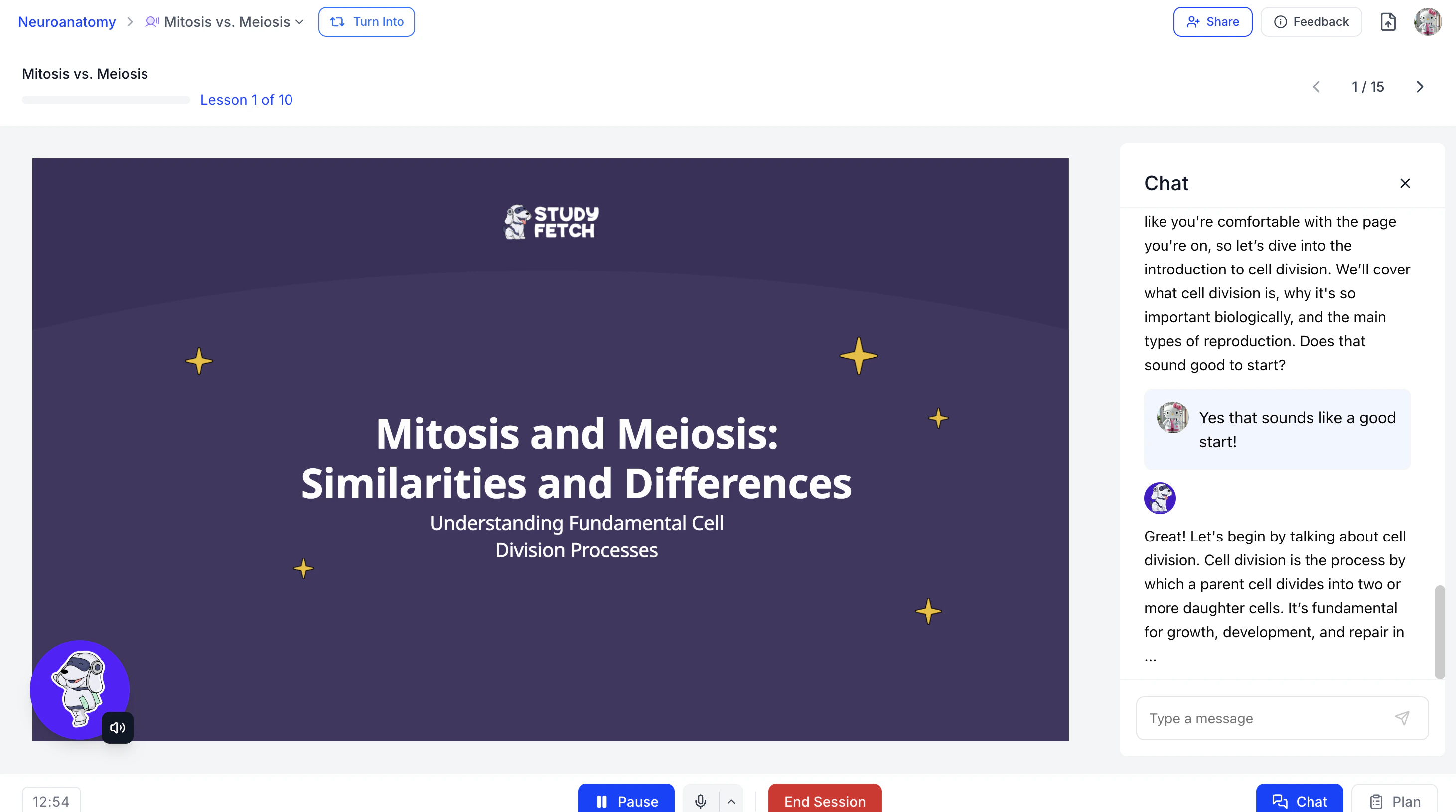
- To hide the Chat, click the X on the top right of the chat screen.
Viewing Your Lesson Plan and Progress
-
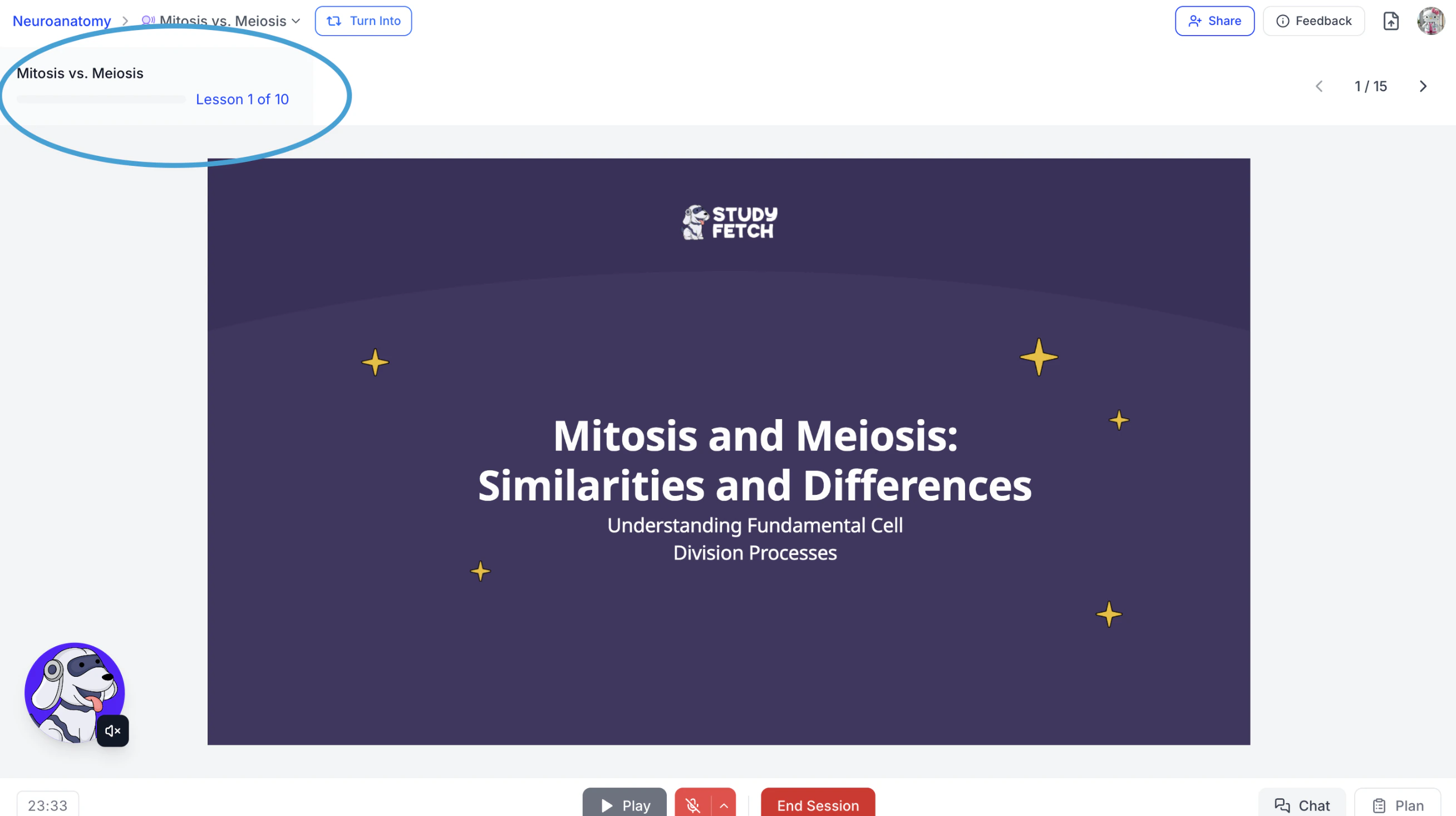
At the top left of the screen, beneath the Tutor Me session name, you’ll see a progress bar indicating your current lesson topic.
-
As you complete topics from your lesson plan, the progress bar will gradually fill to reflect your advancement through the session.

-
To view the full lesson plan and track the progress of each individual topic:
-
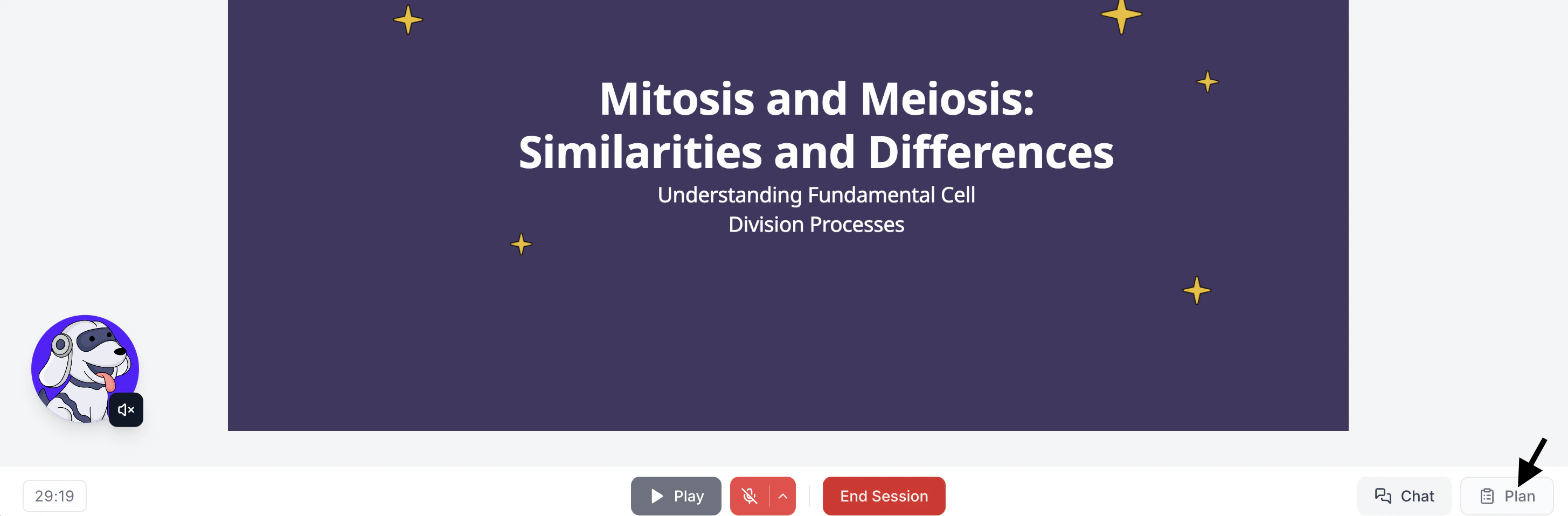
Click the Plan button on the far right of the bottom toolbar, or
-
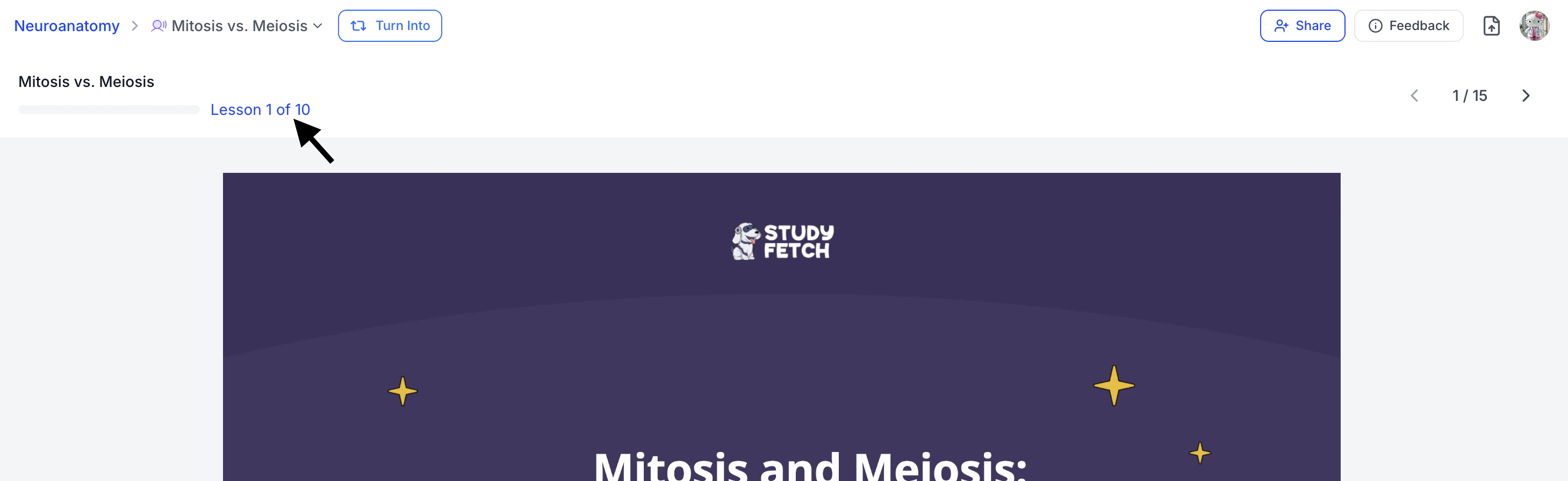
Click directly on the progress bar in the top left corner of the screen.
-
Click the Plan button on the far right of the bottom toolbar, or
-
To navigate between topics, simply tell Spark.E which topic you’d like to move to using your microphone or the chat.
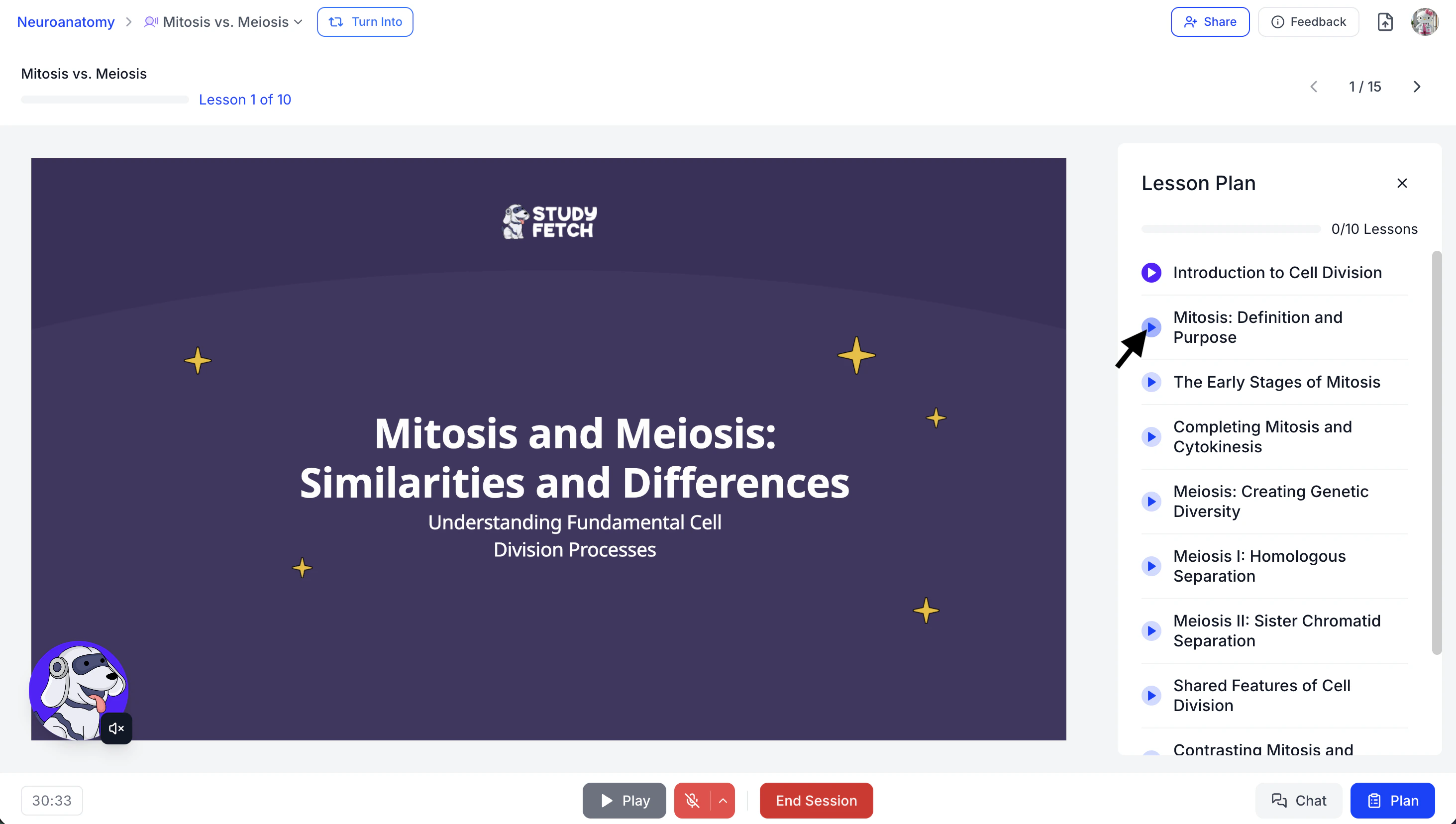
- You can also click directly on the desired topic within the Lesson Plan screen at any time to jump there instantly.
- To hide the Lesson Plan, click the X on the top right of the Lesson Plan screen.
Navigating Between Pages
-
On the top right of the screen, you’ll see the total number of pages in your Tutor Me presentation.
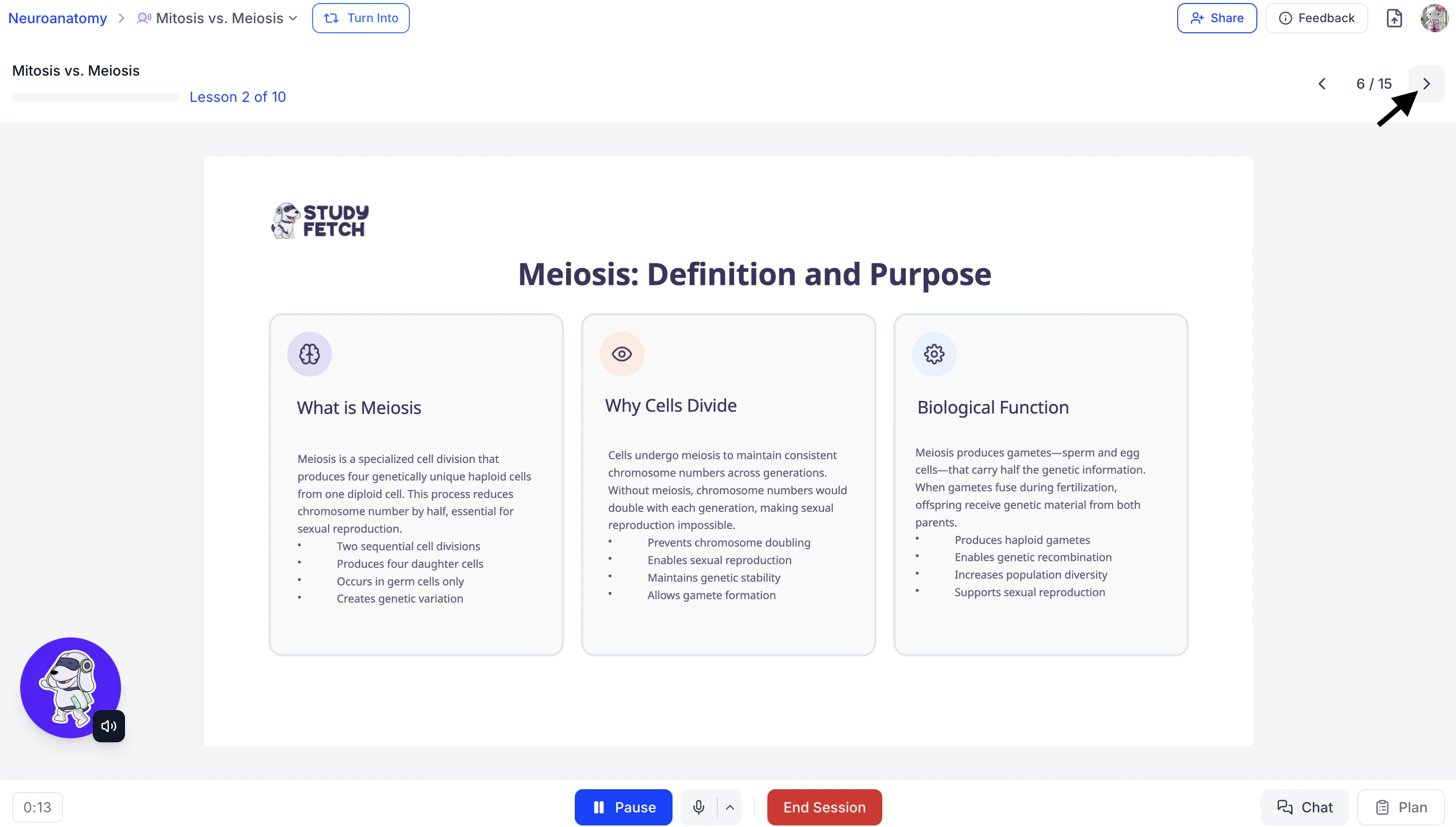
- Use the left and right arrows to manually move between presentation pages.
- You can also tell Spark.E which page you’d like to navigate to by speaking through your microphone or typing your request in the chat.
Pausing and Ending Your Session
-
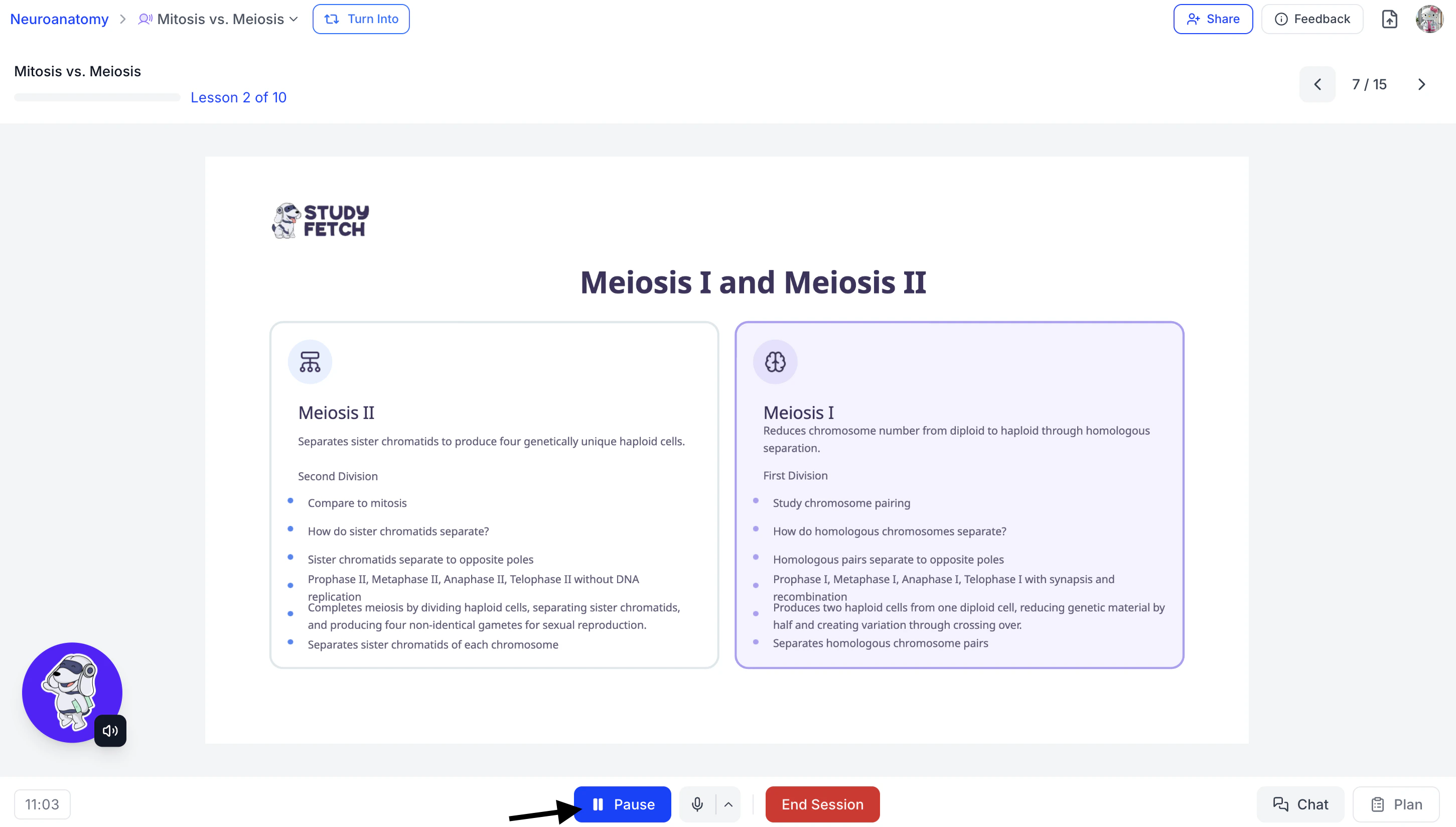
To pause your session, click the Pause button on the bottom toolbar.
This will automatically mute your microphone.
-
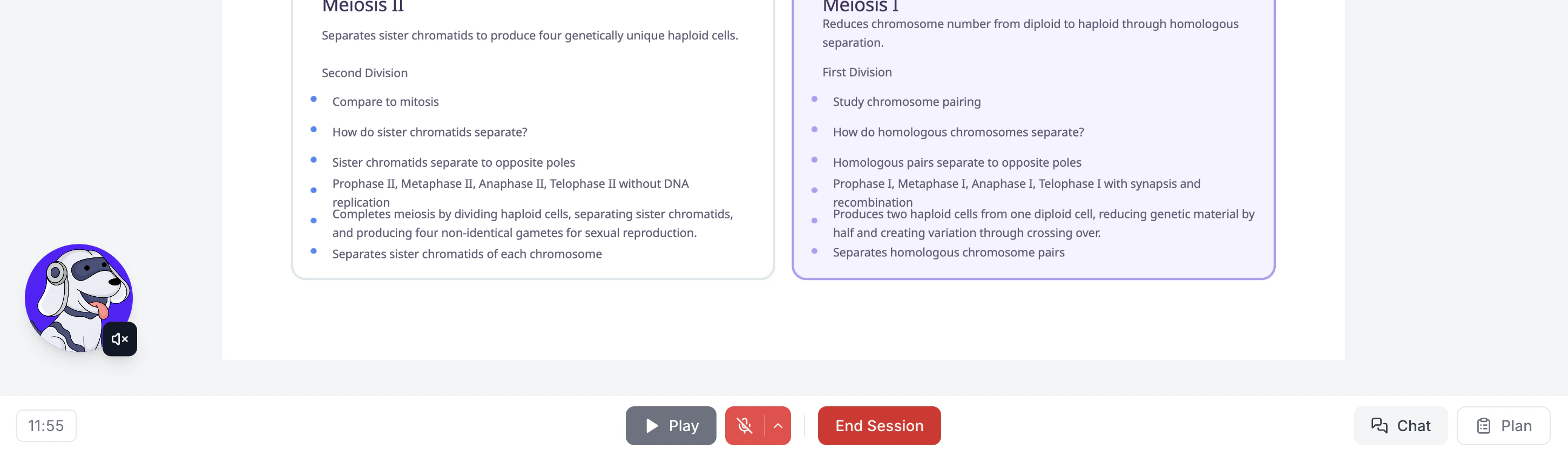
To resume your Tutor Me session, click Play. Your microphone will automatically unmute, and the session will continue.
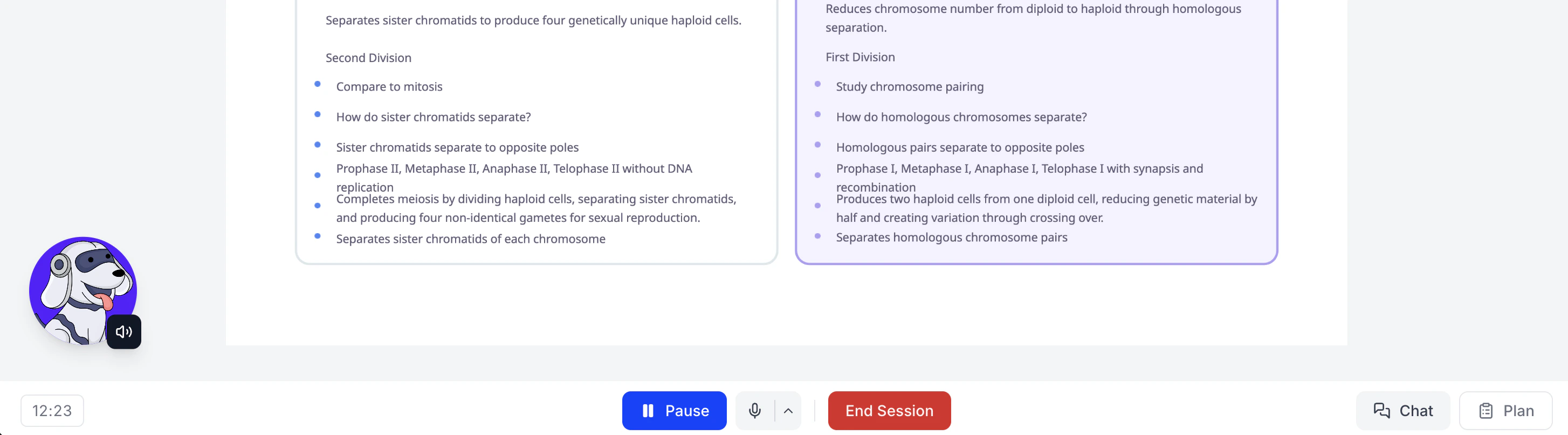
- When you’re finished, click End Session. You can return to your previous lesson at any time by navigating back to the Tutor Me Dashboard and selecting My Sessions.
- On the bottom left of the toolbar, you’ll see a timer displaying the total time spent in your current Tutor Me session.
-
Once you’re finished with your session, simply click End Session. This will return you to the Tutor Me feature page.
You can revisit any previous lesson at any time by selecting the desired Tutor Me session from the feature page.
Managing Your Tutor Me Session
Change the Name of Your Tutor Me Session
-
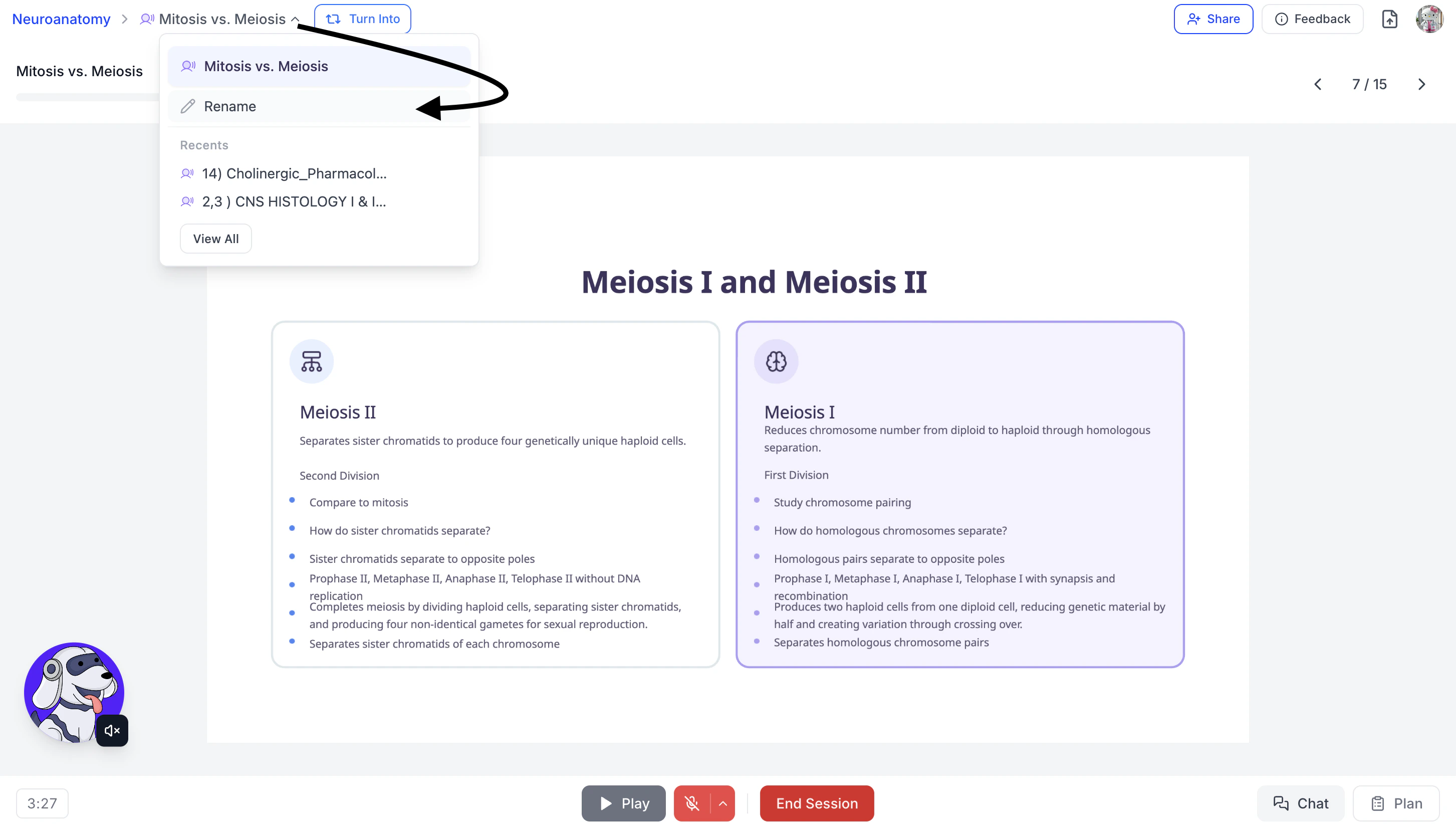
After opening the desired Tutor Me session, click the downward arrow to the right of your Tutor Me session name and then click Rename.
-
You can edit the existing name or enter a new name for your Tutor Me session in the Name field.
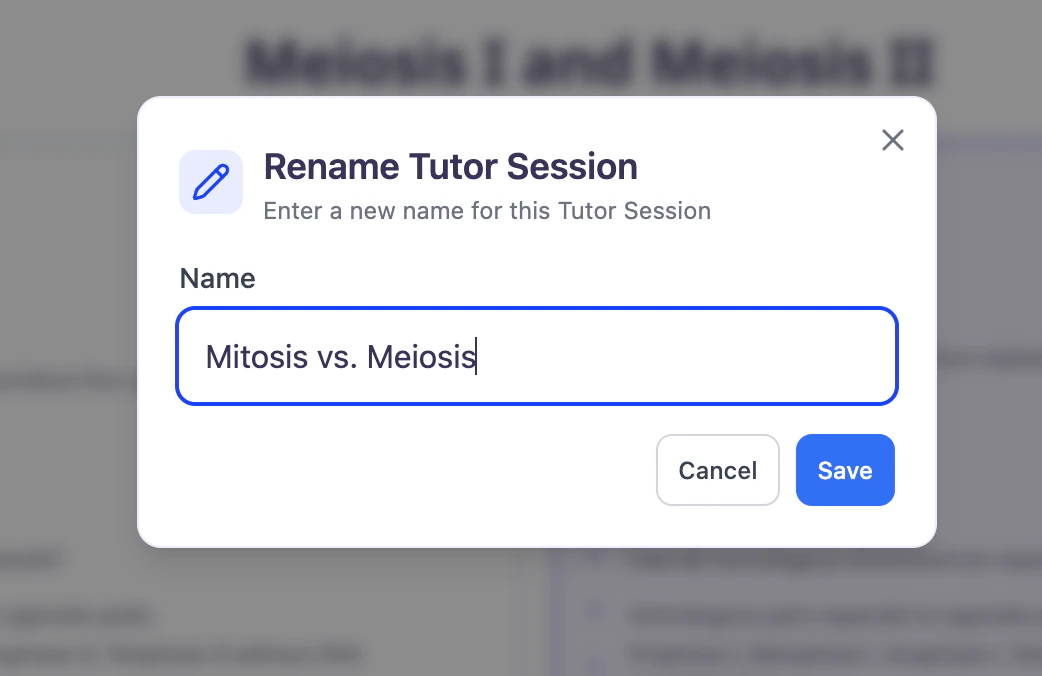
- When done click Save.
Delete Your Tutor Me Session
-
First navigate to the Tutor Me feature page. From the left-hand side of your dashboard, click Tutor Me.
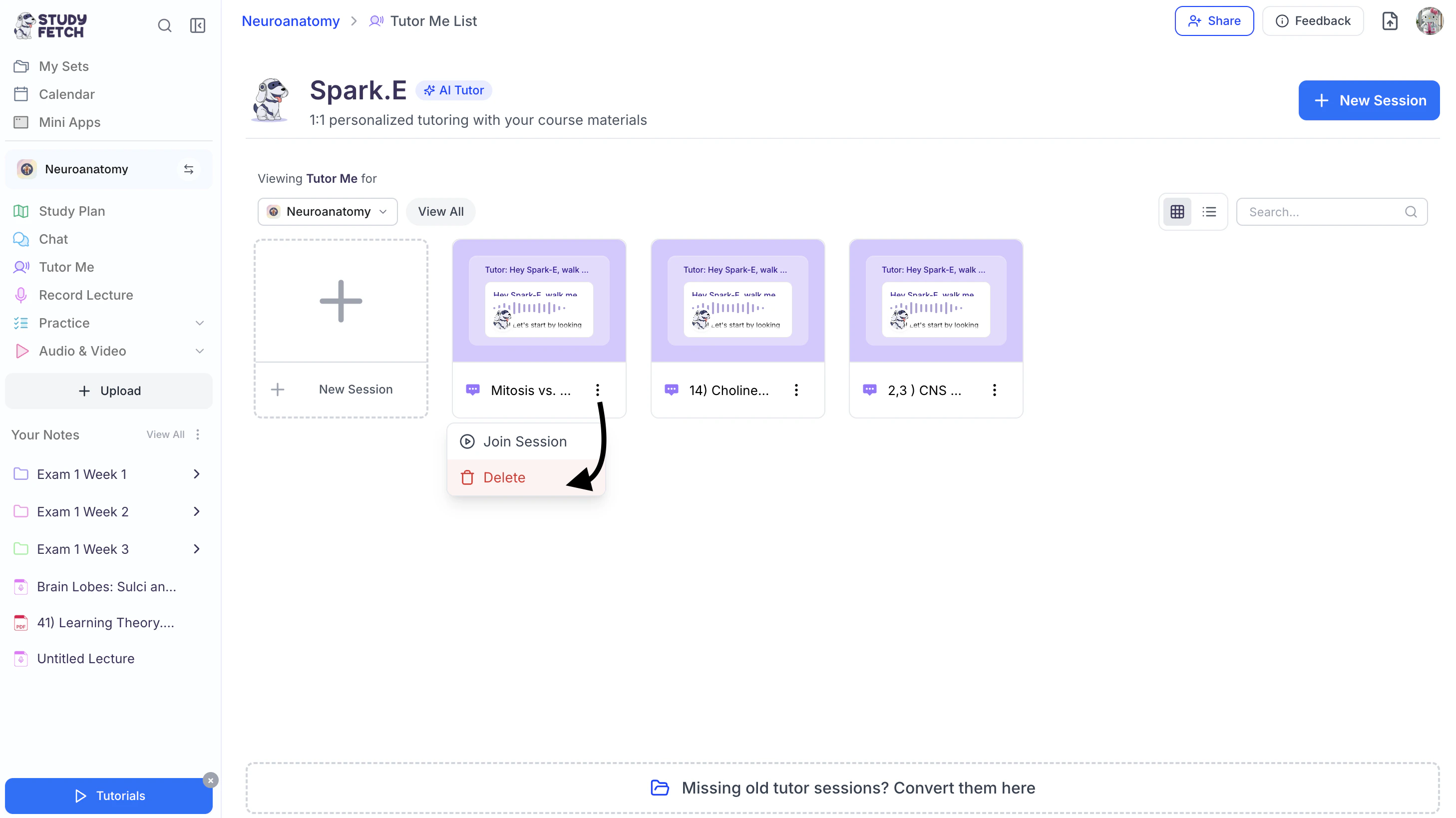
- Select the ⋮ button to the right of the desired session name and choose Delete.
-
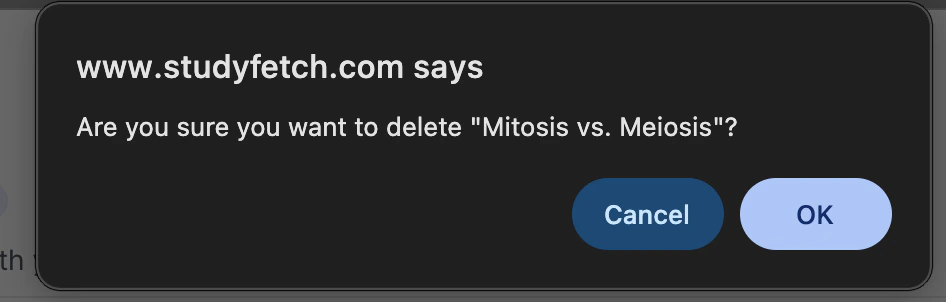
If you are sure you want to delete the selected Tutor Me session, select OK.
Tutor Me Study Tips
Get the most out of your Tutor Me session by staying active and engaged. Spark.E is designed to adapt to you — the more you interact, the more personalized and effective your session becomes. Feel free to ask as many questions as you’d like throughout your session. Spark.E provides consistent, patient guidance and will revisit concepts as many times as needed to support your understanding.Ask Questions
Asking questions transforms passive listening into active learning. It allows Spark.E to identify gaps in understanding and adjust the lesson to your specific needs.-
Use your microphone or the chat to ask any questions at any point during the session.
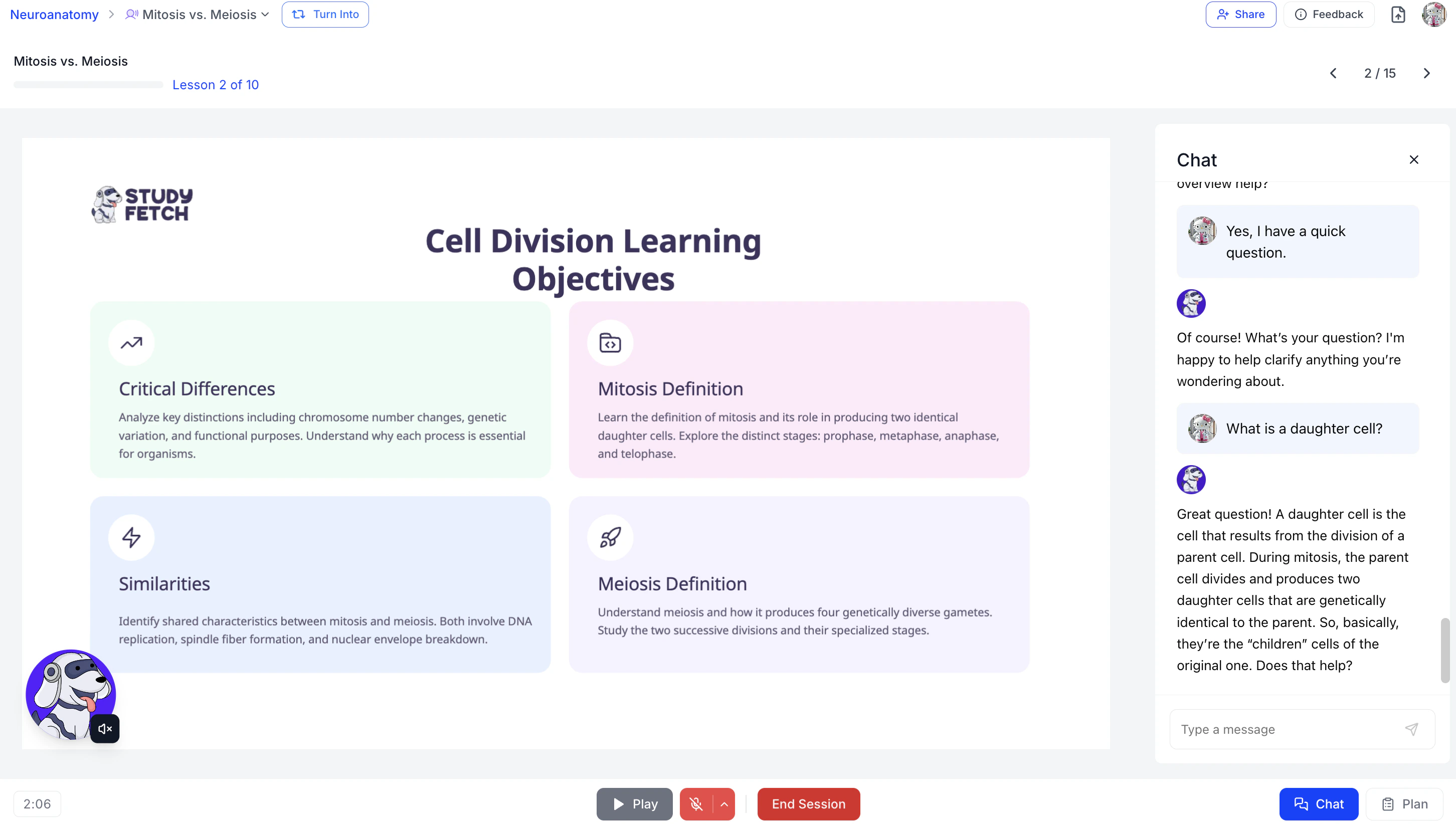
- Spark.E will immediately provide a detailed response tailored to your learning style and level of understanding.
-
Some examples of questions to ask include:
- “Why does this process occur?”
- “What does this mean?”
- “How does this connect to the previous topic?”
Request Clarification
Addressing confusion immediately prevents misunderstandings from compounding and ensures a stronger conceptual foundation.-
If a concept feels unclear, use your microphone or the chat to ask Spark.E to rephrase, expand, or provide additional explanation.
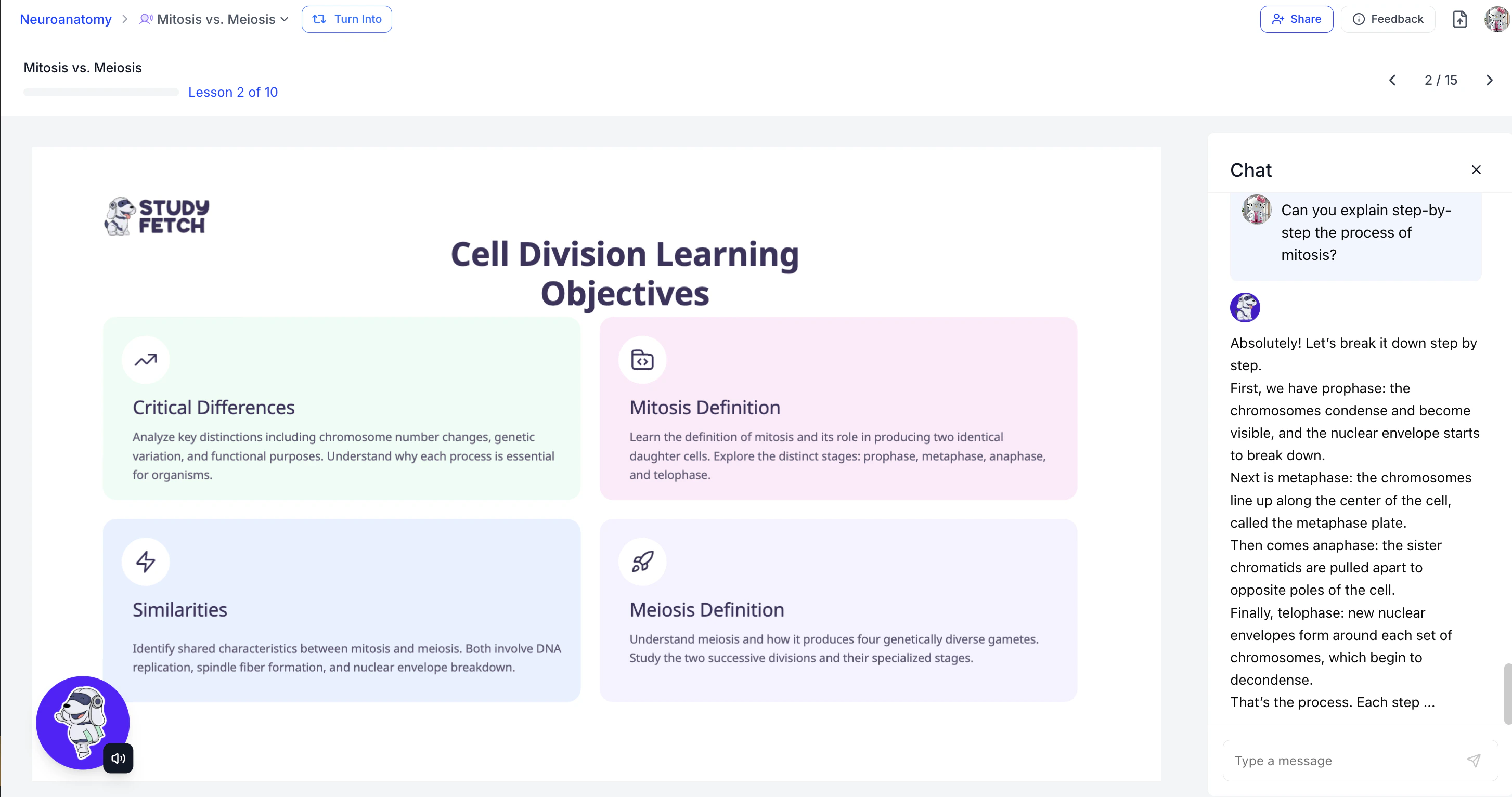
- Spark.E will immediately provide a detailed response tailored to your learning style and level of understanding.
-
Some examples of clarification questions to ask include:
- “Can you explain that in simpler terms?”
- “Can you break that down step-by-step?”
- “I’m confused about that second part — can you clarify?”
- “Can you give me a real-world example?”
Confirm Understanding
Explaining concepts in your own words strengthens retention and reveals whether you truly understand the material.-
Summarize what you’ve learned and ask Spark.E to confirm whether your explanation is accurate.
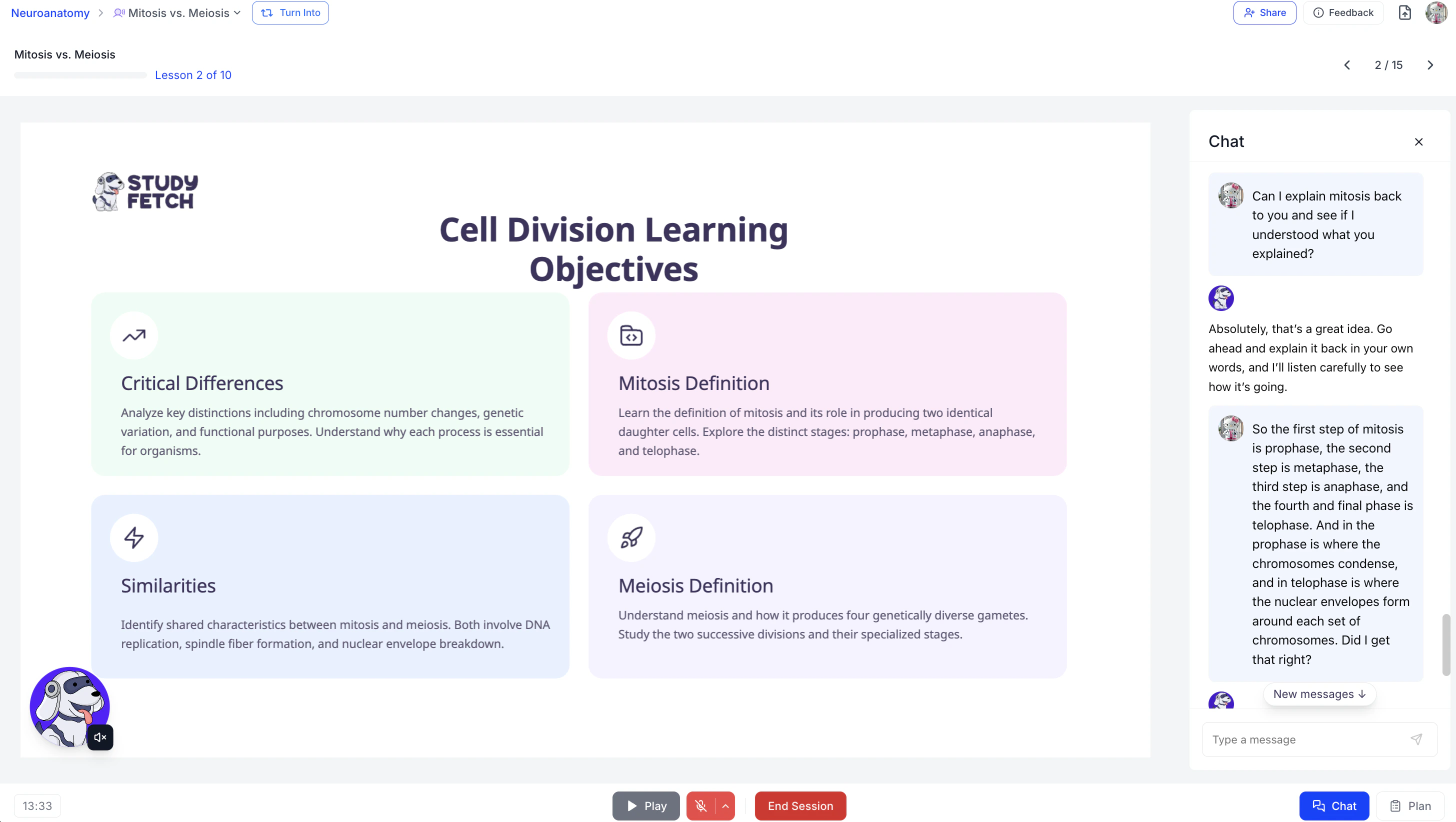
-
Spark.E will listen to your response and provide clear feedback on what was correct, what needs adjustment, and how to improve your understanding.
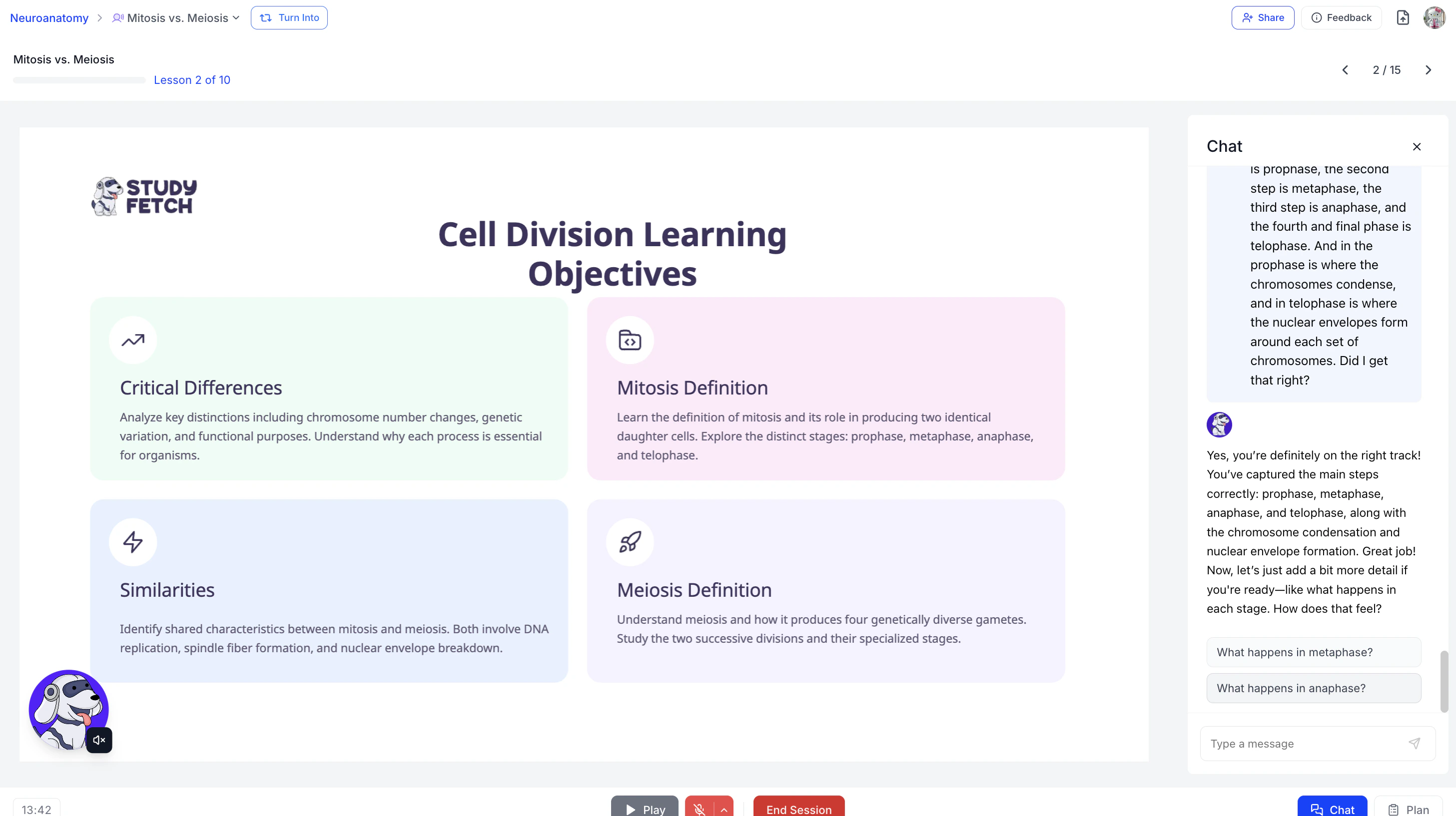
-
Examples include:
- “So if I understand correctly…”
- “Let me explain this back to you…”
- “Is it correct to say that…?”
Test Your Understanding
Active recall strengthens long-term retention and helps identify weak areas before moving forward. One of the most effective ways to reinforce learning is by challenging yourself with practice or application-based questions.-
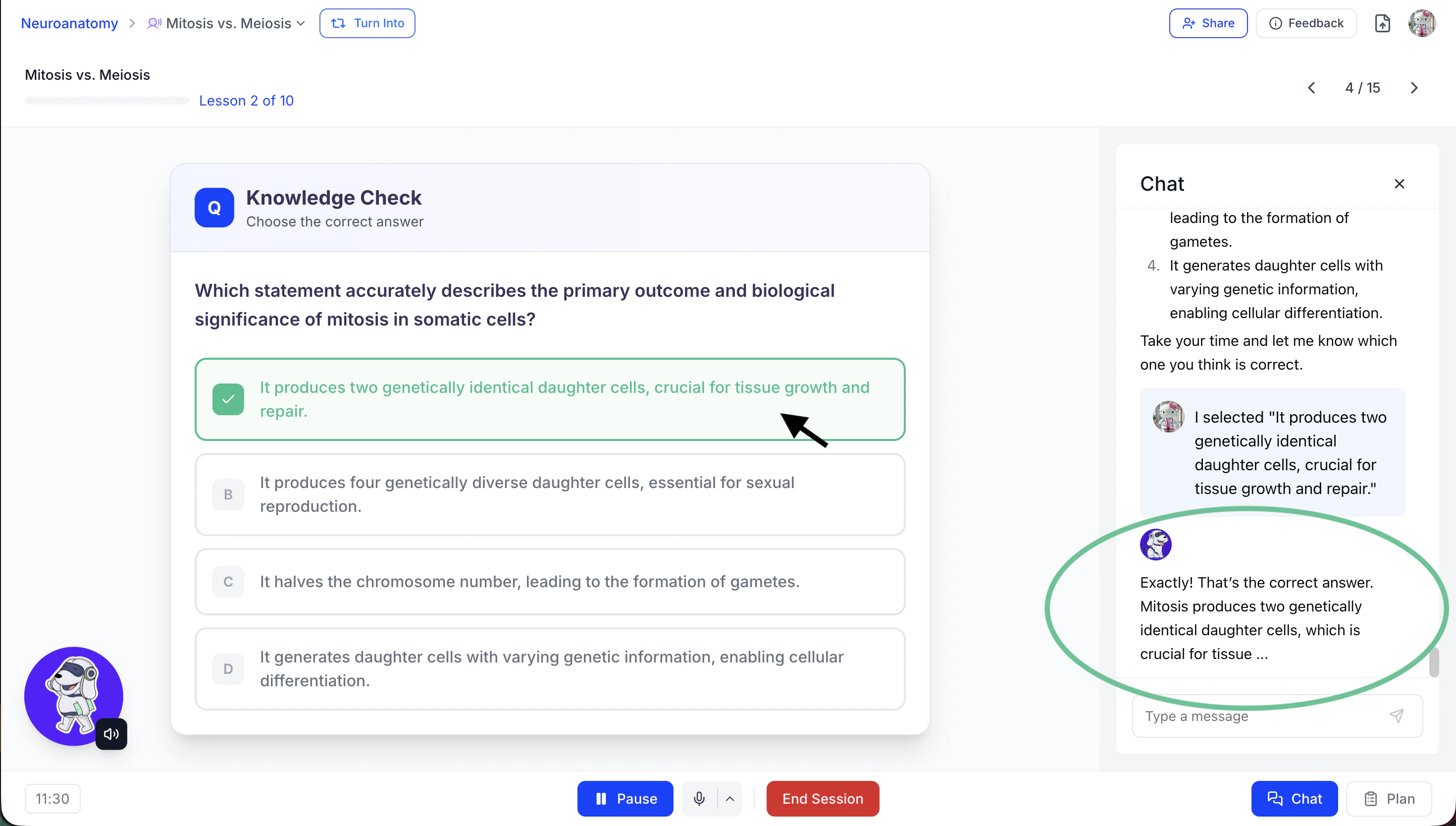
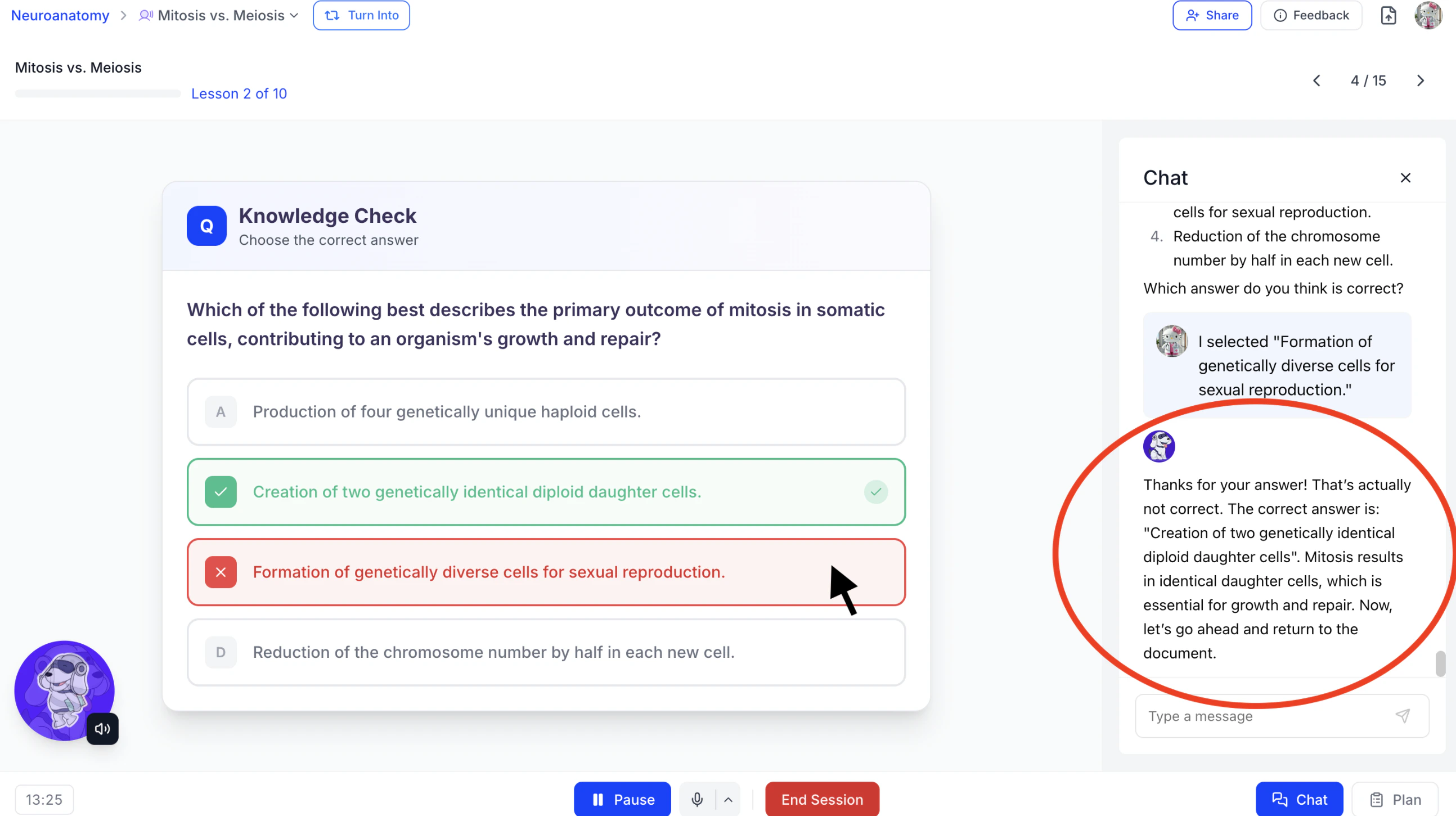
Request practice, application-based, or challenge questions related to the current topic. Spark.E will immediately generate an interactive multiple-choice question.
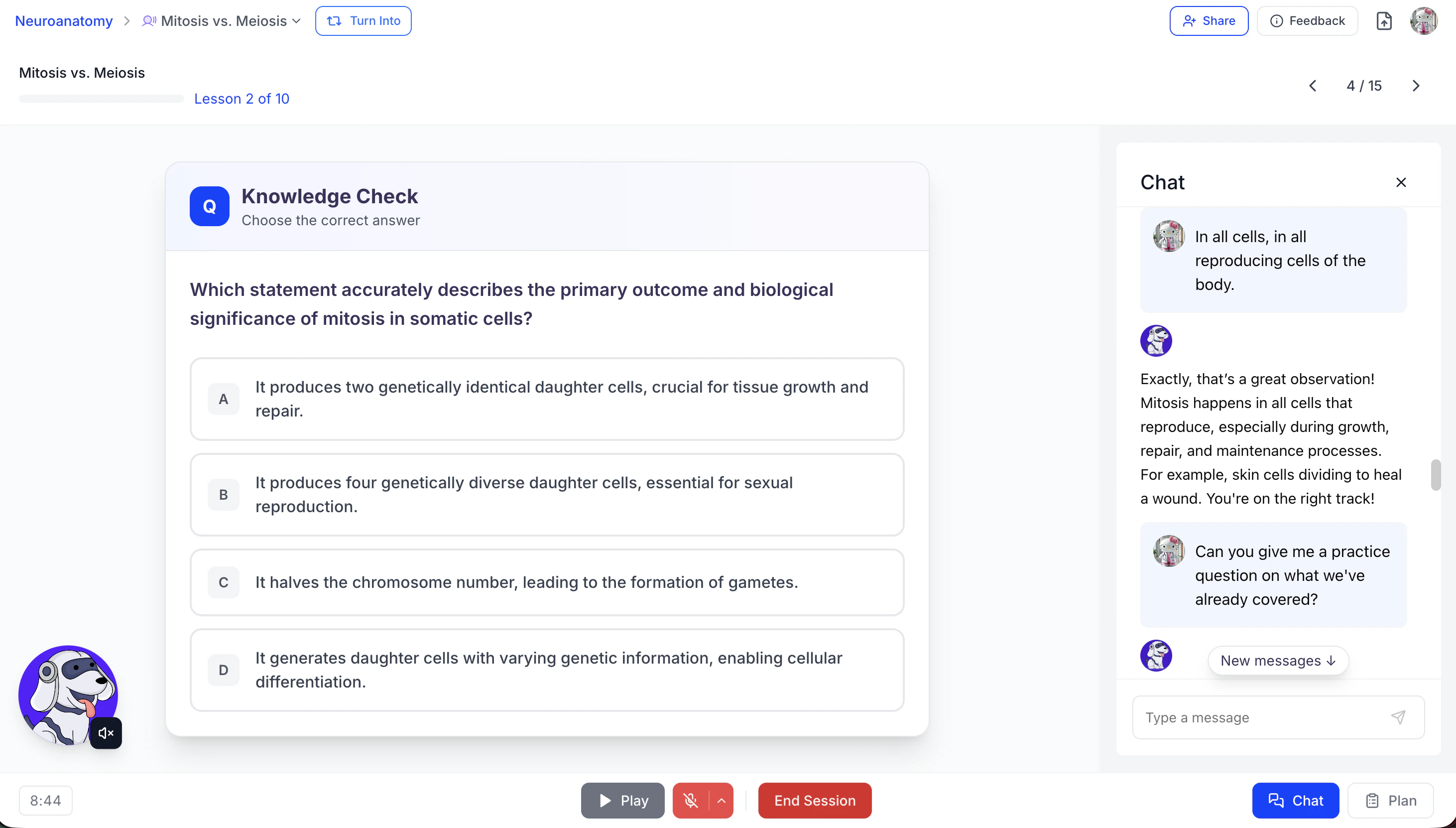
-
Select an answer by clicking directly on your chosen option or by telling Spark.E your selection using your microphone or the chat.
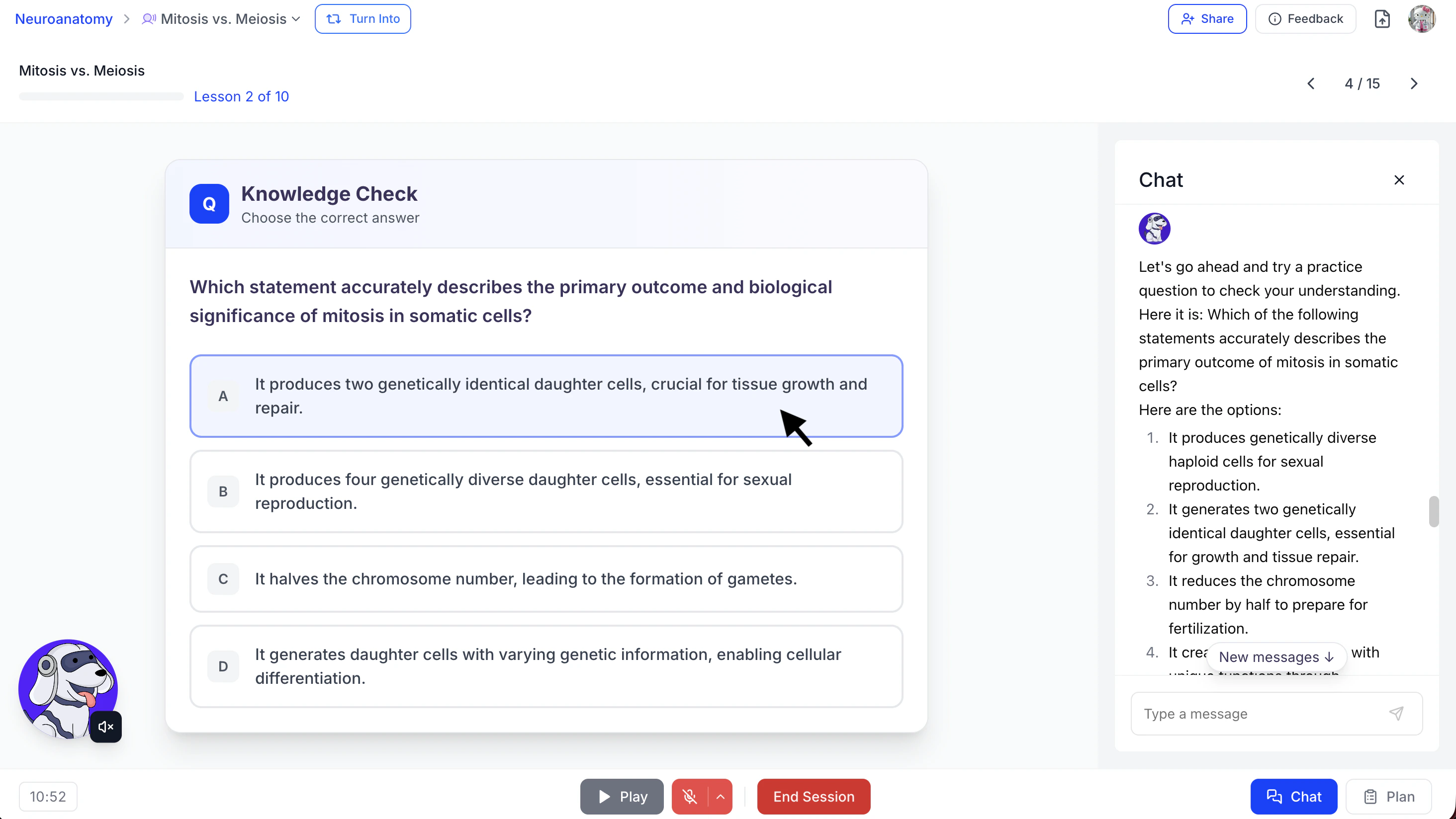
-
After selecting your answer, Spark.E will inform you whether you are correct
or incorrect and provide a detailed explanation to reinforce your understanding.
- Ask for varying levels of difficulty to deepen your understanding.
- Use feedback from Spark.E to refine and strengthen your knowledge.
-
Examples Include:
- “Can you give me a practice question on this topic?”
- “Can you ask me a harder, application-based question on what we just covered.”
- “Please give me a challenge question similar to a standerdized exam question.”
Features and Capabilities
The Tutor Me feature offers a powerful, personalized learning experience with the following advantages:- Personalized, Self-Paced Learning: Learn at your own pace by asking Spark.E anything. Your AI tutor adapts in real time to your questions, knowledge level, and learning goals.
- Human-Like Dialogue: Engage in natural, back-and-forth conversation with Spark.E — just like you would with a human tutor. Ask follow-up questions, request clarification, or dive deeper into complex topics.
- 24/7 On-Demand Support: No need to wait for office hours. Tutor Me provides personalized academic support anytime you need it — day or night.
- Structured Lesson Plans with Progress Tracking: Each session includes a guided lesson plan with clearly defined topics and a progress bar so you can track your advancement and stay organized.
- Voice and Chat Flexibility: Interact using your microphone for real-time conversation or type in the chat. A full session transcript is saved for easy review.
-
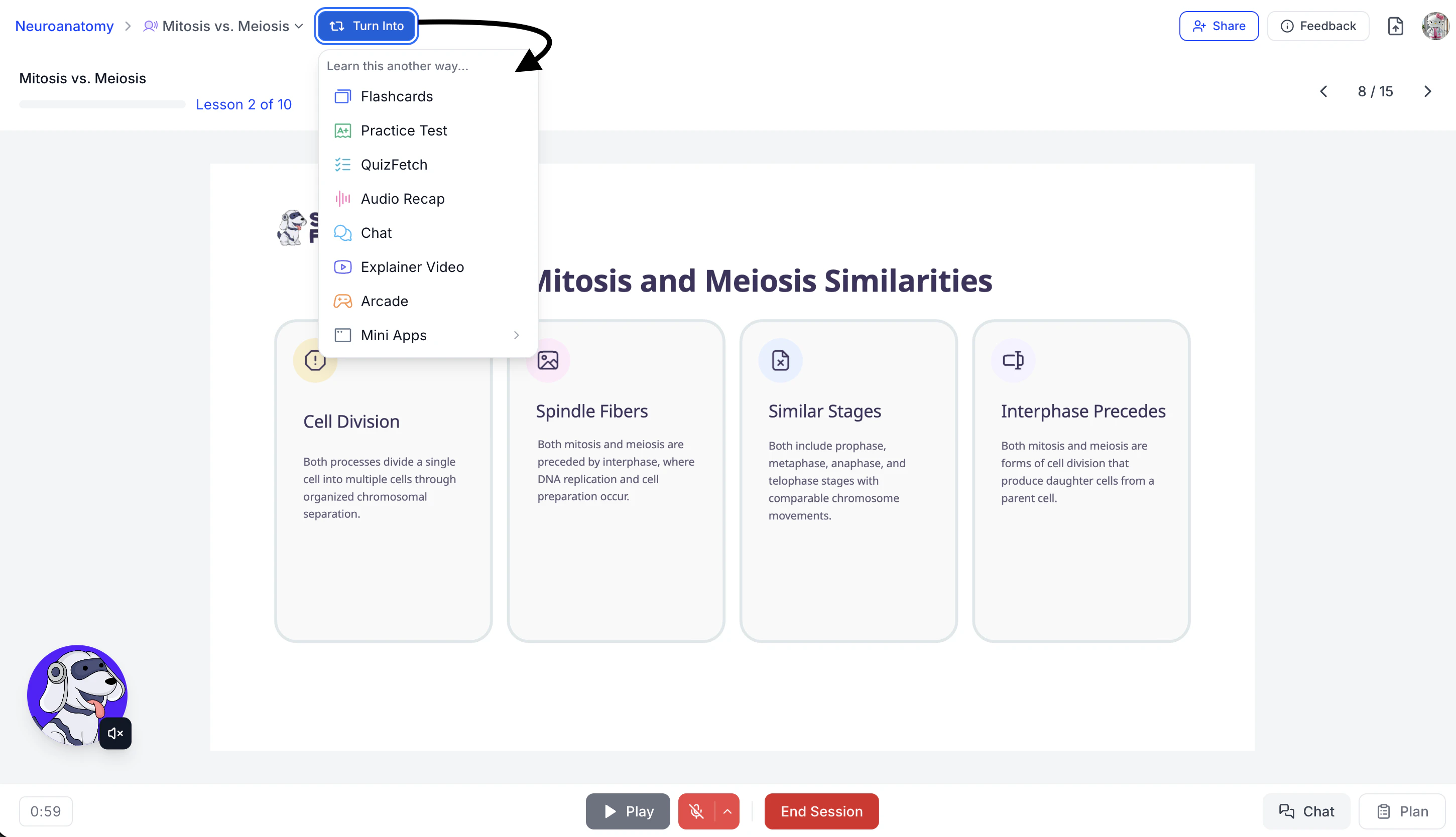
Integration with Other Study Tools : Tutor Me sessions can be used to generate practice tests, quizzes, and other study materials. You can generate study materials from within each feature page or directly from your tutor me session by selecting Turn Into next to the Tutor Me session name and choosing your desired study tool. This allows you to move from learning → practice → mastery without leaving the platform.
Related Features
Once you’ve finished a Tutor Me session, you might want to:- Take a practice test to assess your knowledge
- Create notes for more comprehensive study materials
- Try QuizFetch for a fun, interactive way to test your knowledge