

Introduction
Audio Recap transforms your study materials into engaging audio summaries, perfect for auditory learners or studying on the go. This feature lets you customize voice, accent, and length to create the perfect listening experience for your learning style.Accessing Audio Recap
-
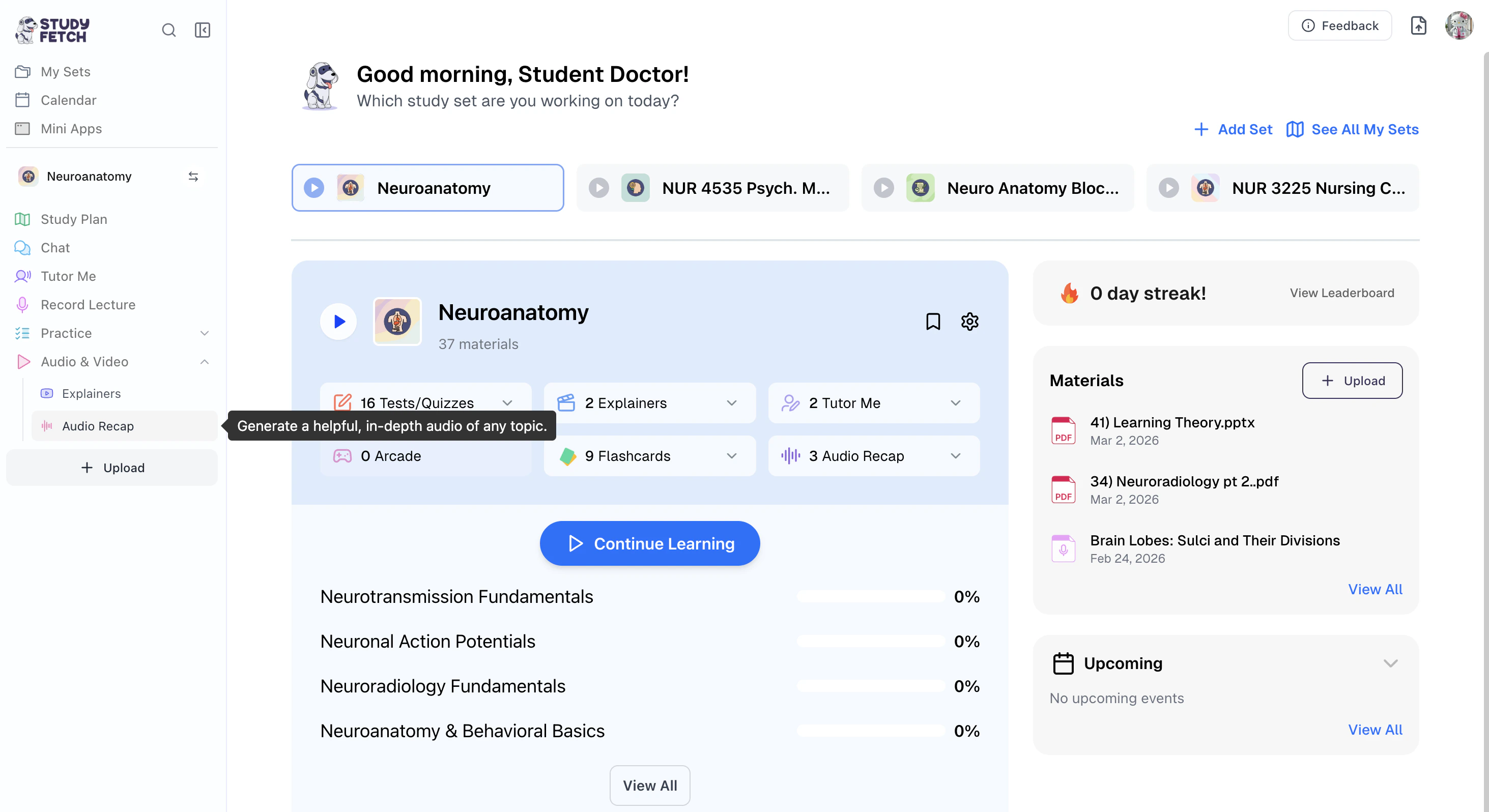
On the left-hand side of your Dashboard click Audio & Video and then select Audio Recap
-
All existing Audio Recaps associated with your Study Set can be found on this page.
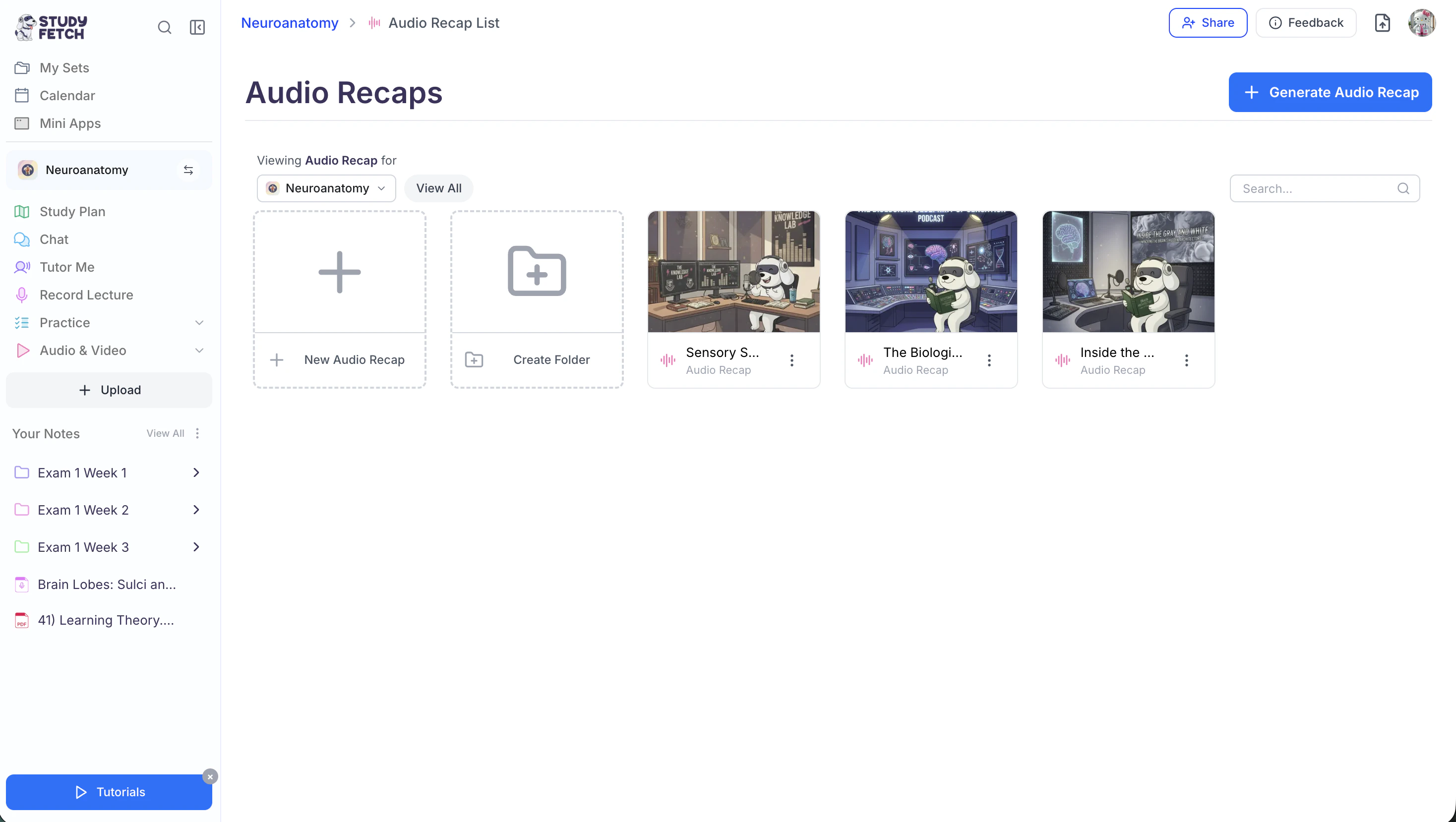
- To open a specific Audio Recap, simply click on the name of the Audio Recap you would like to listen to.
- To generate a new Audio Recap, follow the steps outlined below.
Creating Audio Recaps
Step 1: Start a New Audio Recap
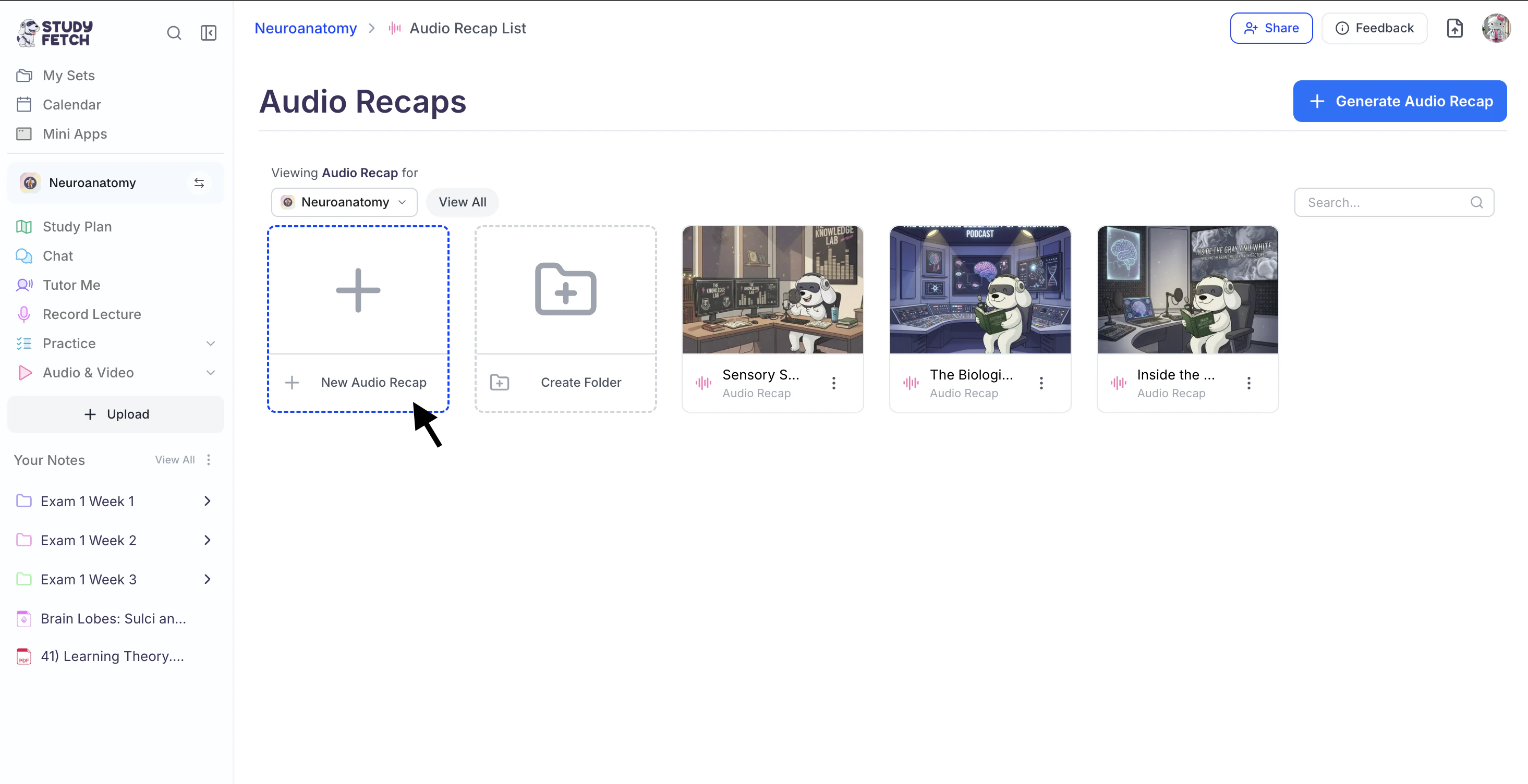
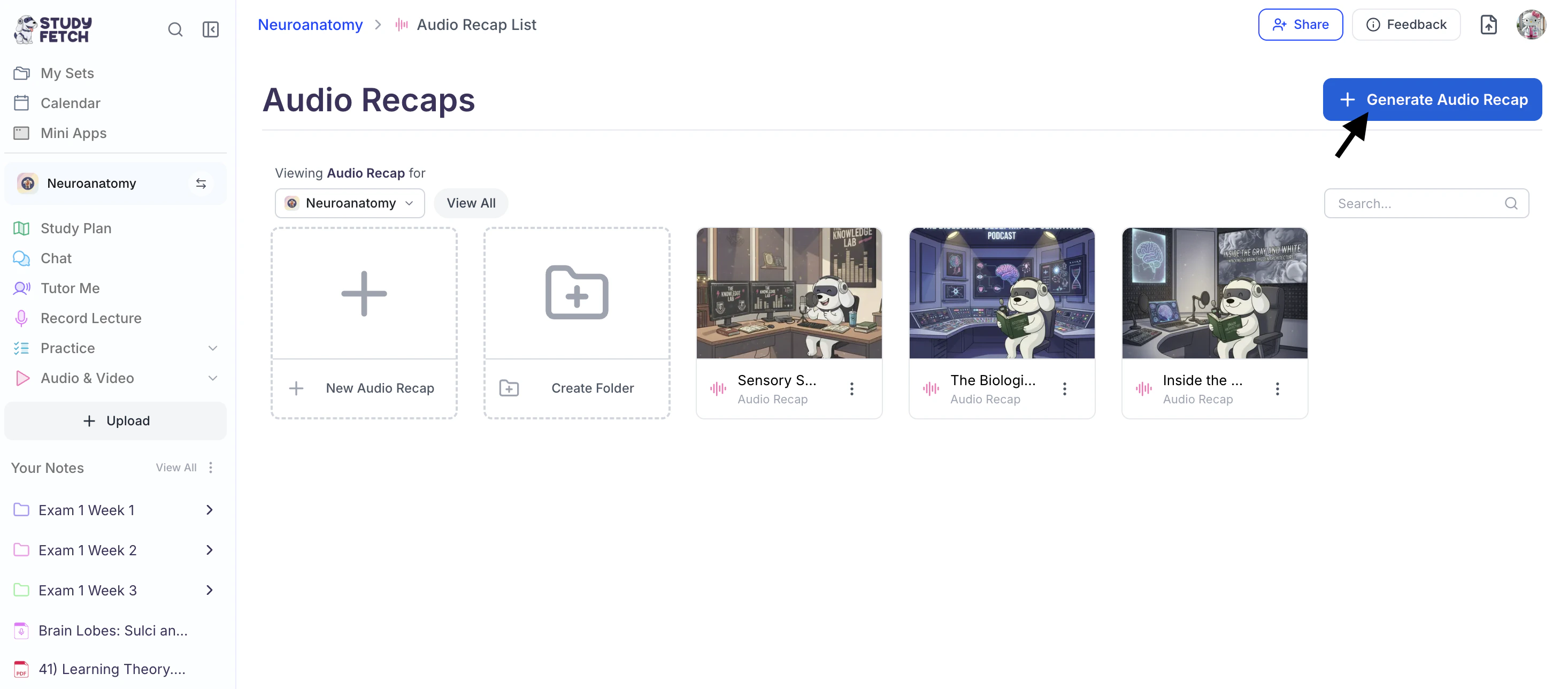
After clicking on Audio Recap, select one of the options below:-
+ New Audio Recap from the left or,
-
+ Generate Audio Recap from the top right.
Step 2: Choose Your Source
-
Next, select how you would like to generate your Audio Recap. Choose Create from Materials to build an Audio Recap from your study materials, or select Create from Topic to generate an Audio Recap from any topic you want to learn about.
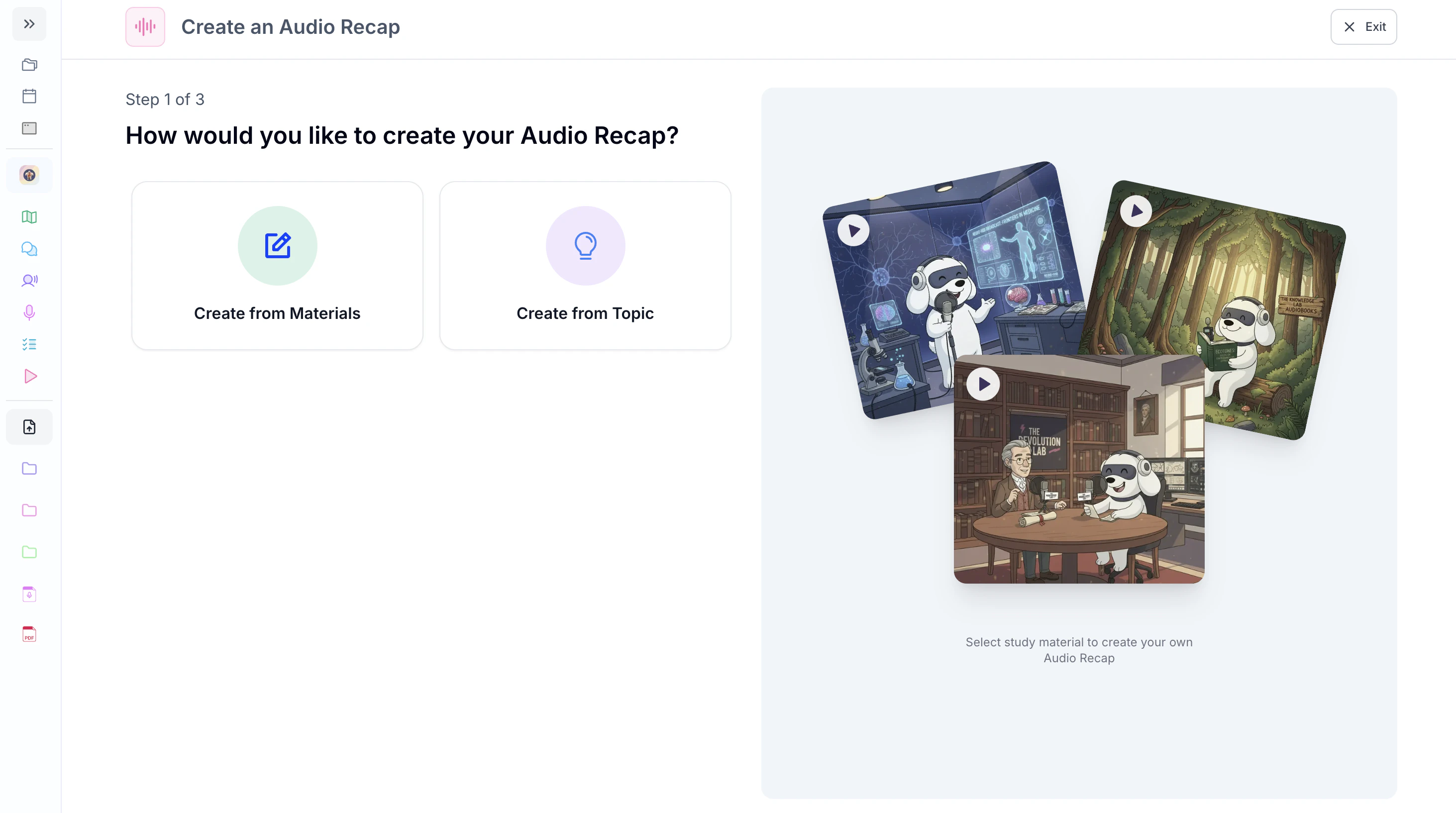
- Then follow the steps for your selected method below.
Method 1: Create from Materials
-
After selecting Create from Materials, choose which previously uploaded materials you would like to include in your audio recap or select + Upload New Material to import material you haven’t uploaded.
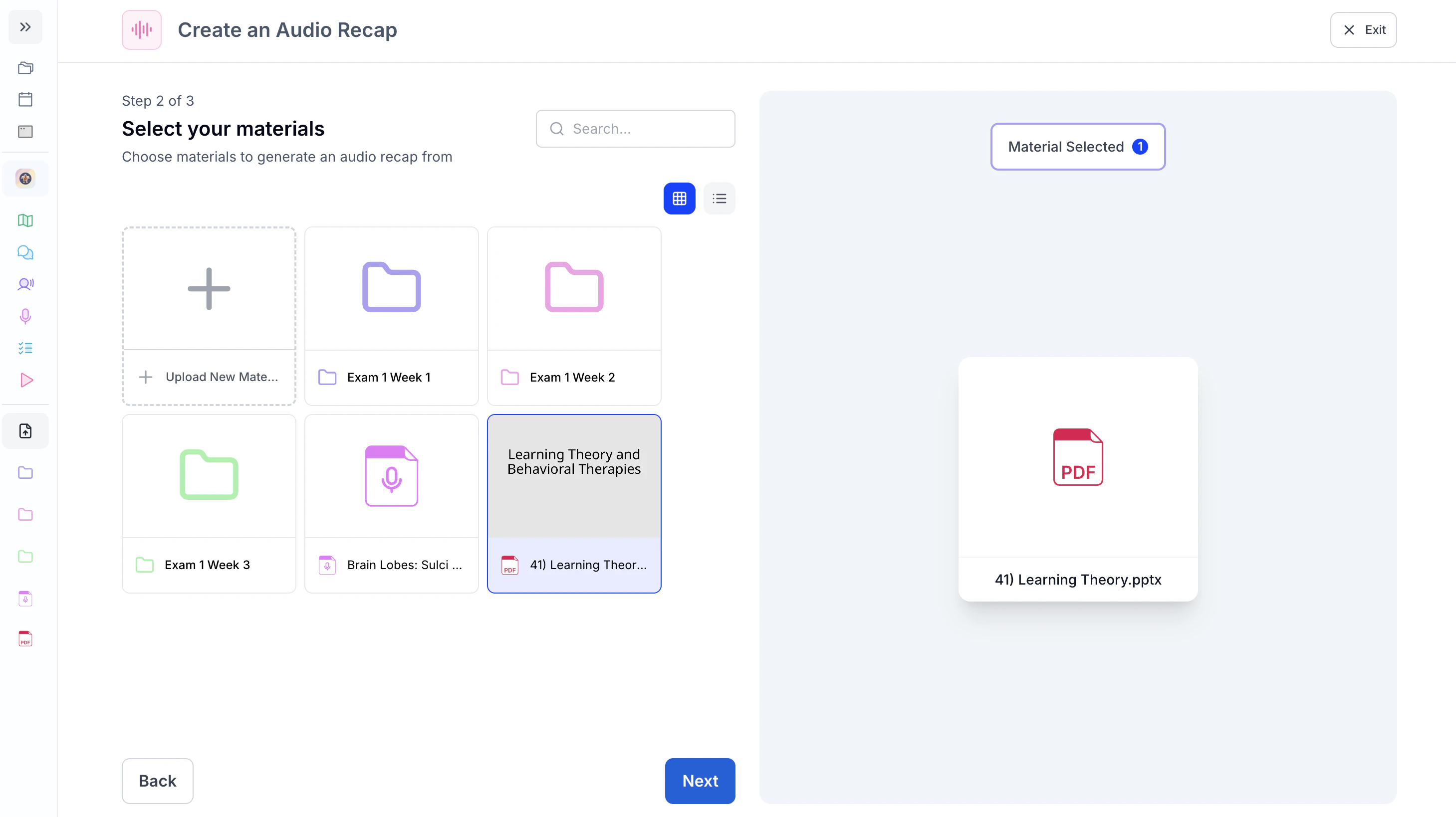
- Click Next.
-
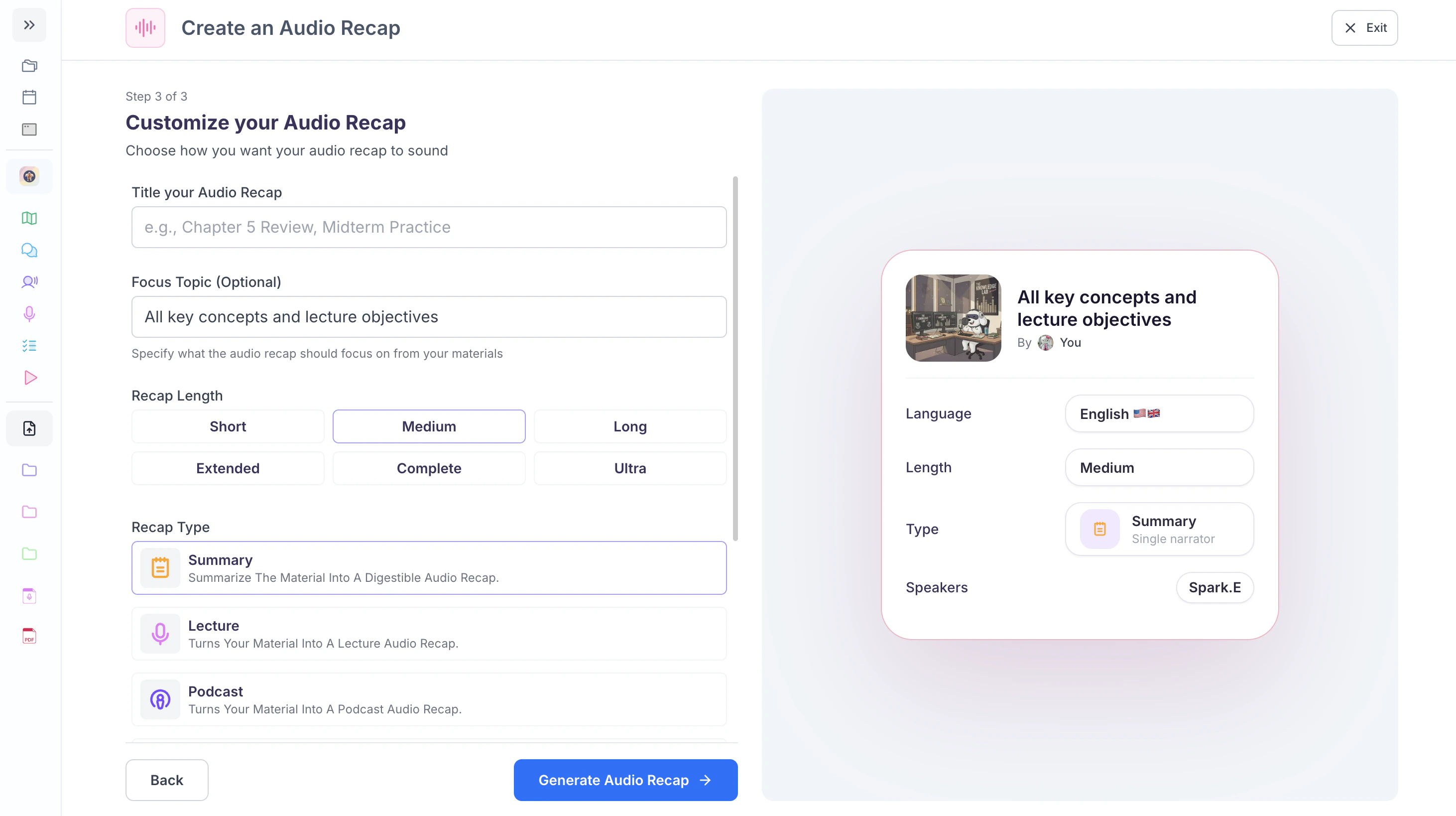
To ensure your audio recap is tailored to your learning goals, specify a focus topic in the box under Focus Topic (optional)
and proceed to Step 3: Customize your Audio Recap
Method 2: Create from Topic
-
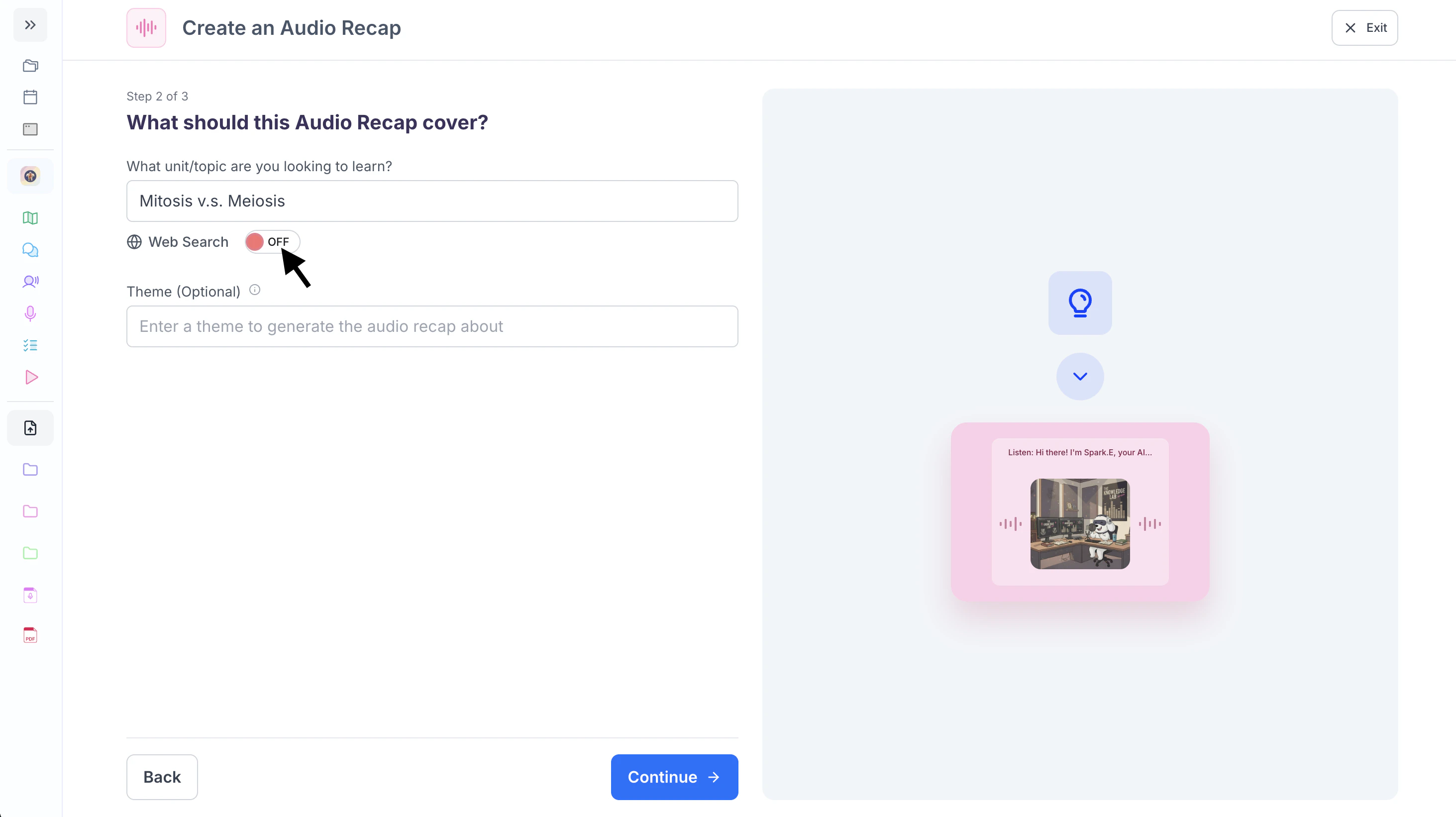
After selecting Create from Topic, type the topic you want to learn about in the box under What unit/topic are you looking to learn?
-
To get the latest information about your topic from the internet, toggle the Web Search button to On.
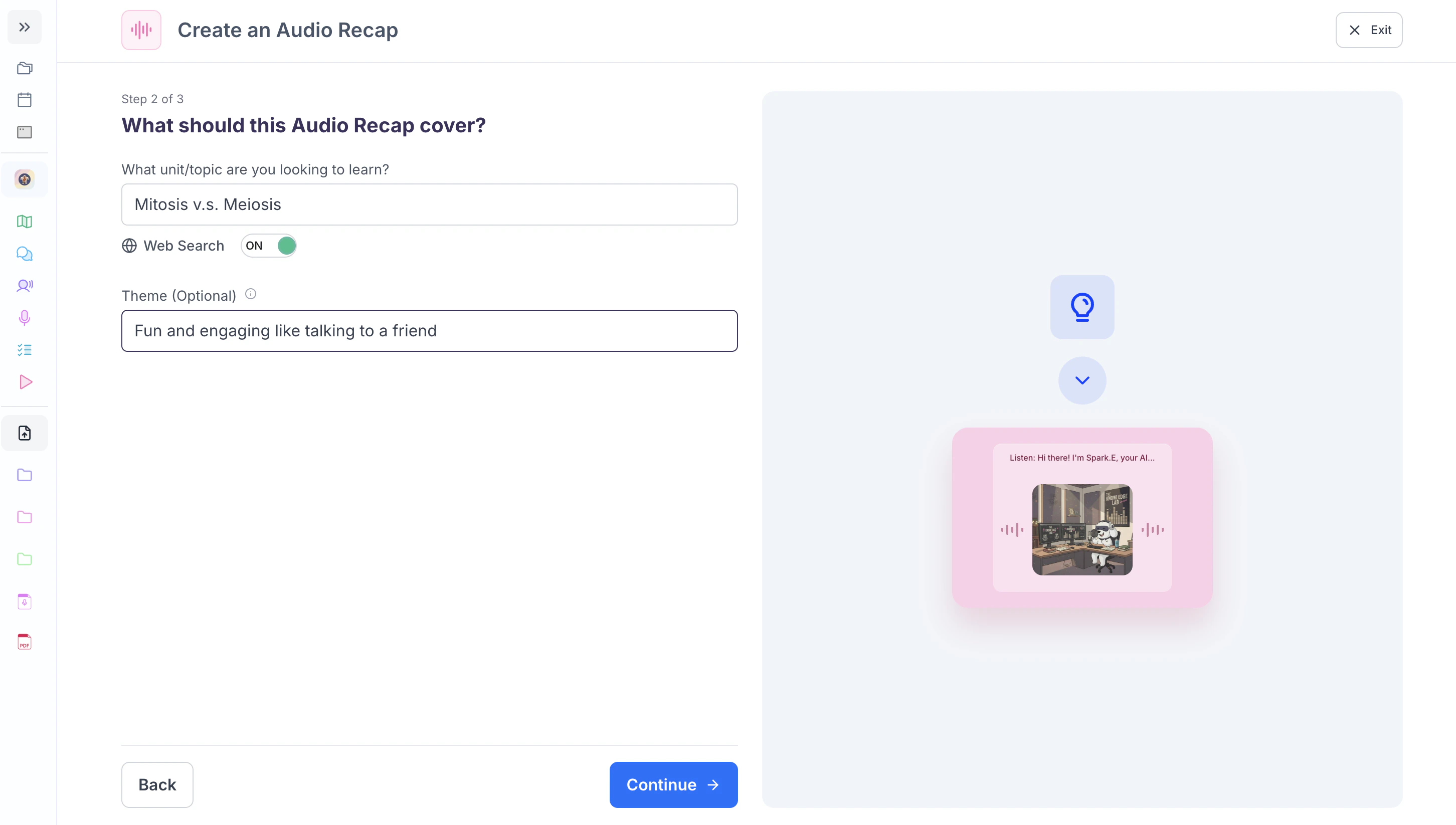
- Use the Theme (Optional) field to personalize the tone and delivery of your audio recap. You can request a professional lecture style or a creative theme inspired by your favorite game, show, or aesthetic.
- Click Continue →, and proceed to Step 3: Customize your Audio Recap
Step 3: Customize your Audio Recap
-
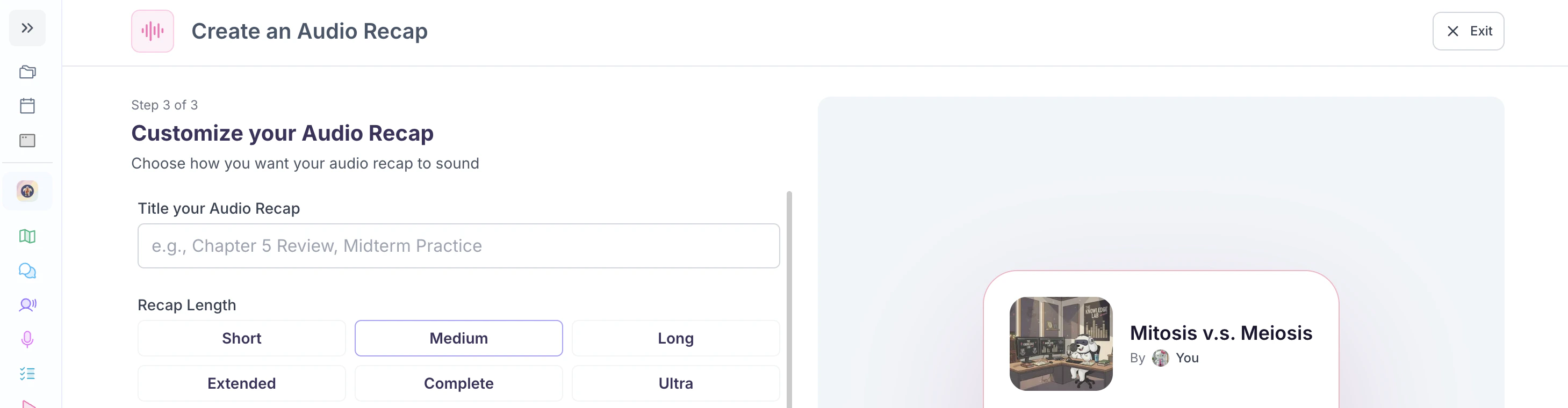
Name your Audio Recap by typing in the box under Title your Audio Recap. If you leave this blank, don’t worry, we will name your audio recap for you.
-
Next choose a recap length from Short, Medium, Long, Extended, Complete, or Ultra
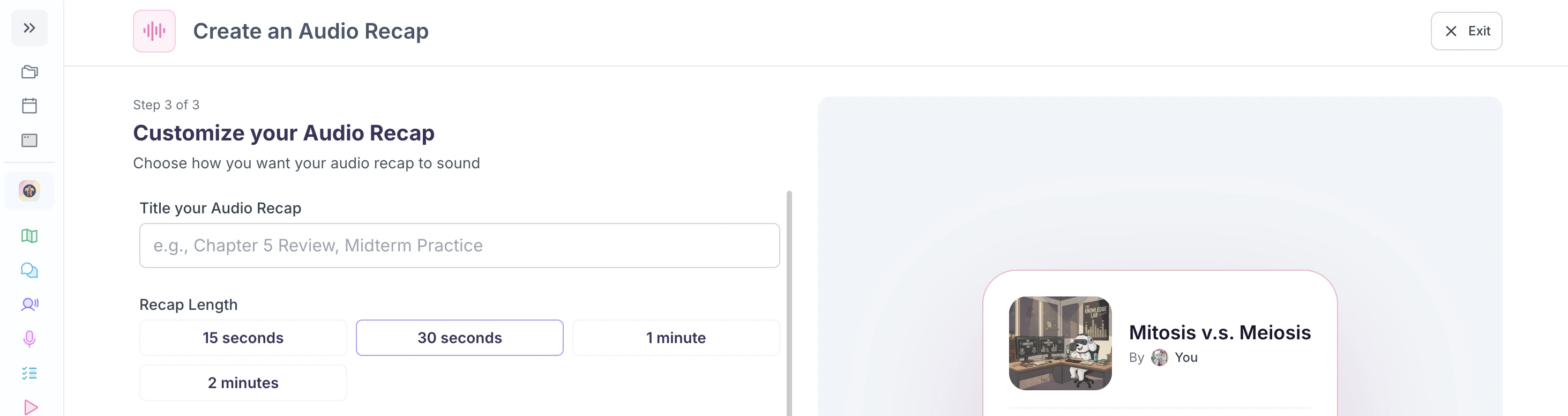
If you select Music as the recap type below, the available length buttons will update to music-specific options, and you will be prompted to choose from these instead:15 seconds, 30 seconds, 1 minute or 2 minutes
-
Then, select a recap type:
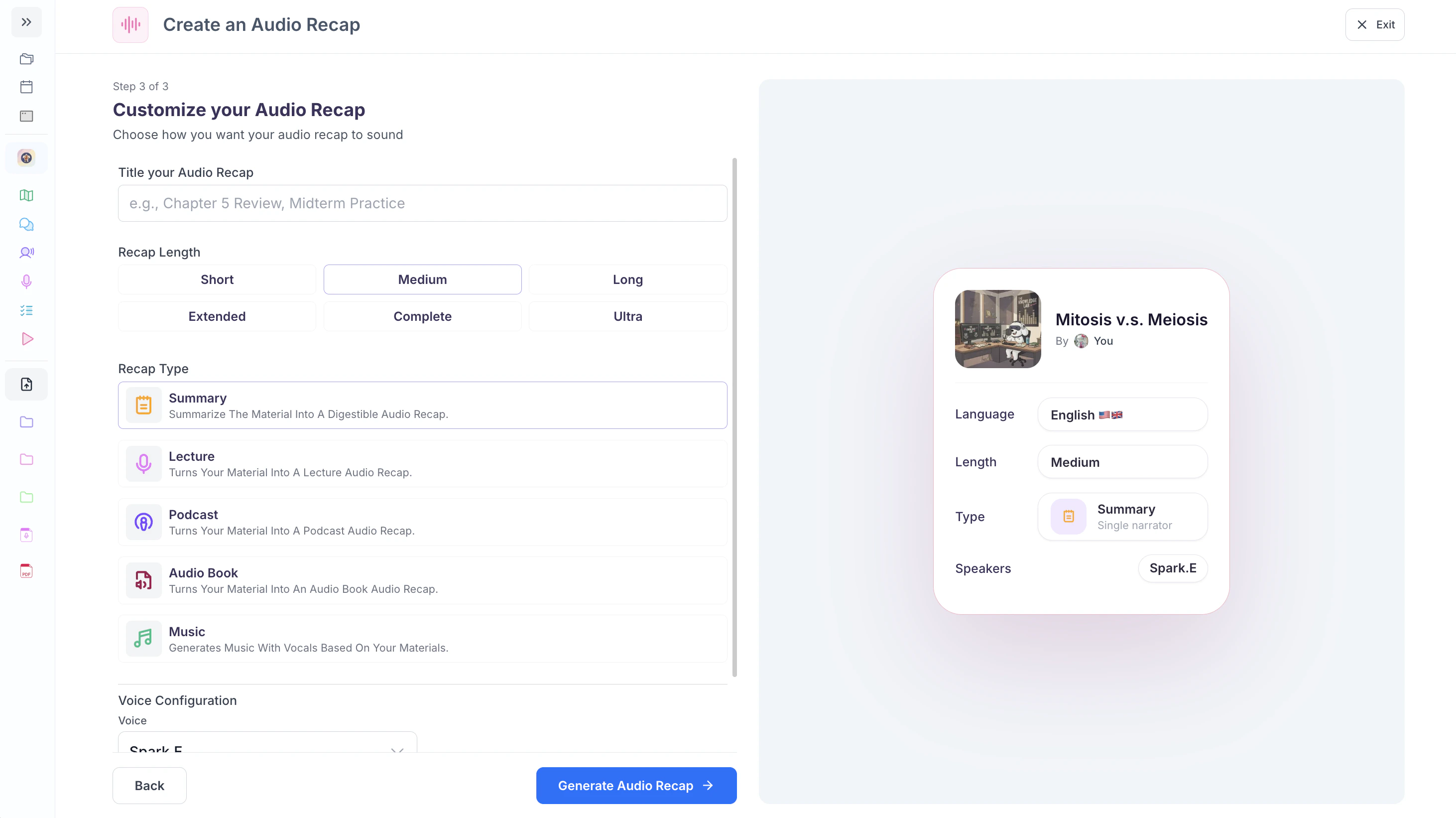
- Summary: A concise audio overview that transforms your study material into one clear, digestible listening experience. Perfect for reviewing key concepts quickly and reinforcing high-yield information on the go.
- Lecture: Transforms your study material into a structured lecture-style audio experience. Designed to feel like you’re listening to a professor explain the content step-by-step for deeper understanding.
- Podcast: Transforms your study material into an engaging, conversational podcast-style audio experience. Ideal for learning on the go while reinforcing concepts in a more relaxed, discussion-based format.
- Audio Book: Converts your material into a structured, narration-driven audio experience, delivering the full content in a seamless, book-like format for comprehensive review.
- Music: Transforms your study material into a custom song with vocals based on your content, helping reinforce key concepts through rhythm, melody, and repetition for memorable learning.
Step 4: Voice Configurations
Each recap type offers its own voice configuration settings. Follow the instructions below that correspond to the recap type you selected.- Summary, Lecture or Audio Book:
-
Your audio recap will feature a single speaker. To change the speaker’s voice, select the dropdown arrow in the Voice field.
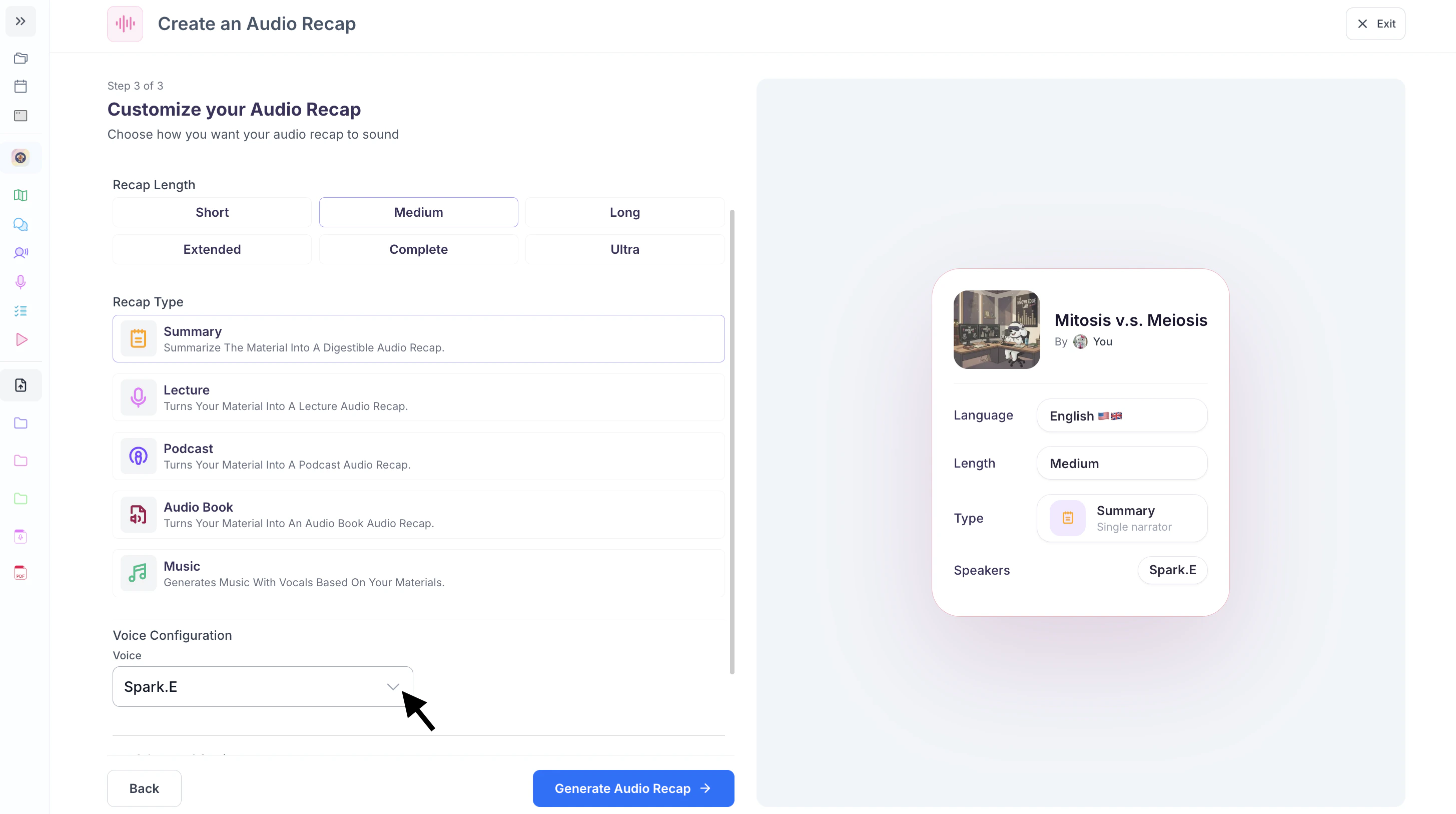
-
Then choose your preferred voice from the list.
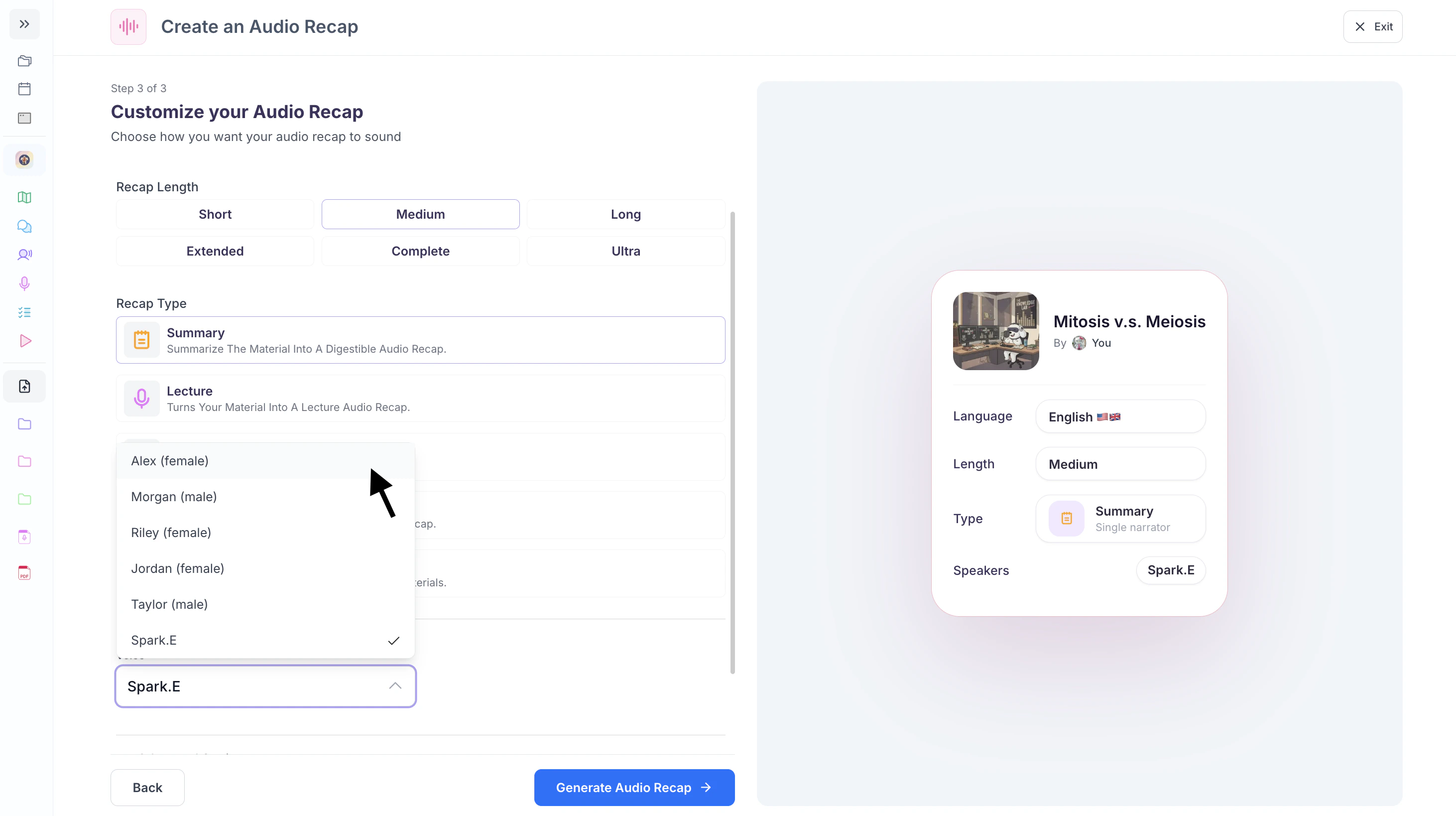
-
Your audio recap will feature a single speaker. To change the speaker’s voice, select the dropdown arrow in the Voice field.
- Podcast:
-
Your audio recap can feature either one or two speakers. To generate a recap with one speaker, select Single Voice. If you prefer two speakers, select Multi Voice.
Next, open the Voice dropdown menu and choose your preferred voice. If you selected Multi Voice, you will need to select a voice for each narrator
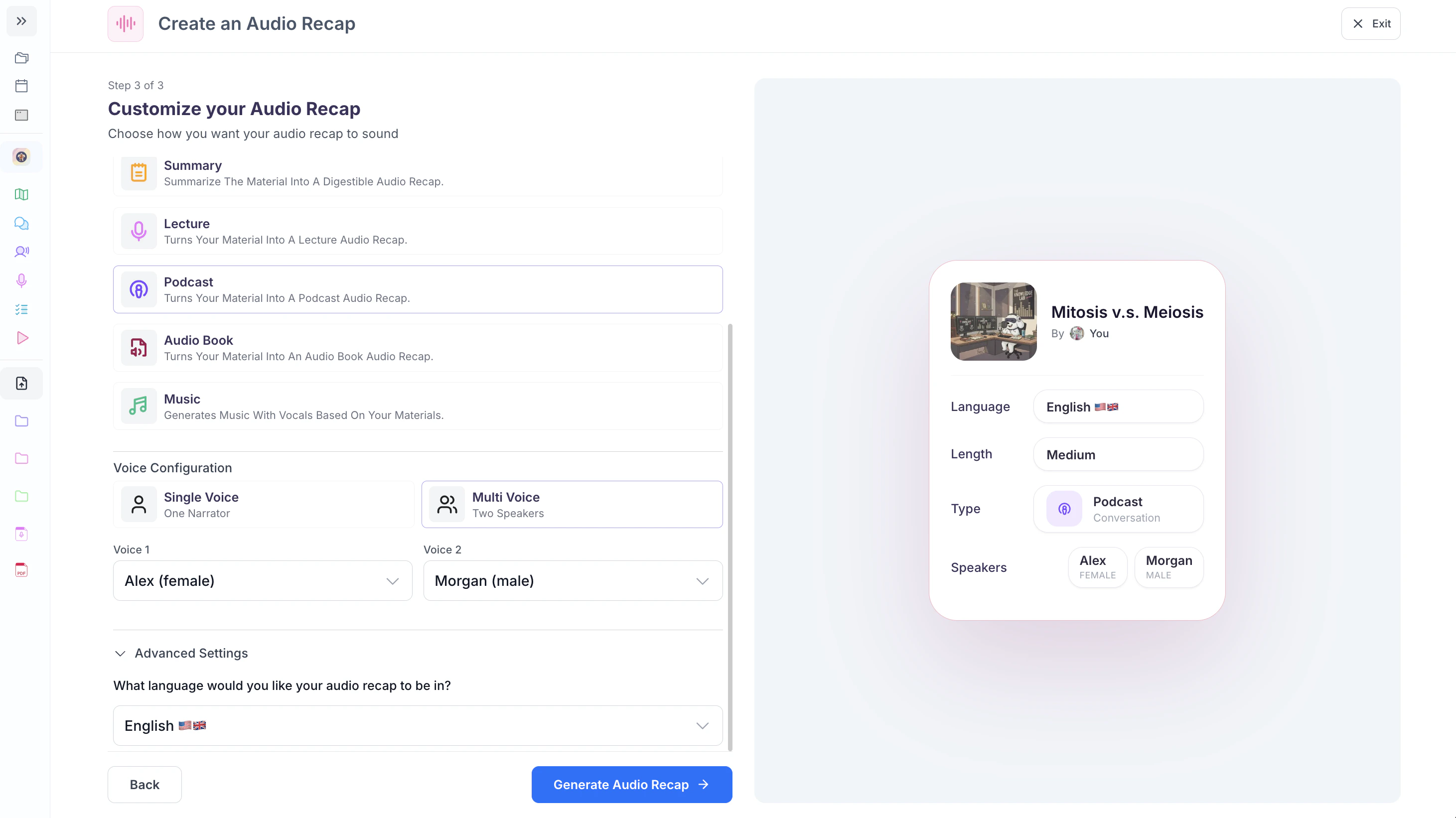
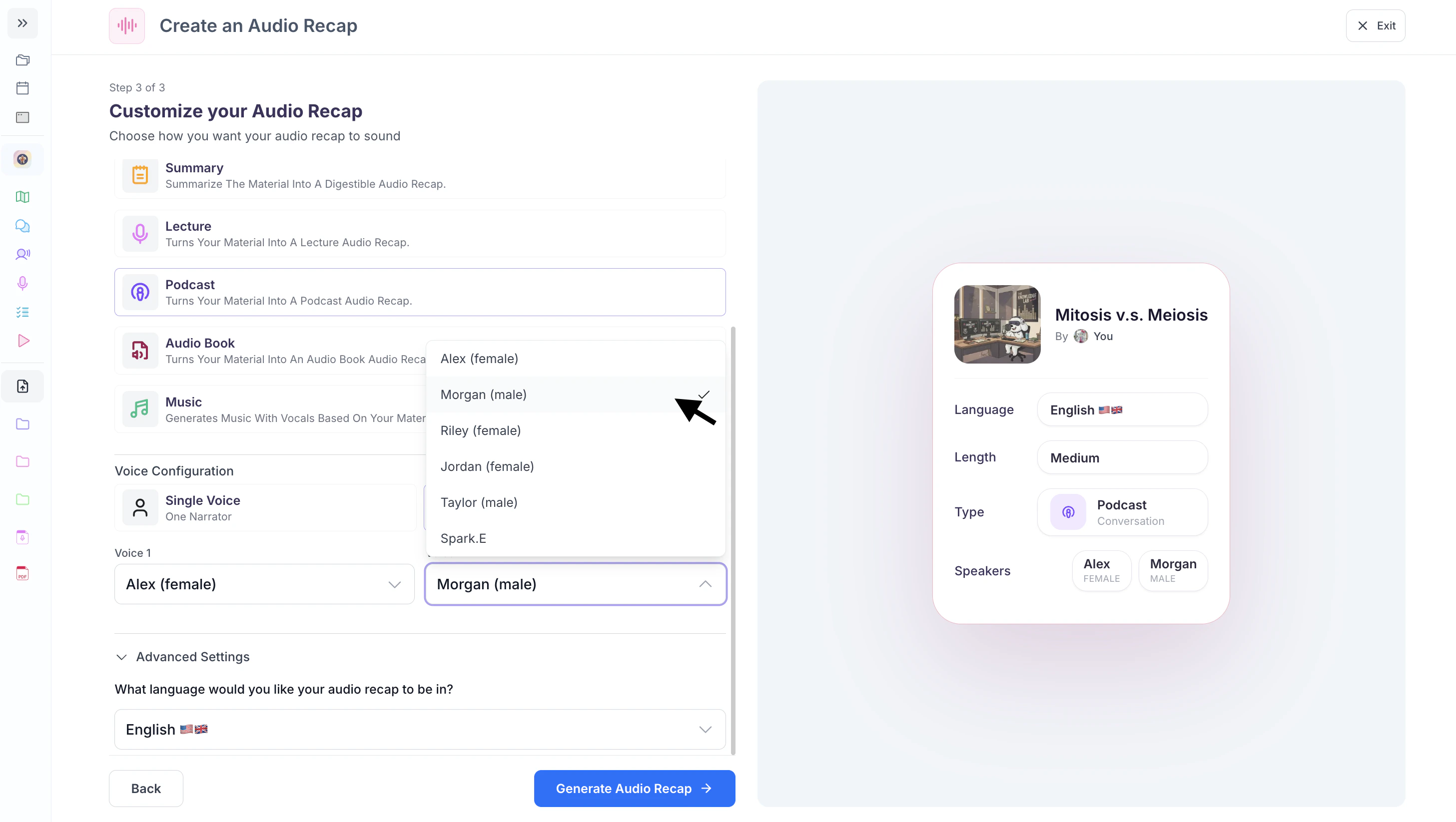
-
Your audio recap can feature either one or two speakers. To generate a recap with one speaker, select Single Voice. If you prefer two speakers, select Multi Voice.
- Music:
- This recap type does not currently offer voice customization options.
Step 5: Finalize your Audio Recap
-
Under Advanced Settings, Choose the language you want your audio recap to be in by clicking the box under What language would you like your audio recap to be in? and selecting your preferred language from the list.

-
Click Generate Audio Recap→ to generate your recap!
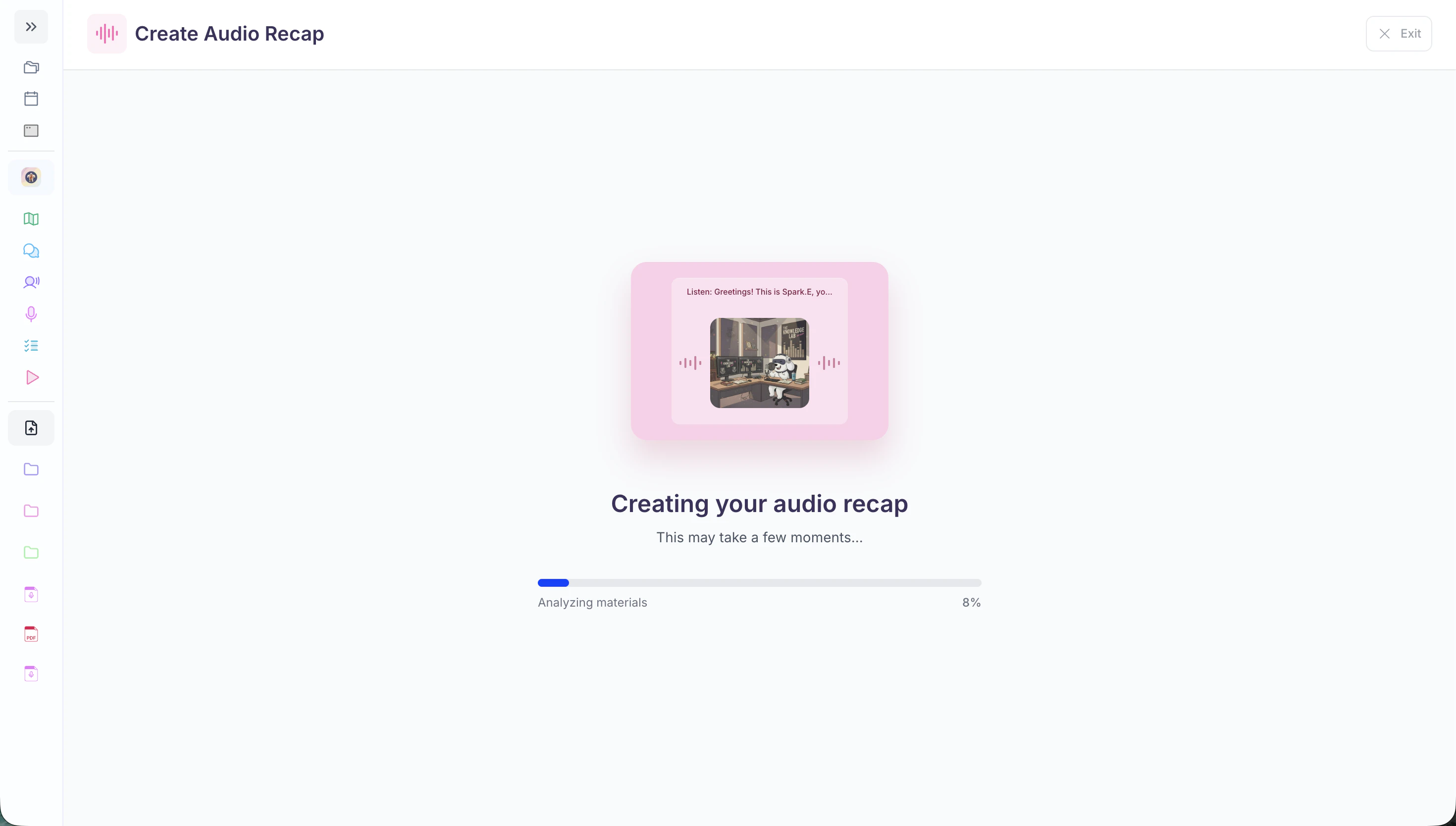
Navigating your Audio Recap
Play your Audio
-
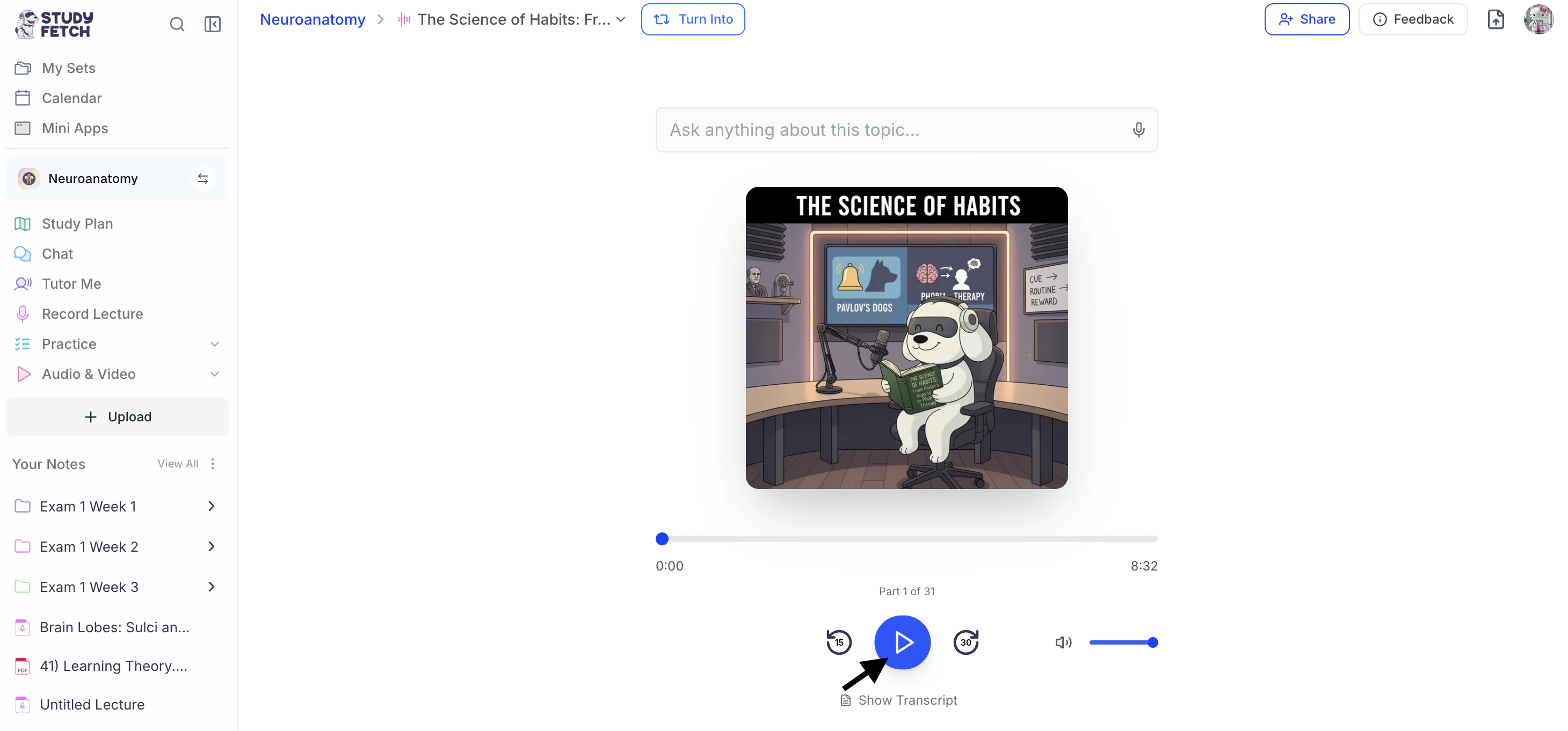
When your audio recap is ready you can start listening by clicking the Play button.
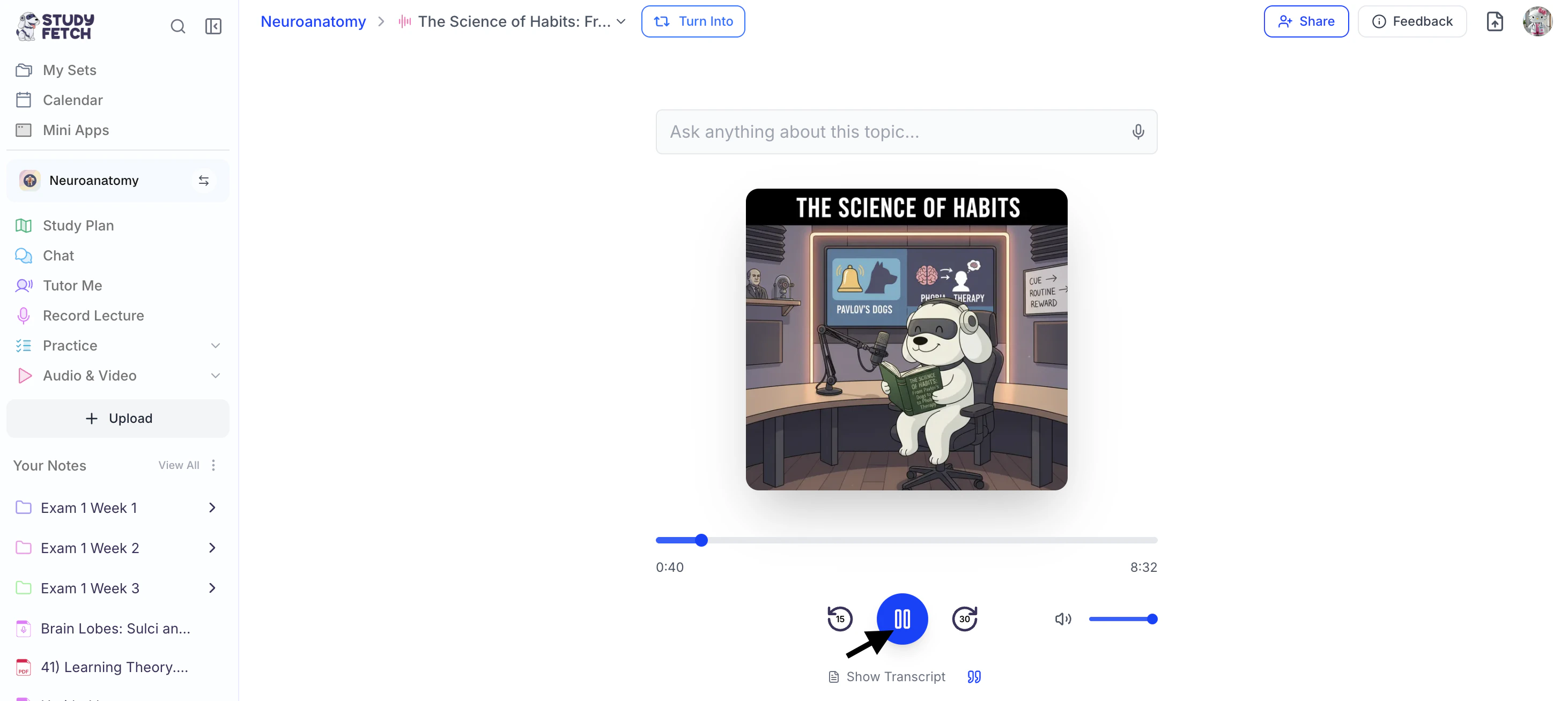
The Play button will switch to a Pause button while the audio is playing.
-
To pause your audio, simply click the Pause button
Modifying Volume
-
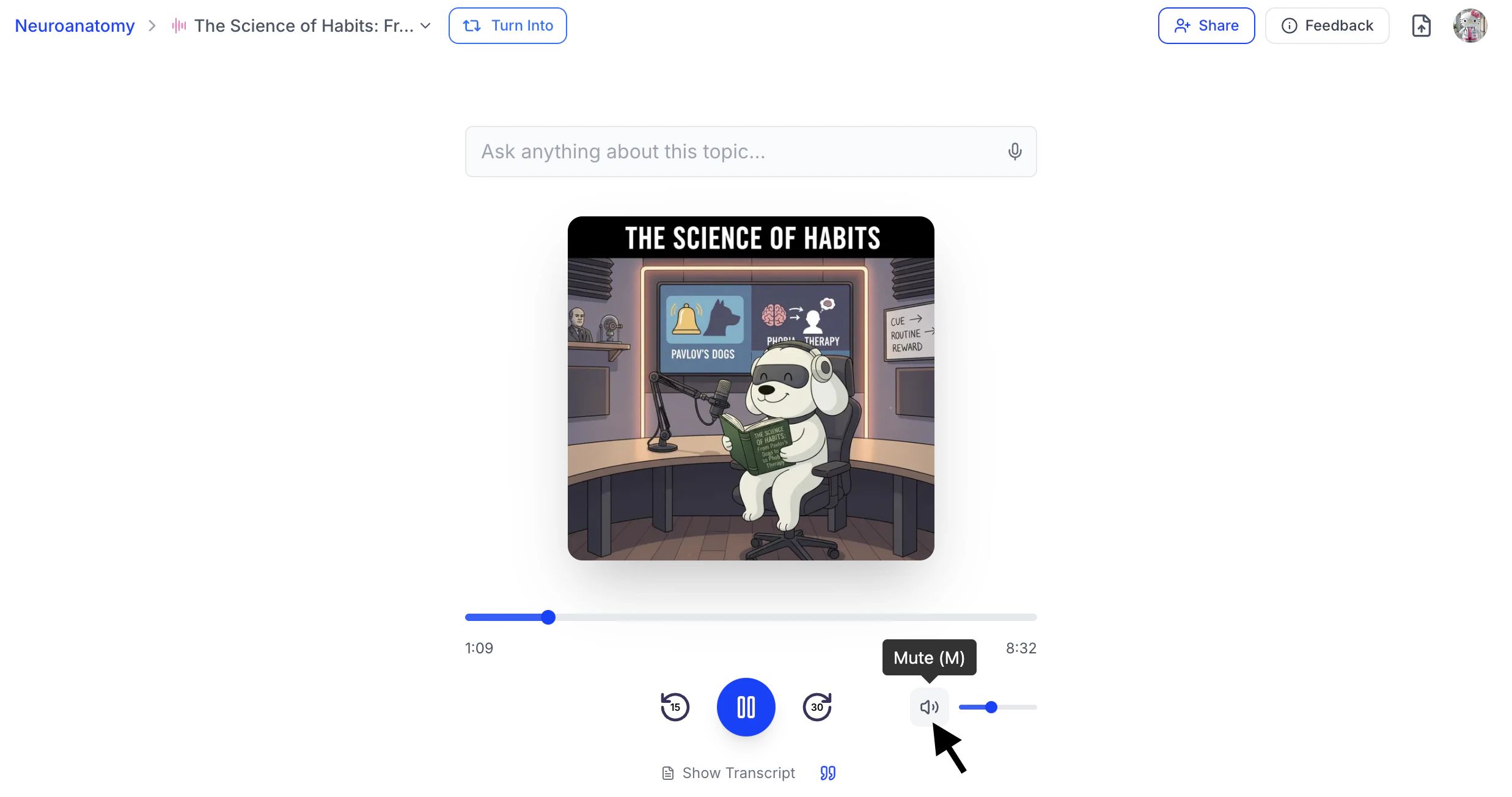
To adjust the volume, use the slider next to the Sound icon.
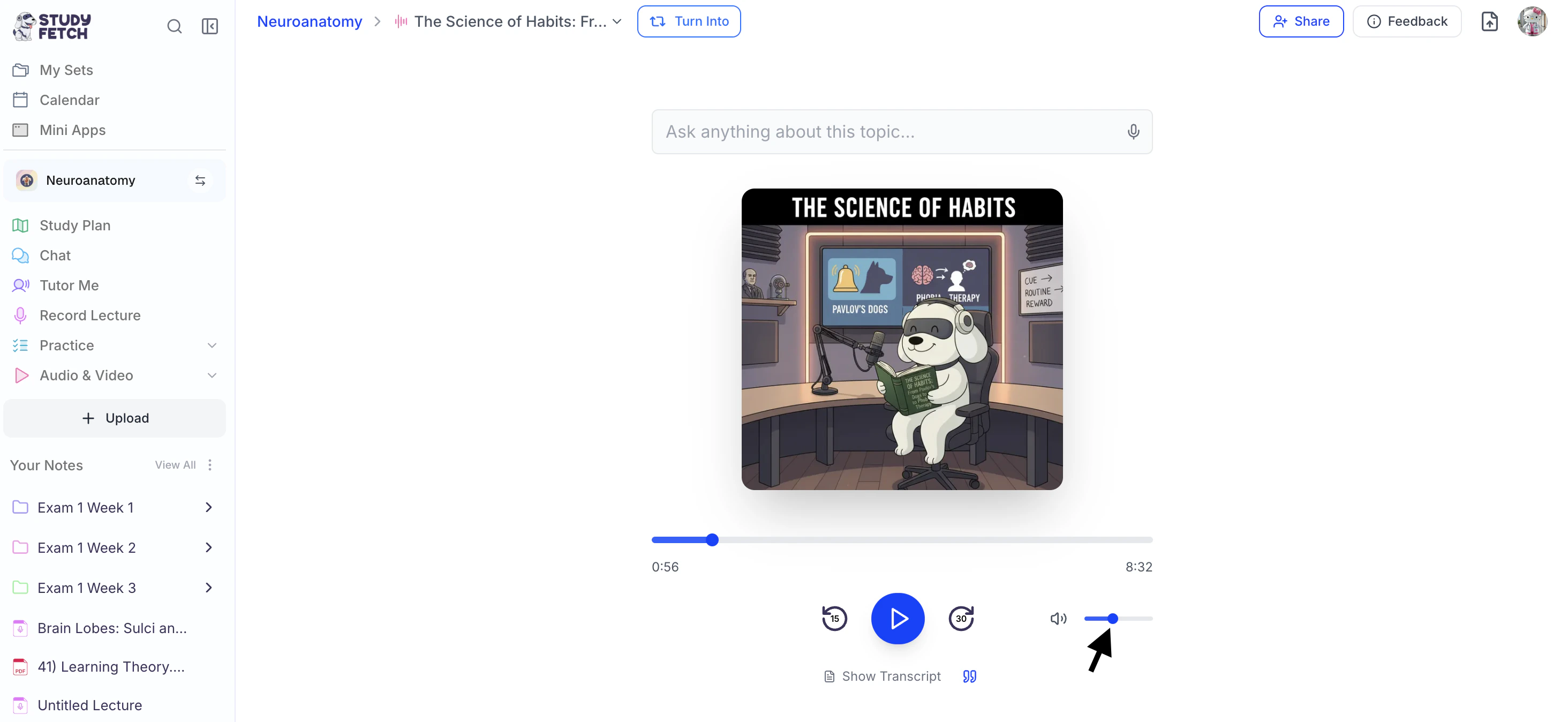
- Click and drag the bar to the right to increase the volume or,
- to the left to decrease it.
-
To mute your audio recap, select the Sound icon.
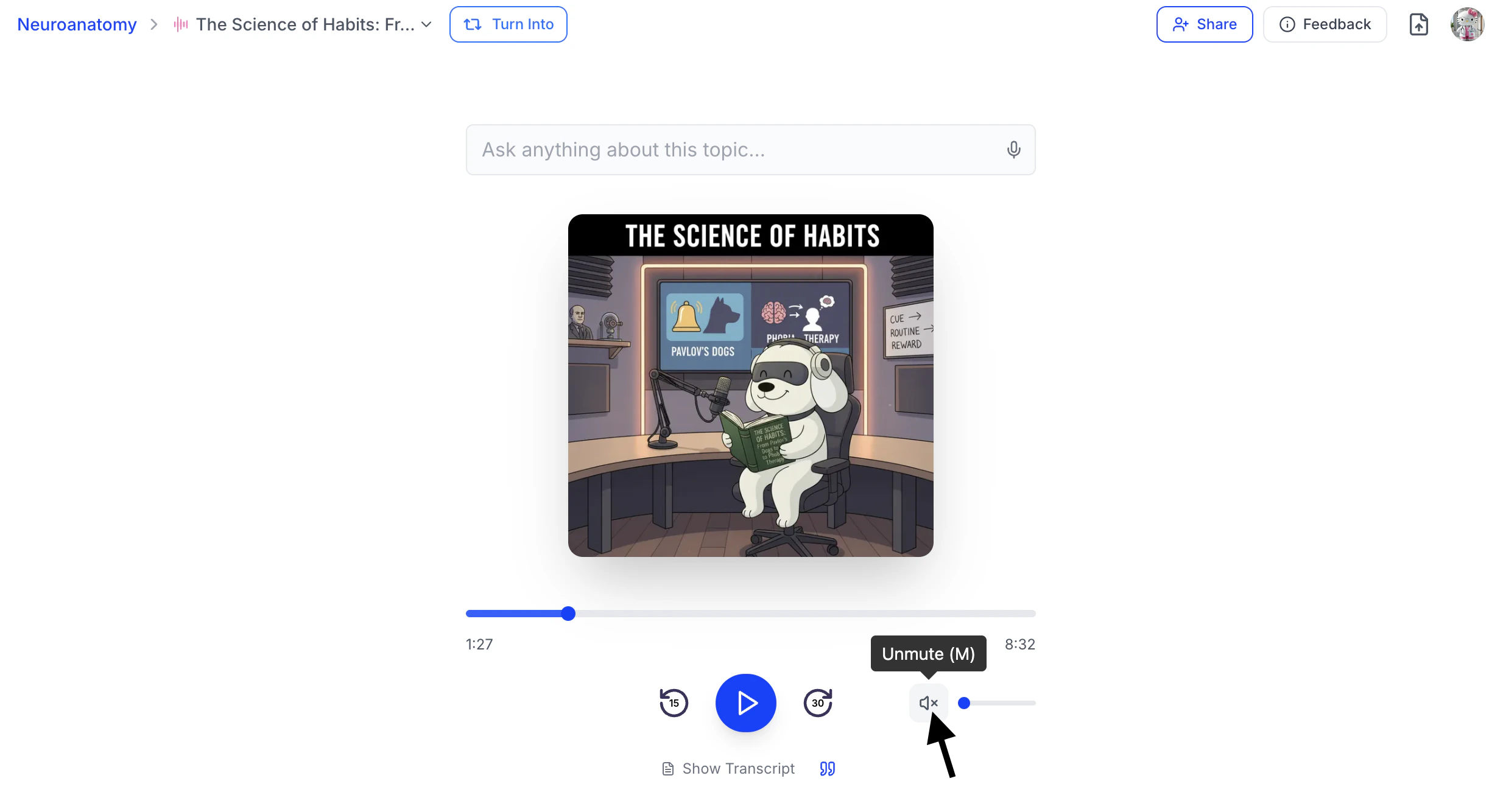
When muted, an “x” will appear next to the icon, and the volume slider will appear unfilled.
-
Click the Sound icon again to unmute the audio.
The volume slider will automatically restore to the last selected volume setting.
Rewinding and Fast Forwarding
-
The audio playback has standard controls allowing you to:
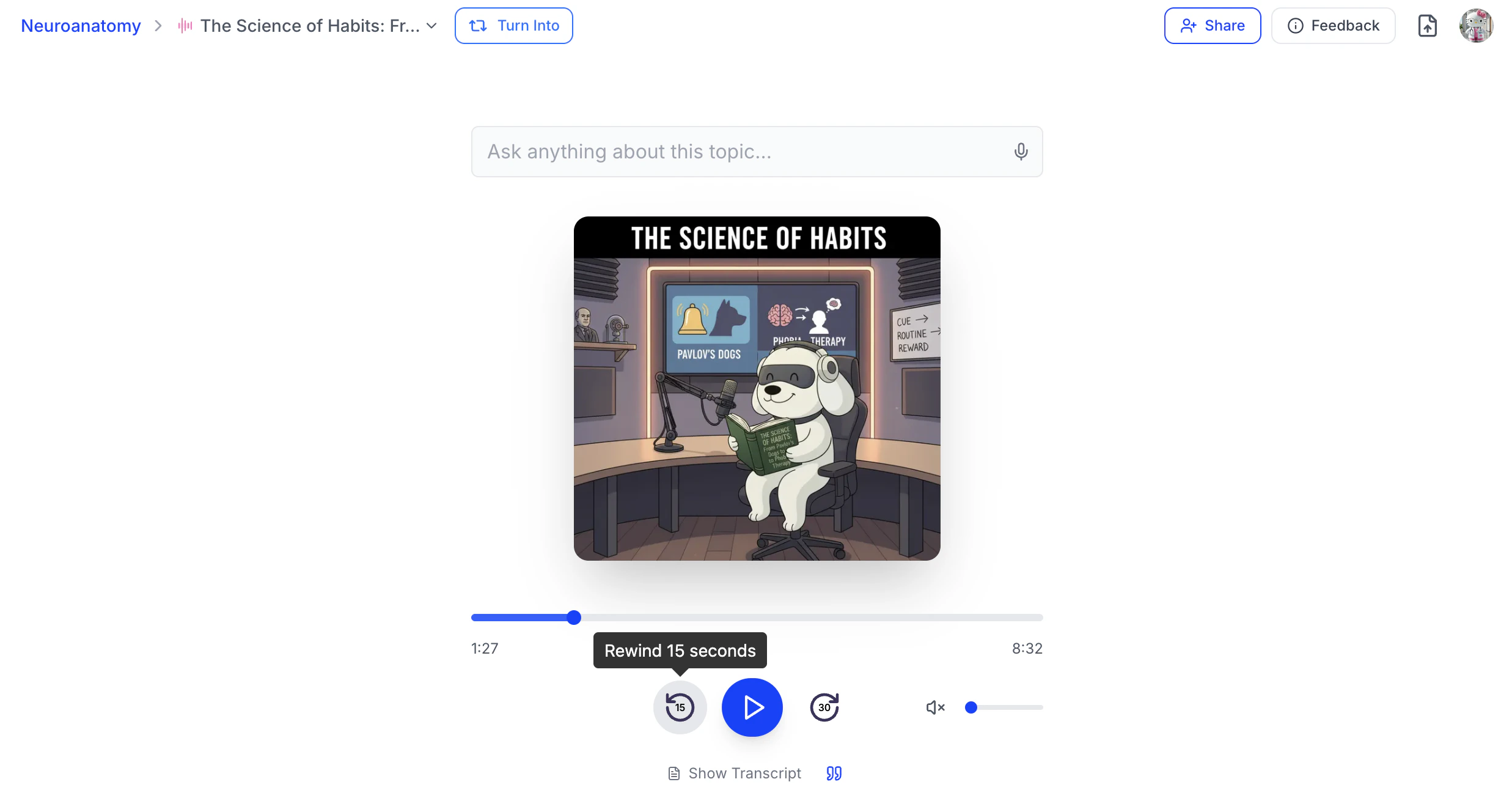
- Rewind 15 seconds by selecting the button to the left of the play button
- Fast forward 30 seconds by selecting the button to the right of the play button
-
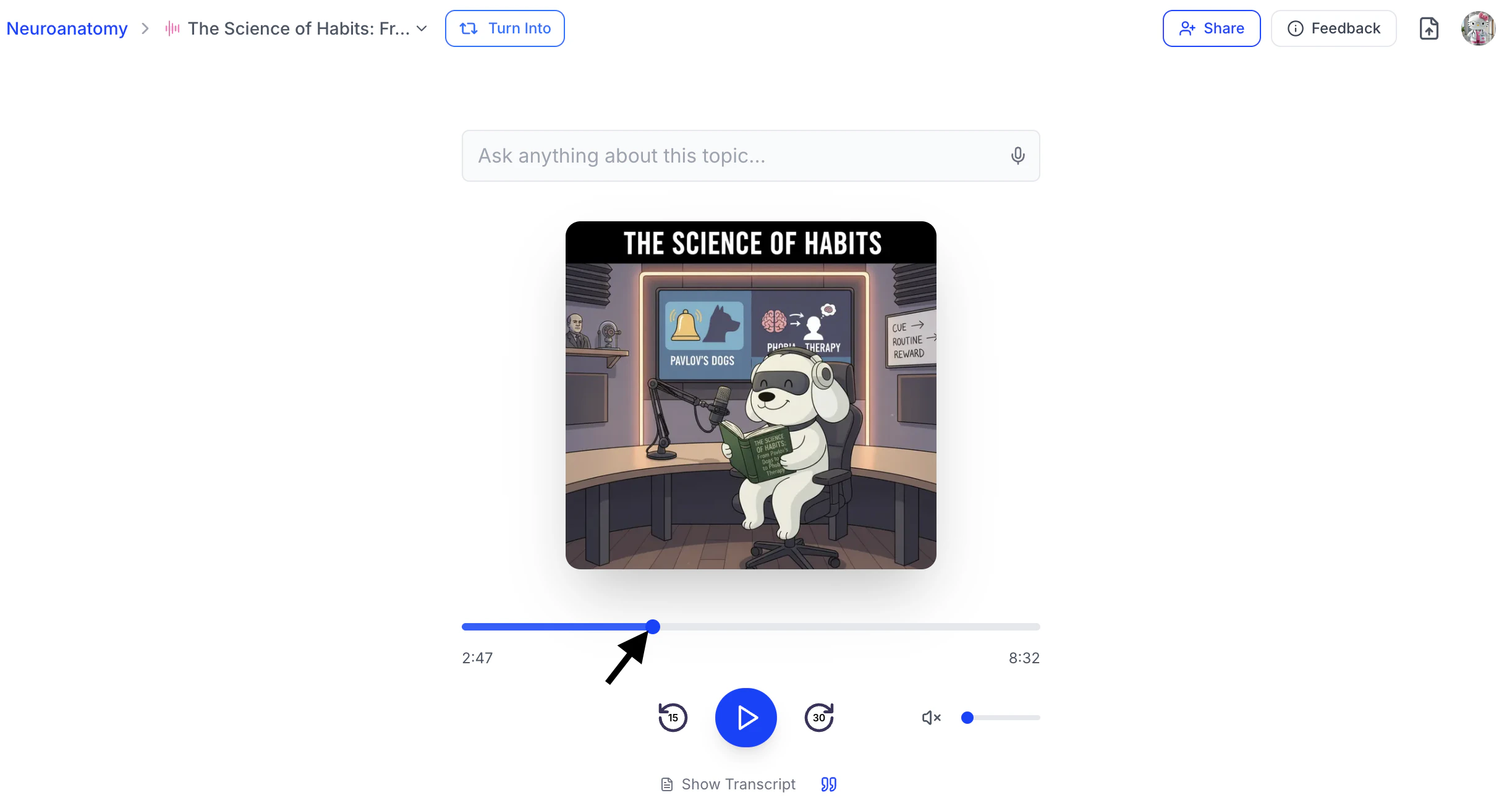
To jump to a specific time, use the progress bar above the playback controls by clicking and dragging the slider to the desired position.
Viewing the Audio Transcript and Source
Follow along with the transcript while listening to reinforce learning, or use it as a quick reference whenever needed.-
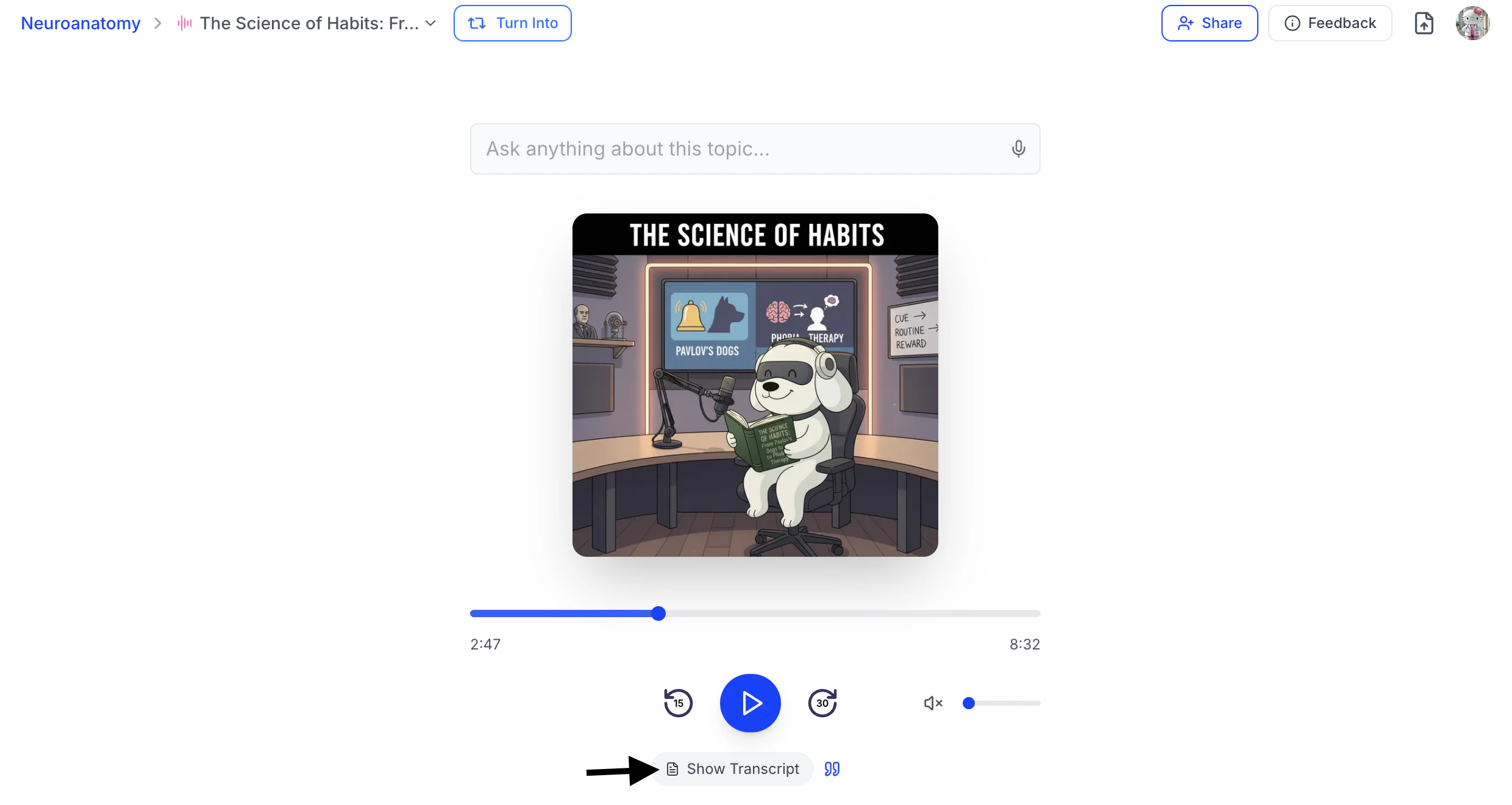
Select the Show Transcript button found below the audio player to view the transcript as you listen to your audio recap.
-
The transcript shows the speaker’s name followed by their dialogue. It appears in real-time segments and updates as you listen, rather than displaying the full transcript at once.
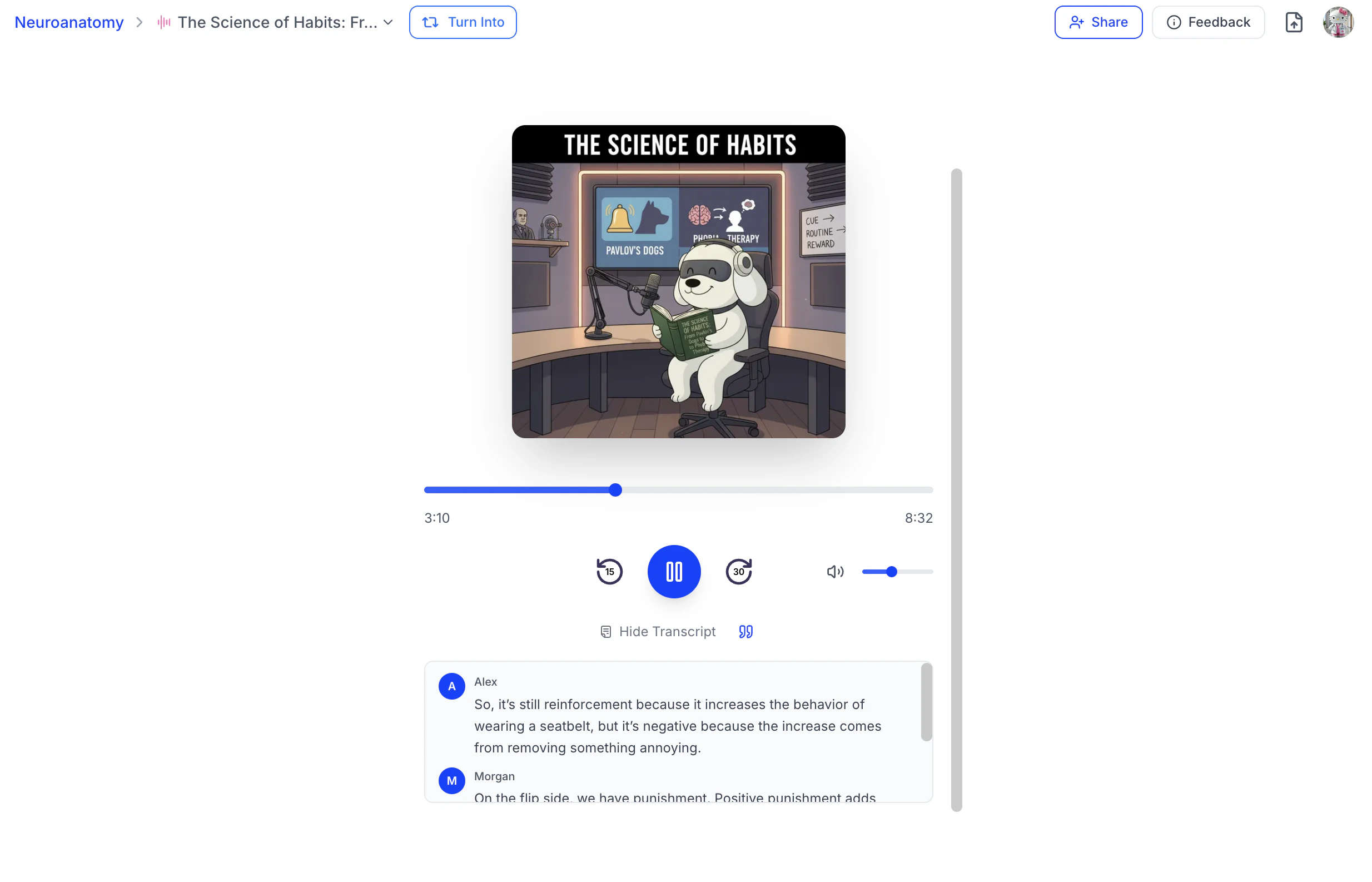
- To hide the transcript, select Hide Transcript. The transcript panel will close and no longer display on the screen.
-
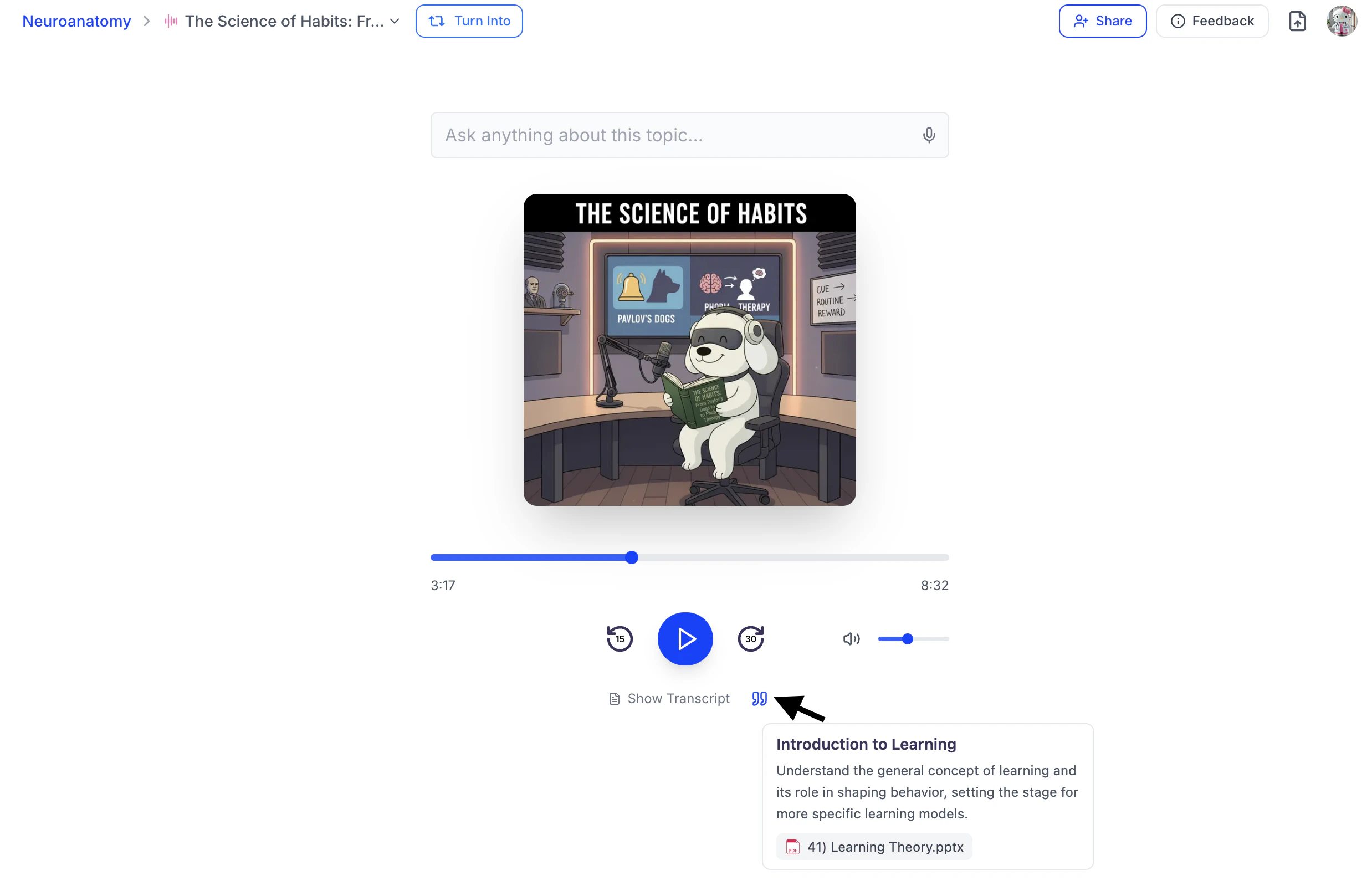
Curious about the source referenced in your audio recap? Hover over the “ icon located to the right of the Show Transcript / Hide Transcript button to view exactly where the information originates within your study material.
Ask Questions while Listening
While listening to your Audio Recap, you can ask questions and receive answers in real time—helping you clarify concepts without breaking focus.-
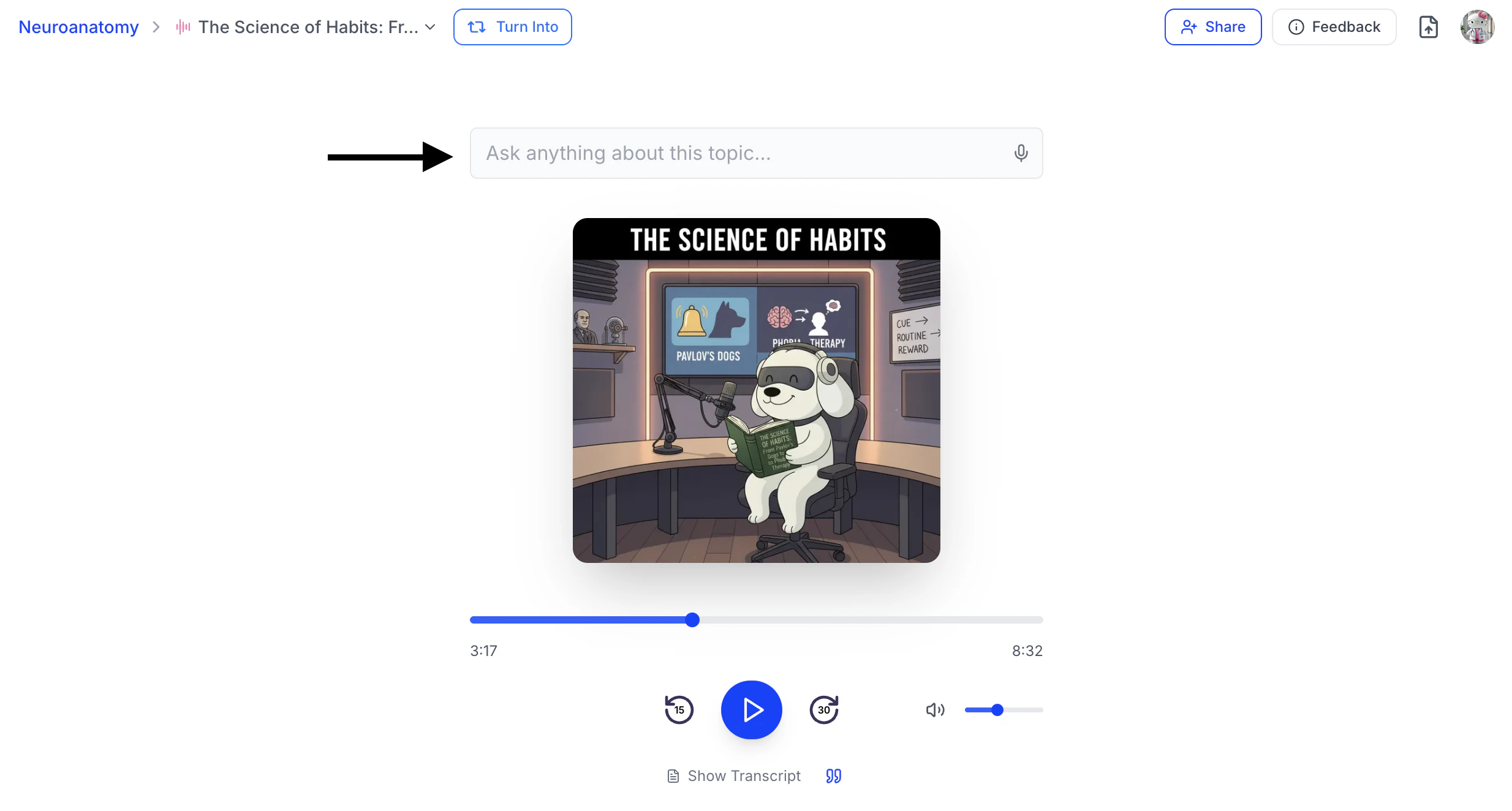
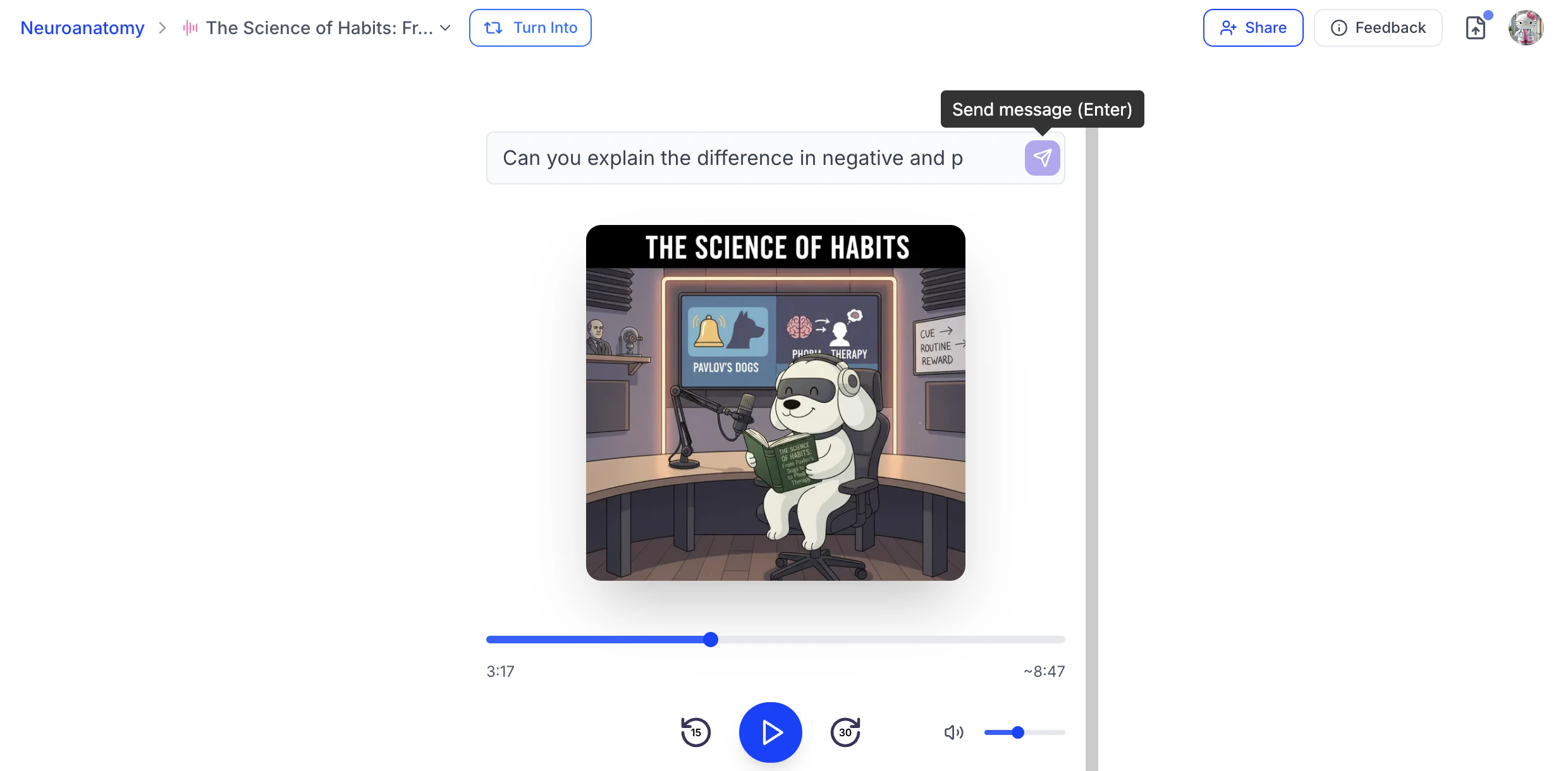
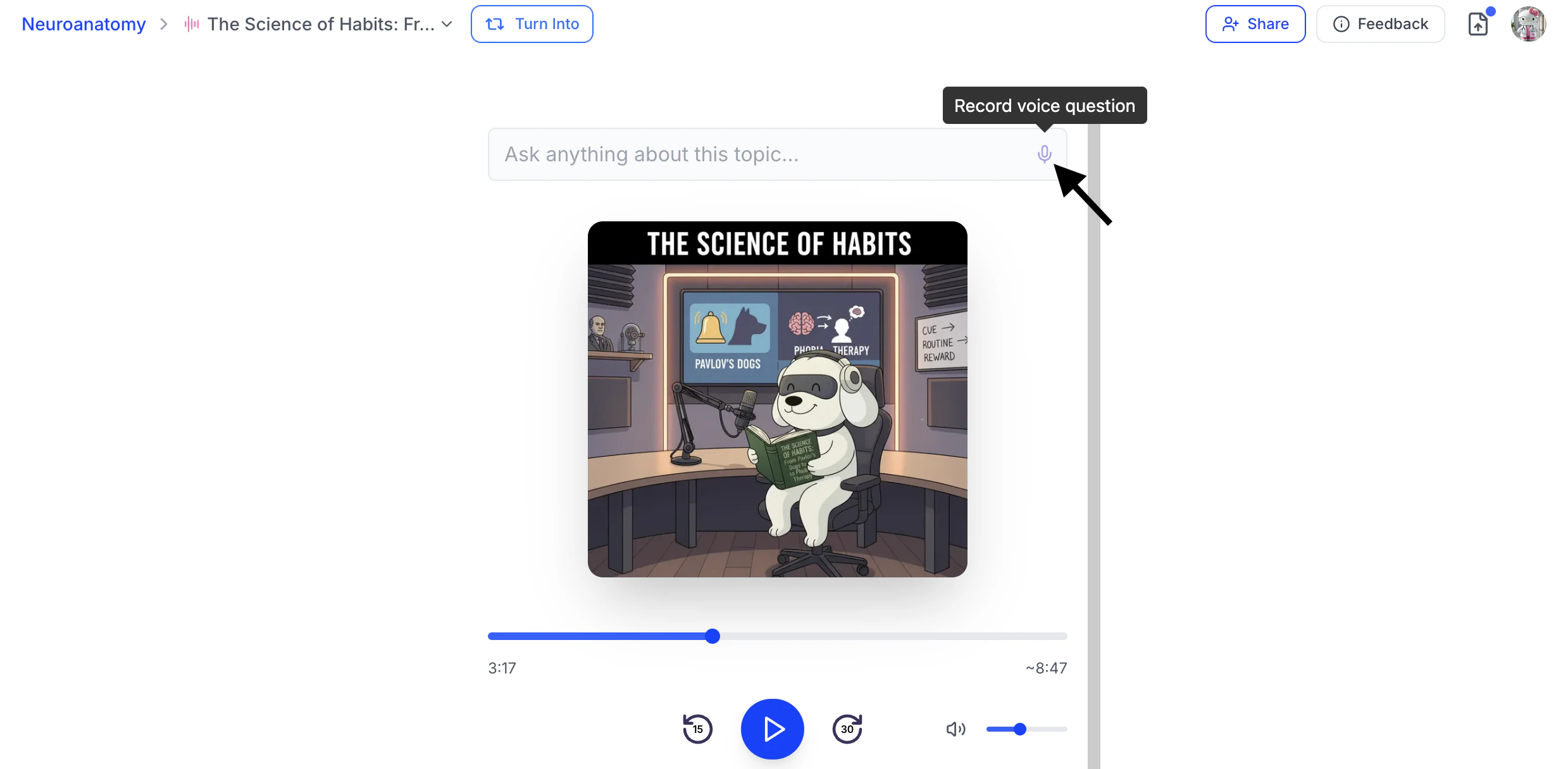
If you have a question about something mentioned in your audio recap or need further clarification, you can ask directly in the “Ask anything about this topic…” field located above the audio recap image.
-
You can either:
-
Type your question directly into the field, then click enter on your keyboard or the Send Message button or,
-
Select the microphone icon to record your question using voice input.
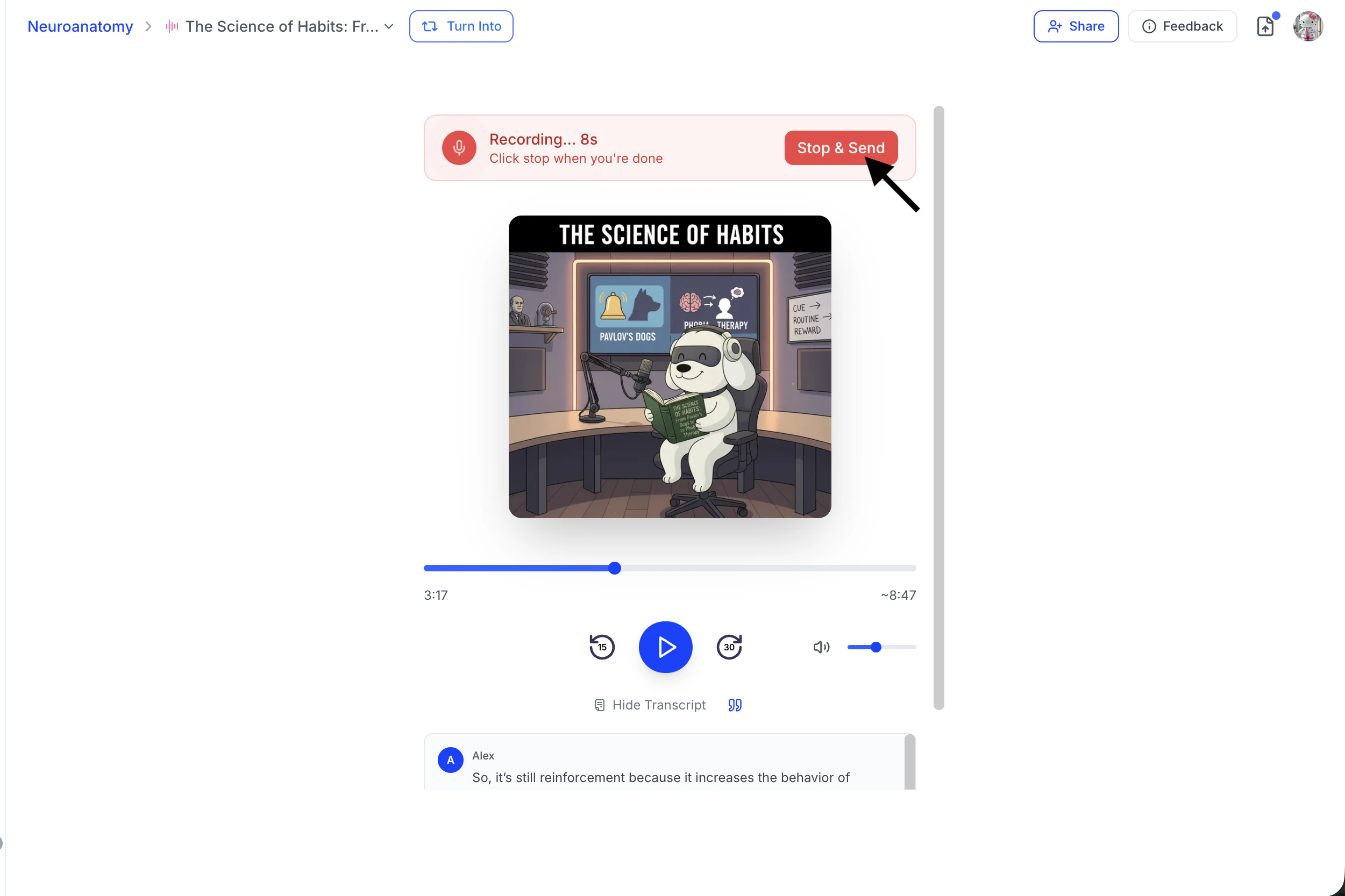
When you have finished speaking, click Stop & Send to submit your question.
-
Type your question directly into the field, then click enter on your keyboard or the Send Message button or,
- The speaker(s) will pause the recap to answer your question in real time, then seamlessly resume the audio from where it left off.
Managing your Audio Recap
Changing the Name of Your Audio Recap
-
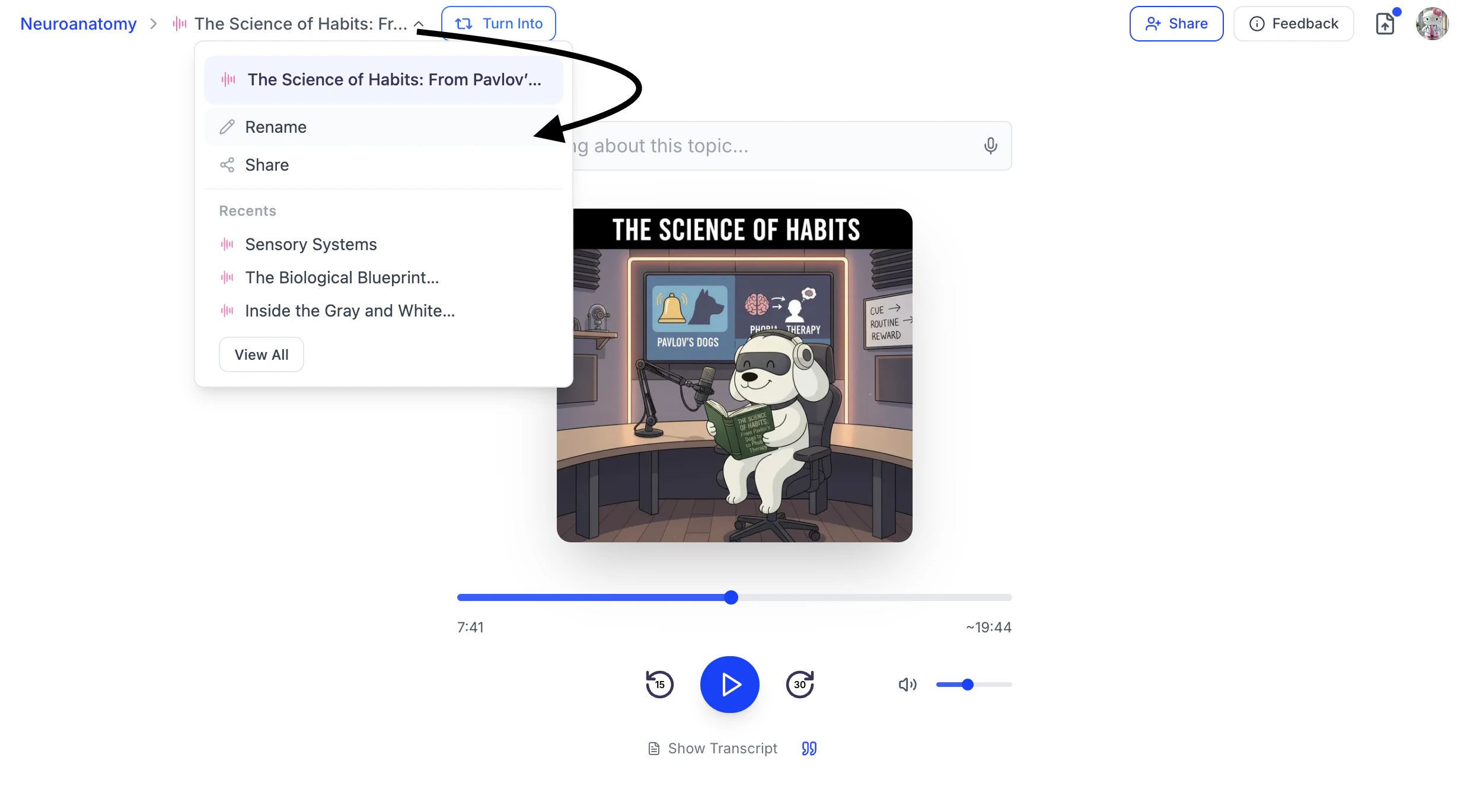
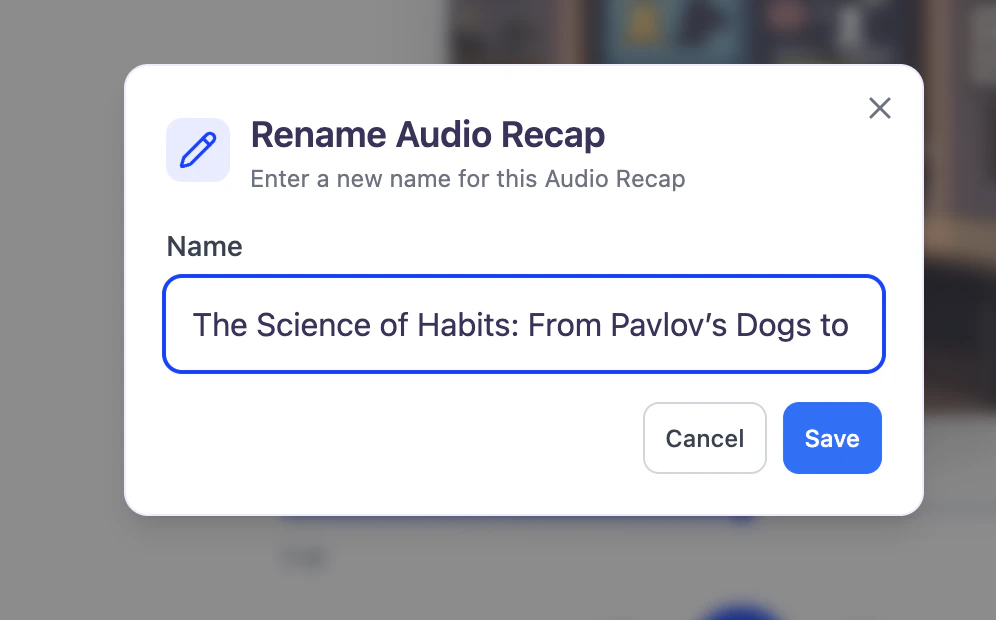
After opening the desired audio recap, click the downward arrow to the right of your audio recap name and then click Rename.
-
You can edit the existing name or enter a new name in the Name field.
When done click Save.
Share Your Audio Recap
Found your audio recap helpful? Feel free to share it with friends or classmates who may benefit from it as well.-
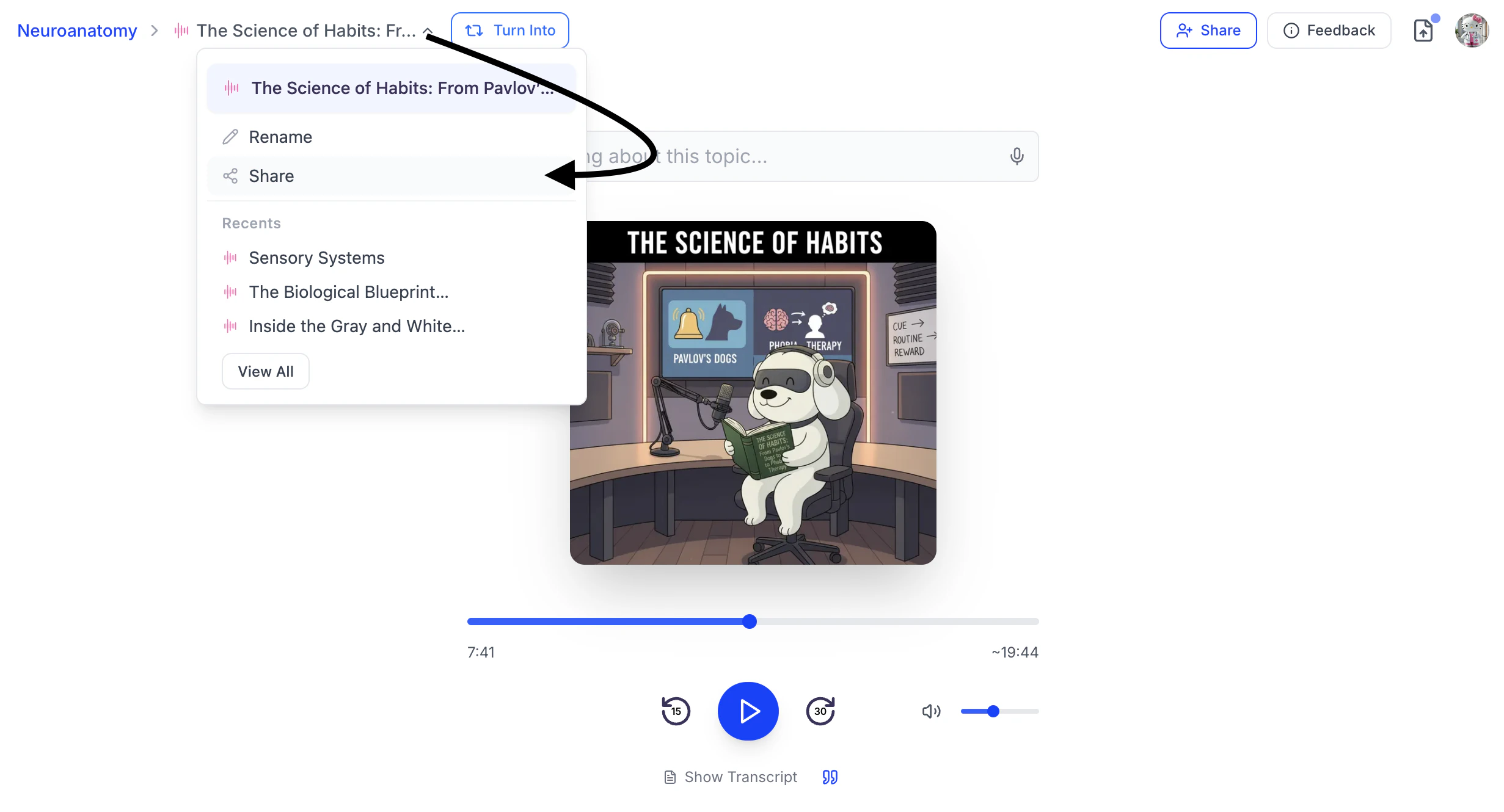
Click the downward arrow next to your audio recap name, then select Share.
-
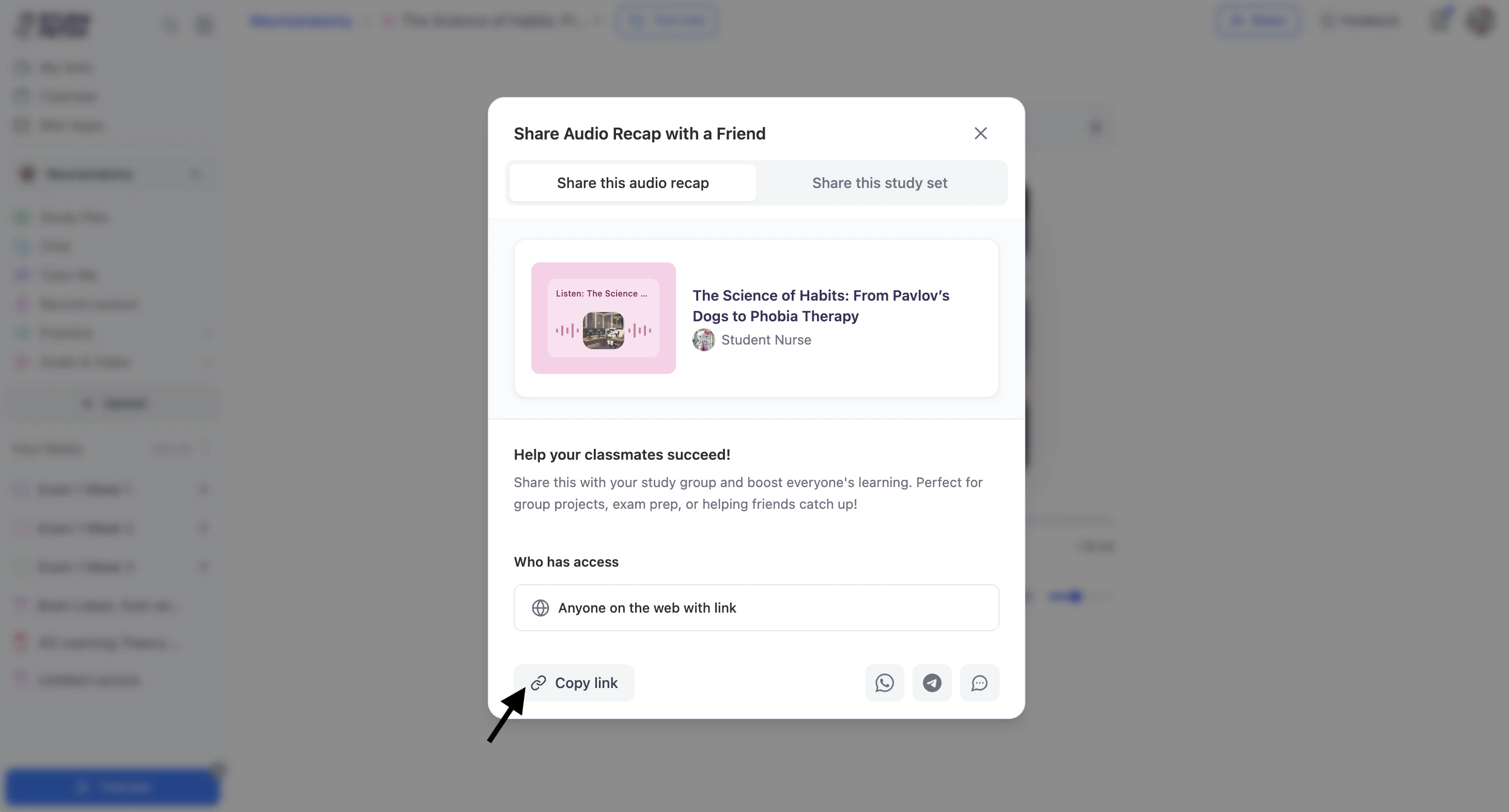
Copy the link by clicking the Copy Link button from the bottom left corner. You can now share the copied link.
-
To share directly through supported apps:
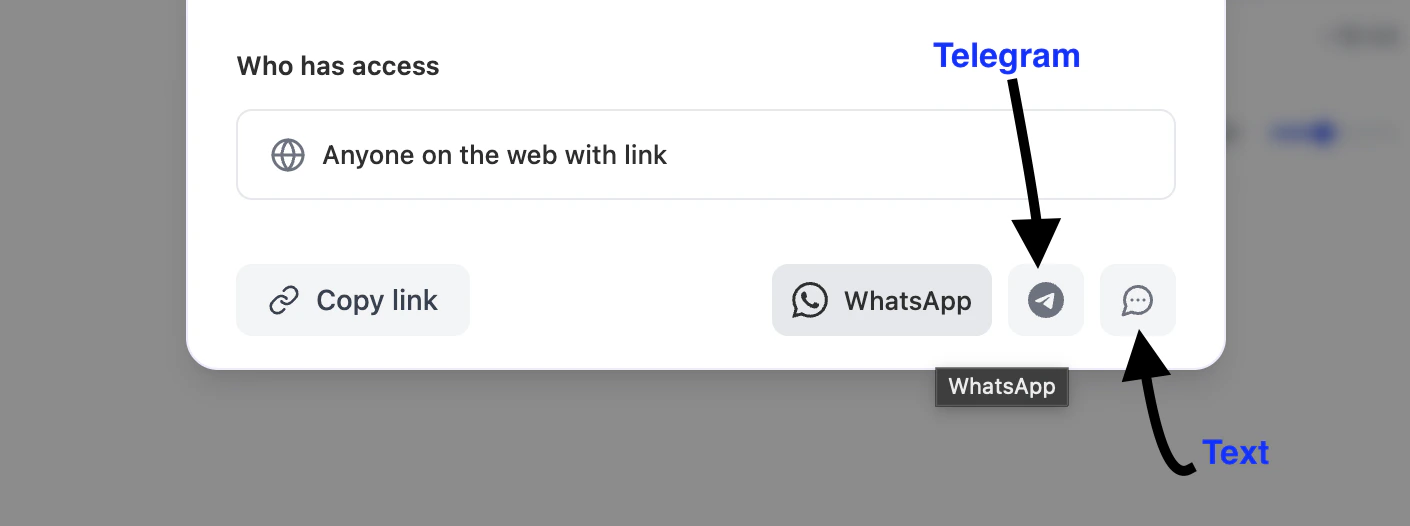
- Select the WhatsApp icon to share via WhatsApp.
- Select the Telegram icon to share via Telegram.
- Select the Text icon to share through your preferred messaging app.
Delete Your Audio Recap
-
First navigate to the Audio Recap feature page. From the left-hand side of your dashboard, click Audio & Video, then select Audio Recap.
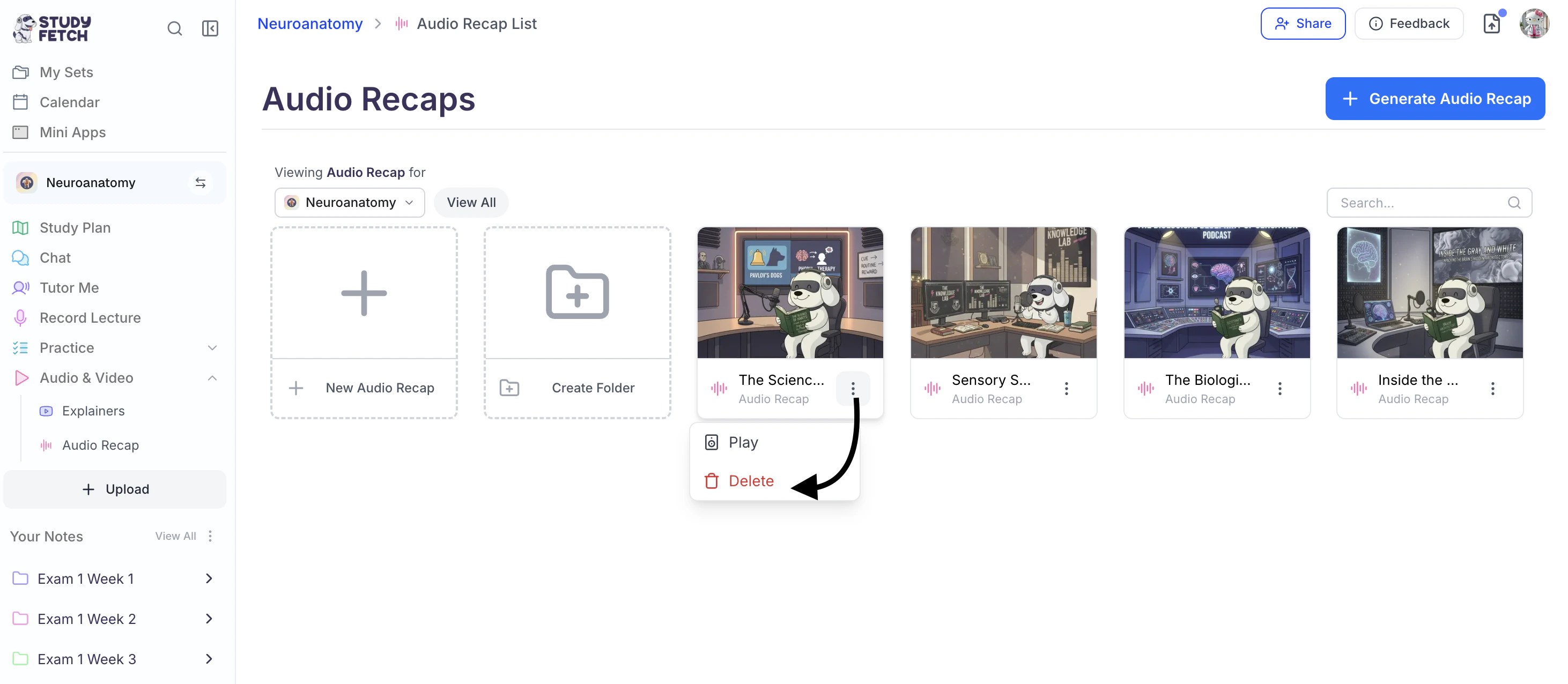
- Select the ⋮ button to the right of the desired audio recap name and choose Delete.
-
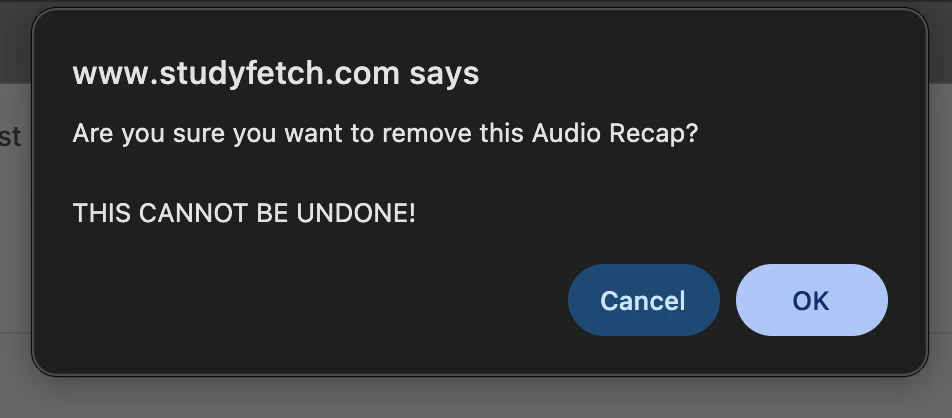
If you are sure you want to delete this audio recap, select OK.
Benefits of Audio Recap
Audio Recap offers several advantages for your learning journey:- Mobile Learning: Study while commuting, exercising, or doing other activities
- Auditory Learning: Perfect for students who learn better by listening
- Customization: Choose voice, accent, and length to suit your preferences
- Transcript Included: Reinforce learning with both audio and text
- Variable Speed: Speed up or slow down playback to match your learning pace
-
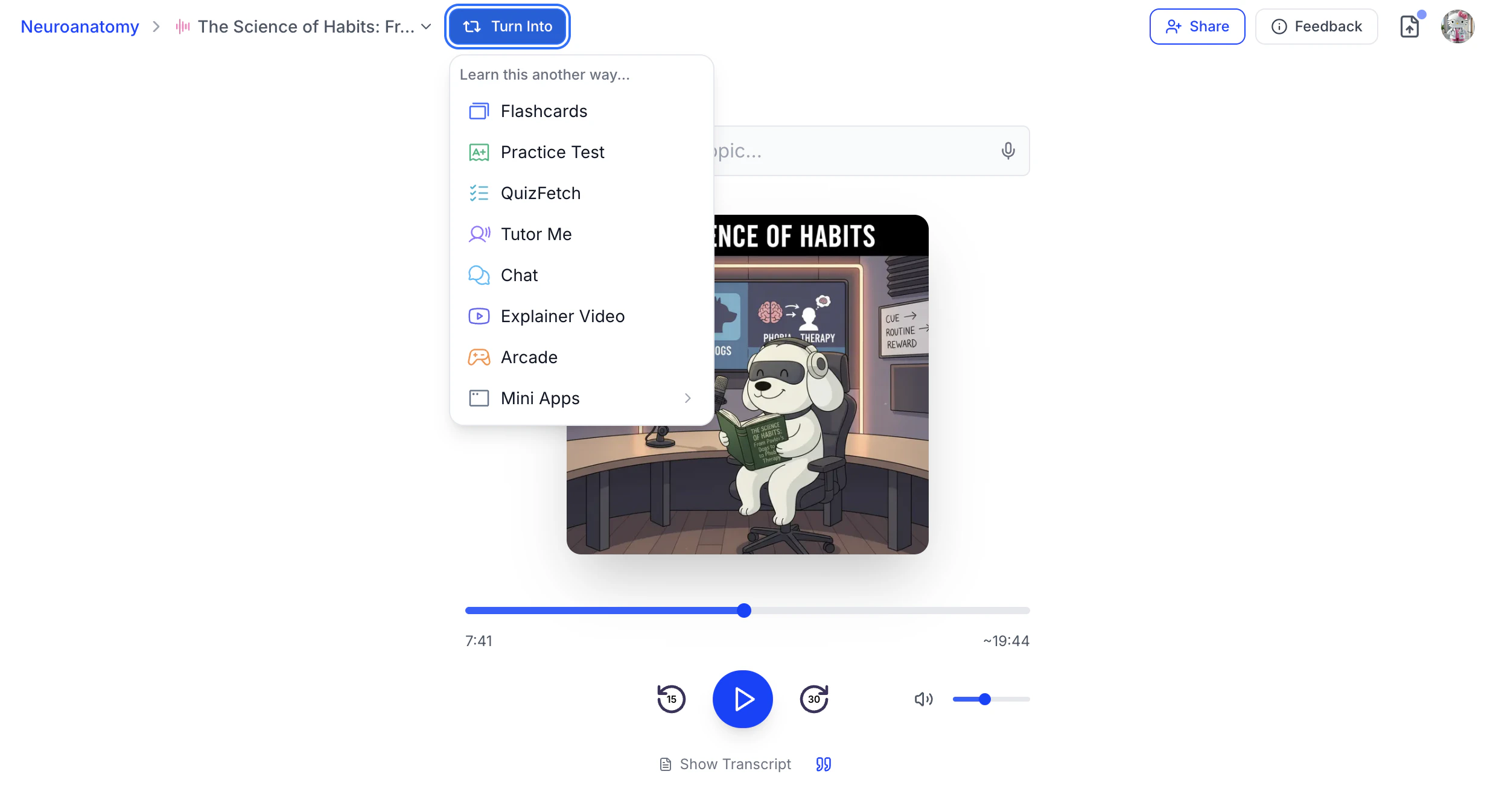
Integration with Other Tools: Your audio recap can be used to generate practice tests, quizzes, and other study materials. You can generate study materials from within each feature section or directly from your audio recap by selecting Turn Into to the right of your audio recap name and choosing your desired study tool.
When to Use Audio Recap
Audio Recap is particularly useful when:- You’re preparing for exams and want to review material on the go
- You want to reinforce learning through a different modality
- You’re an auditory learner who prefers hearing information
- You need to make use of time spent commuting or exercising
- You want to create a podcast-like experience from your study materials
Related Features
After creating an Audio Recap, you might want to:- Check out Notes for a text-based version of your materials
- Use Flashcards to test your recall of key concepts
- Try QuizFetch to test your understanding of the material